Connect your CRM starting from the database
This page covers connecting your CRM database to Lovrabet and starting structure analysis. Lovrabet can currently connect only to publicly accessible databases; for databases on an internal network, first open public access, configure a security allowlist, or route access through your own network solution before connecting.
Who this is for
Implementation engineers and technical leads.
Prepare the database connection details
Have the following ready before you start:
| Item | Example | Notes |
|---|---|---|
| Database type | MySQL / PostgreSQL | Choose your actual database |
| Host and Port | db.example.com:3306 | Must be a public address Lovrabet can reach |
| Database name | crm_demo | This tutorial uses a CRM database |
| Username and password | Provided by your DBA | Must include permission to read the table structure |
| Allowlist | Lovrabet access IPs | Required when the database restricts source IPs |
Steps: connect the database
- Open App Management for the app "Your CRM Example App".
- Open Database Connector.
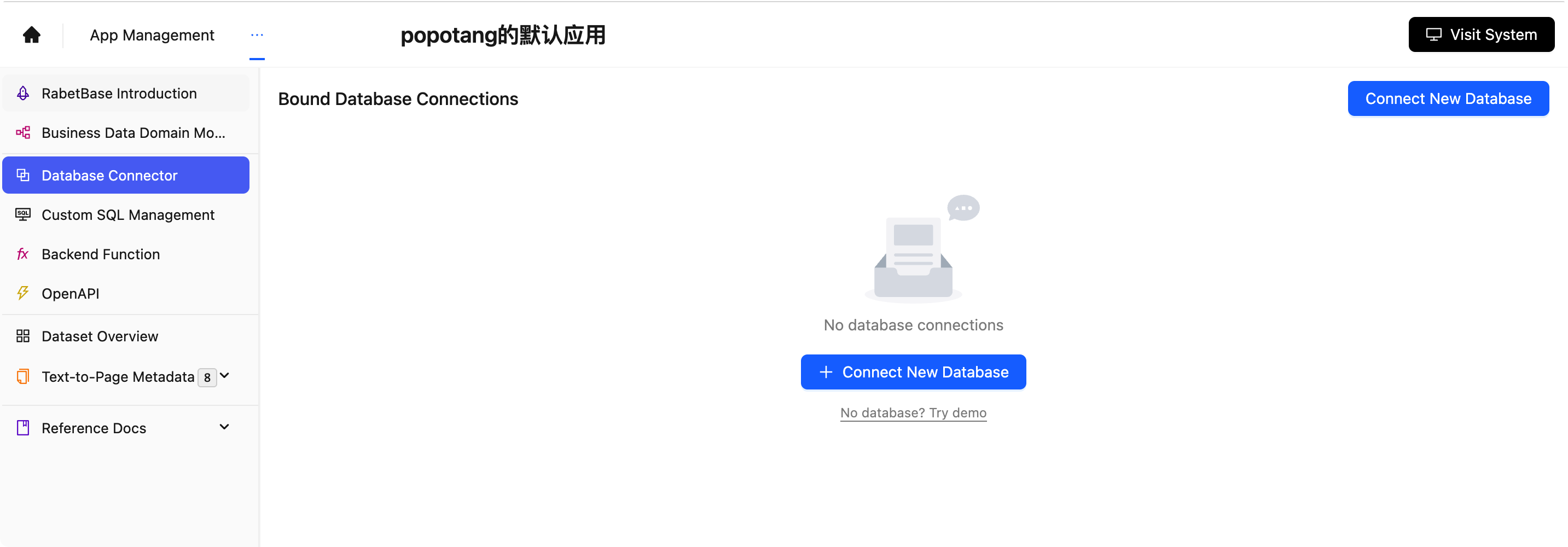
- Click to add a database connection.
- Select the database type.
- Enter the Host, Port, database name, username, and password.
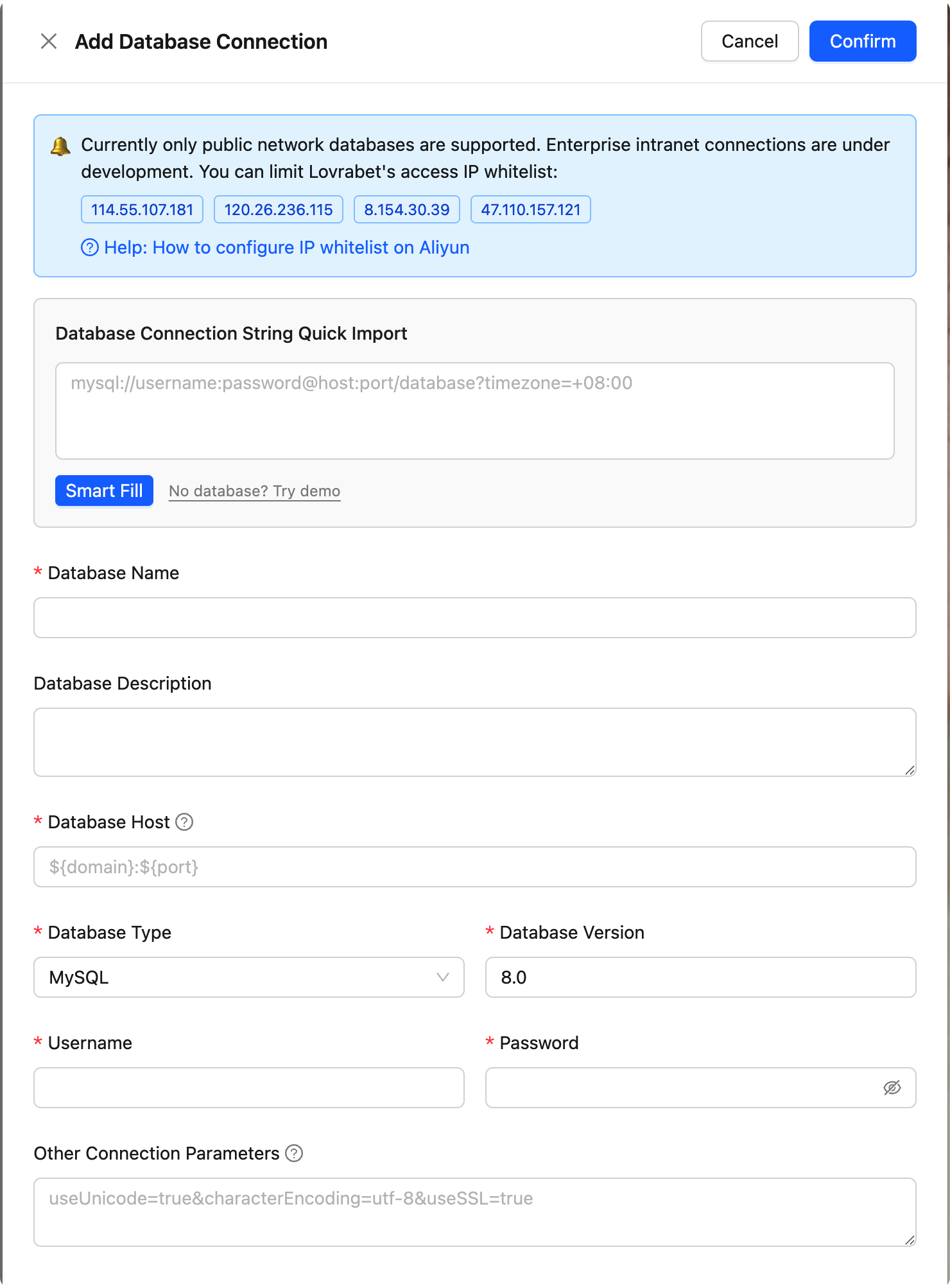
- Click Save.
Test the database connection
- Click Test Connection.
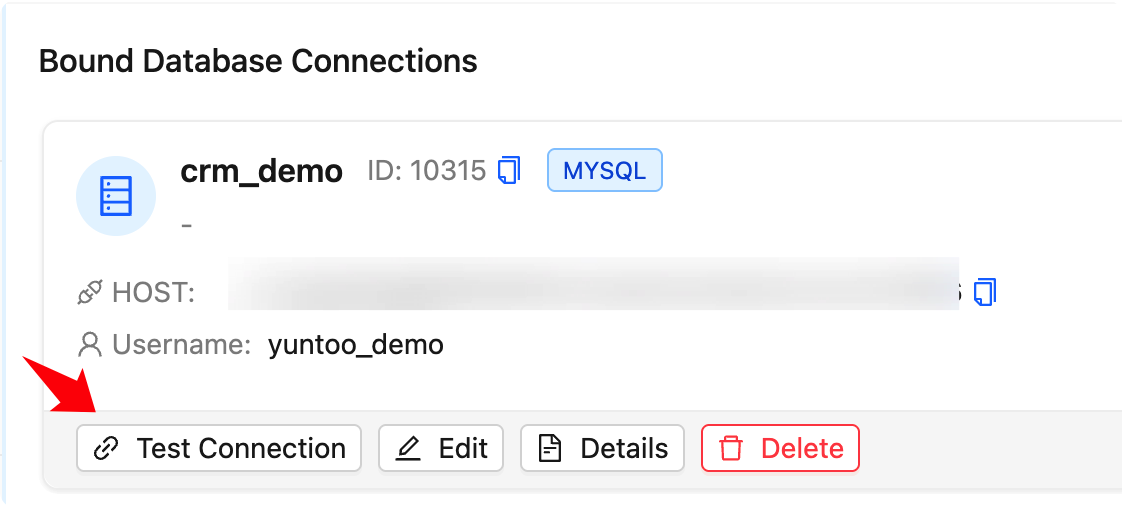
- If the test fails, first check that the database is publicly accessible, then check the allowlist, username, password, and port.
Start the analysis
- Find the database connection you just saved in Database Connector.
- Click Analyze or Smart Analysis.
- Wait for the analysis to finish.
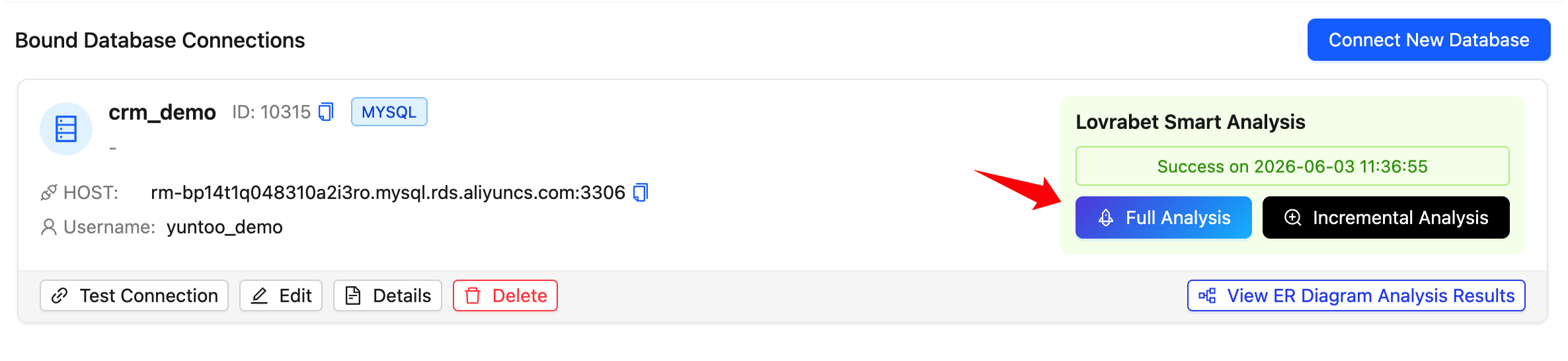
- When the analysis finishes, confirm the status shows success.
How you know it's done
- The database analysis status shows success.
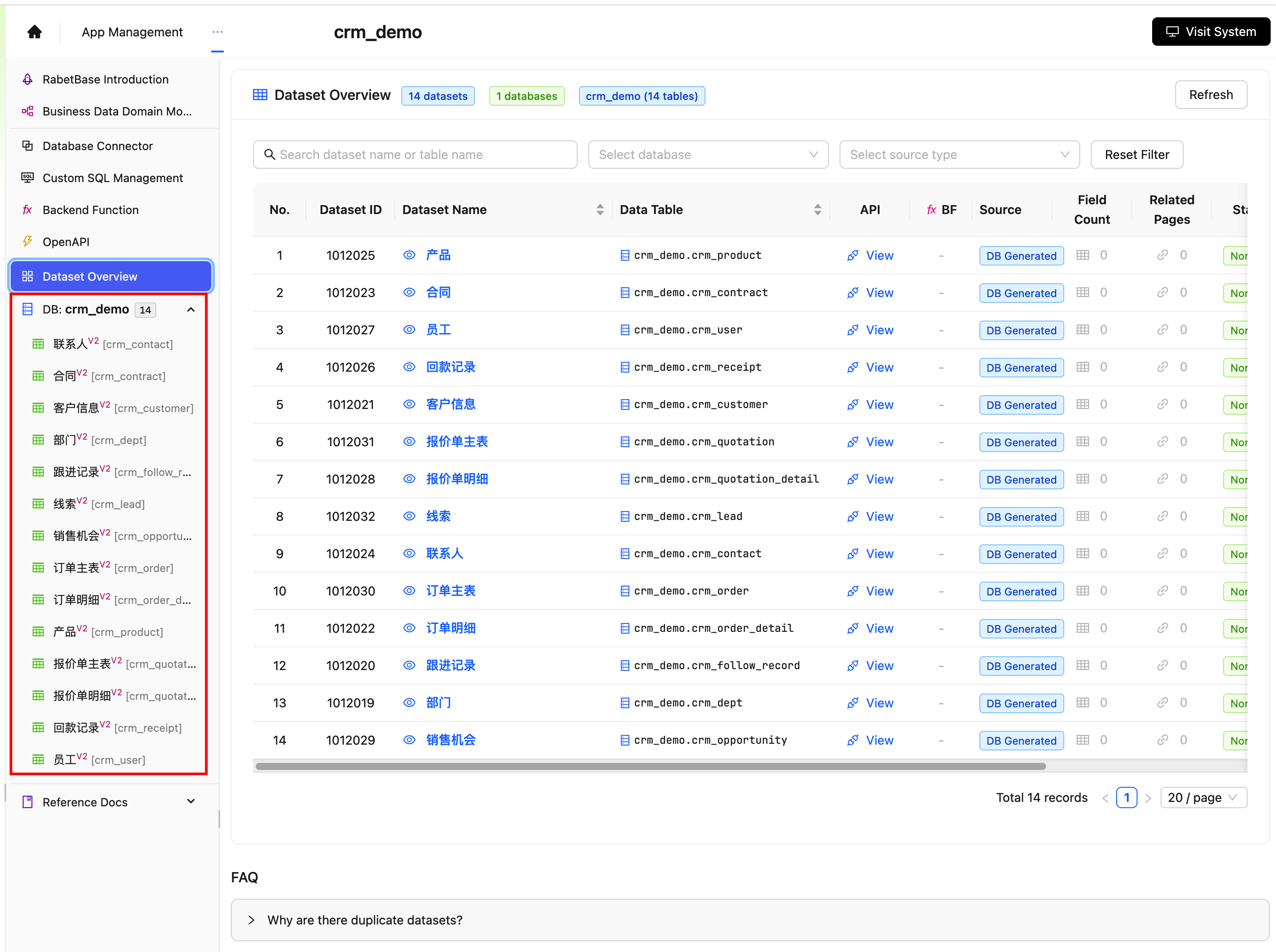
- Datasets from the analysis are visible in Dataset Overview.
- Dataset names map to everyday business records.
If the connection or analysis fails
| Symptom | Check |
|---|---|
| Connection test fails | Check the Host, Port, username, and password |
| "Network unreachable" error | Confirm the database is publicly accessible |
| "Access denied" error | Add Lovrabet's access IPs to the database allowlist |
| Saved successfully but no datasets | Check whether the smart analysis has finished |
| Dataset names are confusing | Open the dataset details and note the fields that need renaming |
| Relations between tables are unclear | Go to Dataset Overview and open Customers, Opportunities, and Follow-up Records one by one |
Claude Code prompt
text
请使用 rabetbase 检查目标应用的数据库连接和分析状态。
按顺序执行:
1. rabetbase db list --appcode <你的应用 appCode> --format compress
2. 如果已经有数据库连接,记录 connections[].id 和 latestAnalysisStatus
3. 如果分析未完成,输出 rabetbase db analyze-start --id <连接ID> --appcode <你的应用 appCode> --format compress
4. 如果分析已经完成,再执行 rabetbase dataset list --appcode <你的应用 appCode> --format compress
5. 再执行 rabetbase dataset links --appcode <你的应用 appCode> --format compress
只输出数据库名称、连接状态、分析状态、数据集清单和下一步命令。
本轮不创建、不更新、不删除数据库连接;需要新建连接时先输出 dry-run 命令。
Next steps
Continue to "2. Query system data".