Run business workflows with the Agent
This page explains how to query system data in the runtime. Using a CRM scenario as the example, it demonstrates three common queries: pulling a batch of customers, viewing a single customer's details, and viewing the follow-up records and opportunities linked to a customer. In your own system, you can query orders, tickets, contracts, inventory, payments, and other data the same way.
Who this is for
Sales managers, sales reps, and implementation engineers.
Enter the runtime and query data
- Open the app "Your CRM Example App".
- Click Visit System.
- In the runtime, click Lovrabet AI in the left sidebar.
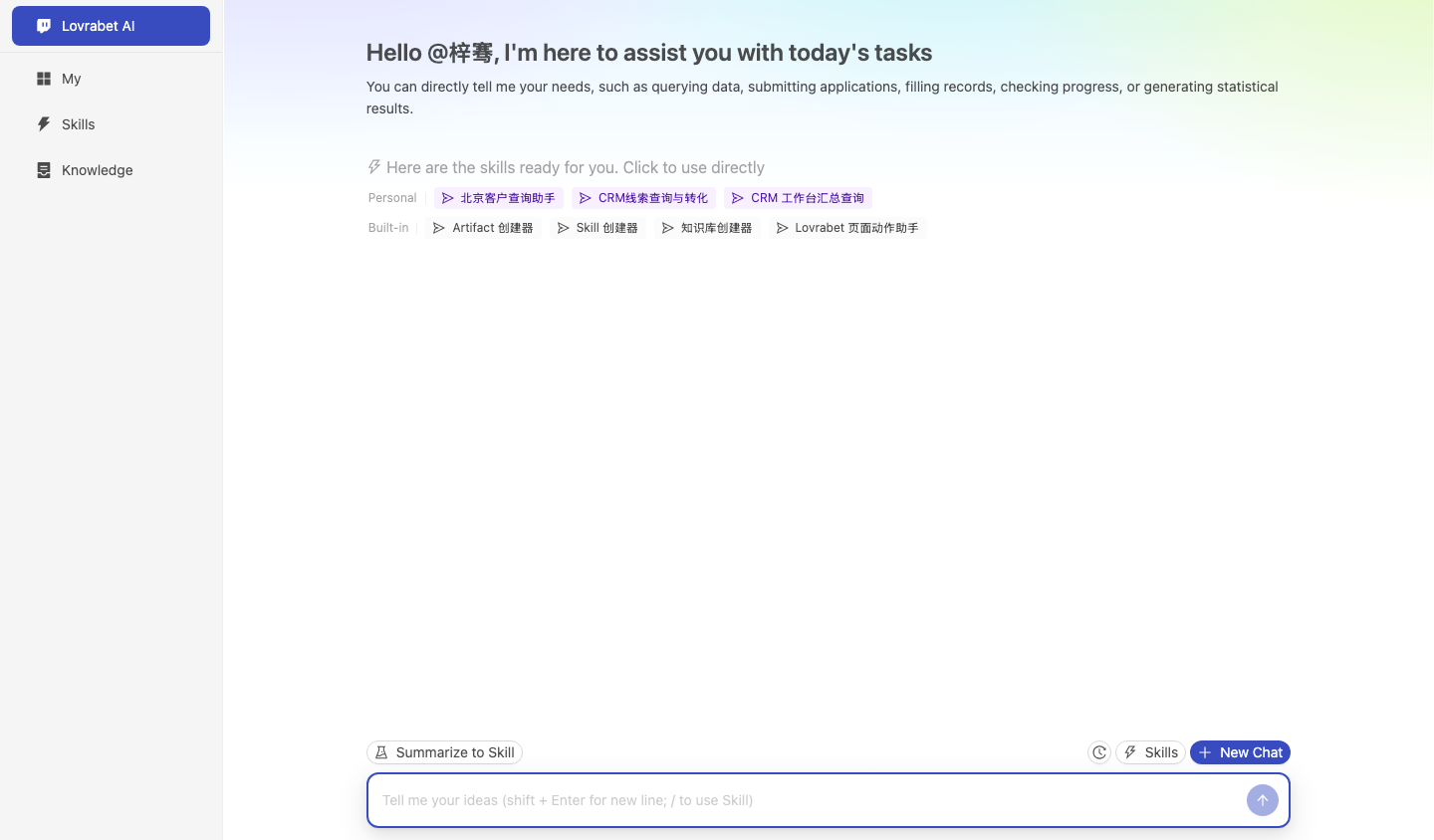
- Compare your screen with the screenshot below: there should be an input box at the bottom of the page and available Skills in the middle.
Screenshot reference: the runtime chat entry is shown below. Data queries start from the input box at the bottom.
Query a batch of data
Paste a business question into the input box. Here is a CRM example:
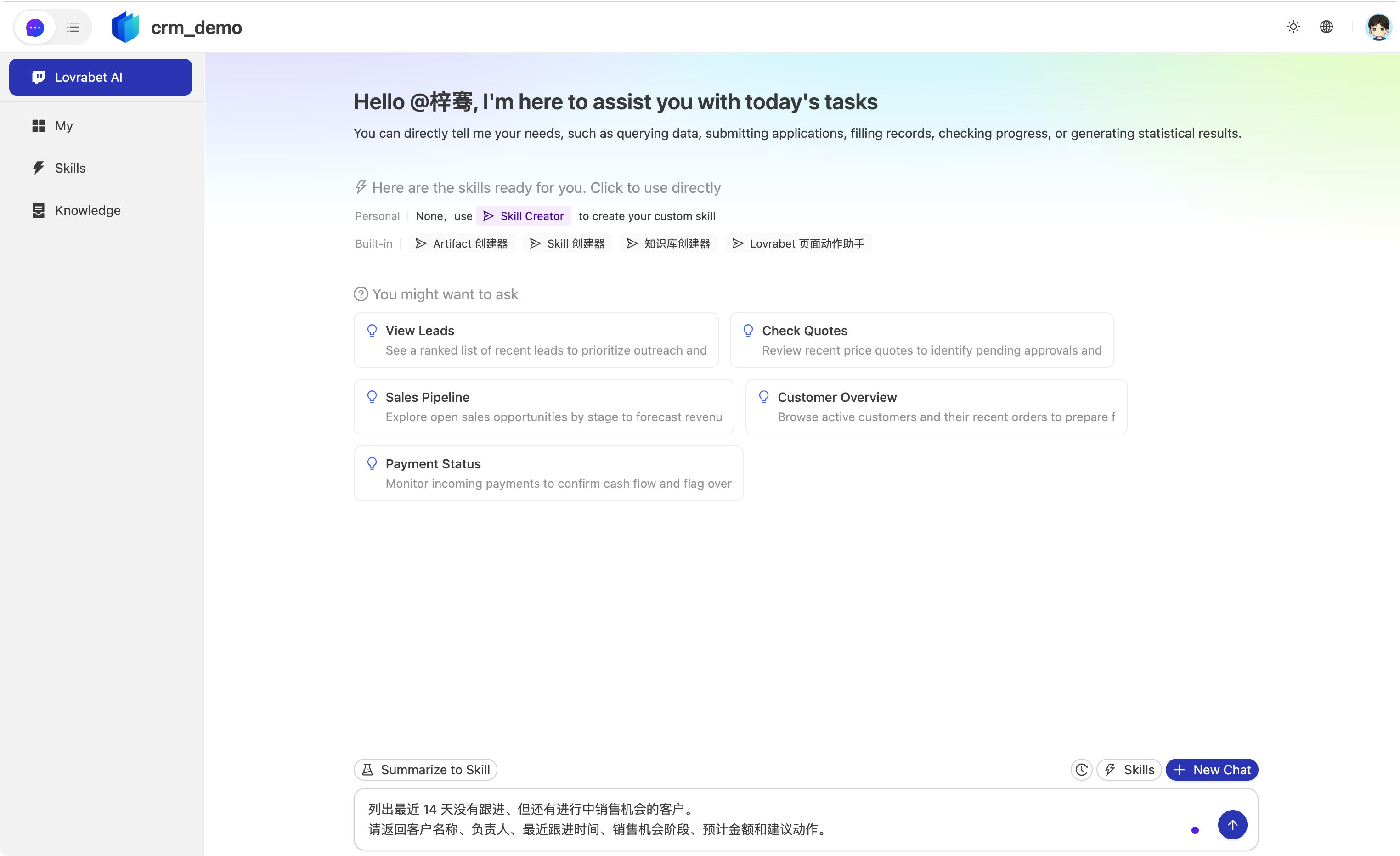
列出最近 14 天没有跟进、但还有进行中销售机会的客户。
请返回客户名称、负责人、最近跟进时间、销售机会阶段、预计金额和建议动作。
When the results come back, check three things:
- Can business users work with the returned fields as-is?
- Do the filter conditions match the current business definitions?
- Does each user see only the data they have permission to view?
In the CRM example, start by confirming these fields:
| Field | Used for |
|---|---|
| Customer name | Identify which customer to act on |
| Owner | Confirm who follows up |
| Last follow-up time | Check whether it is overdue |
| Opportunity stage | Gauge progress |
| Expected amount | Set priority |
| Suggested action | Decide the next step |
View a single record's details
After a batch query, click a record to open its details. In the CRM example, open a customer and check these areas:
| Area | Fields |
|---|---|
| Customer profile | Customer name, tier, industry, region, owner |
| Recent follow-ups | Follow-up time, method, notes, next-step plan |
| Linked opportunities | Stage, amount, expected close date, risk notes |
| Suggested actions | Next follow-up time, suggested talking points, whether the manager should step in |
For orders, tickets, contracts, and other system data, check the same way: core fields, current status, linked records, and next steps.
View related data
Keep querying related information from a record's detail page. In the CRM example, you can enter:
总结这个客户最近 30 天的跟进情况。
请列出当前销售机会、风险点和下一步建议,并说明依据来自哪些记录。
If the evidence the Agent cites doesn't match what the page shows, go back to App Management → Dataset Overview and verify the fields and relations against the screenshot below.
If the results look wrong
| Symptom | Check |
|---|---|
| Too many results | Narrow the time range, or add filters such as status or owner |
| Too few results | Check that dataset relations are complete and the query isn't too narrow |
| Field names are confusing | Recalibrate field names in Dataset Overview |
| Detail page is missing fields | Check that the fields the detail page needs are recognized in the dataset |
| Related records are missing | Check the relation fields between datasets |
| Amounts shouldn't be visible | Adjust field permissions |
Claude Code prompt
请使用 rabetbase 找到目标应用里可用于系统数据查询的数据集。
先执行 rabetbase dataset list --appcode <你的应用 appCode> --format compress。
再执行 rabetbase dataset links --appcode <你的应用 appCode> --format compress。
如果以 CRM 为示例,再分别打开客户、销售机会、跟进记录数据集详情:rabetbase dataset detail --code <datasetCode> --appcode <你的应用 appCode> --format compress。
输出可用于批量查询、单条详情和关联数据查询的数据集、字段、关联字段、筛选条件和权限注意事项。
本轮只读,不生成页面,不修改数据集。
Next steps
Continue to "3. Review execution records and save as a Skill".