Preparation: create the app
This page creates the CRM sample app used by this tutorial. If you already have an app, start from "Enter an existing app".
Who this is for
Implementation engineers, administrators, and technical leads.
1. Open the unified creation entry
- Open the Lovrabet workspace and create an app directly.
Screenshot reference: the unified creation entry is shown below. Click the new-app card to open the creation page.
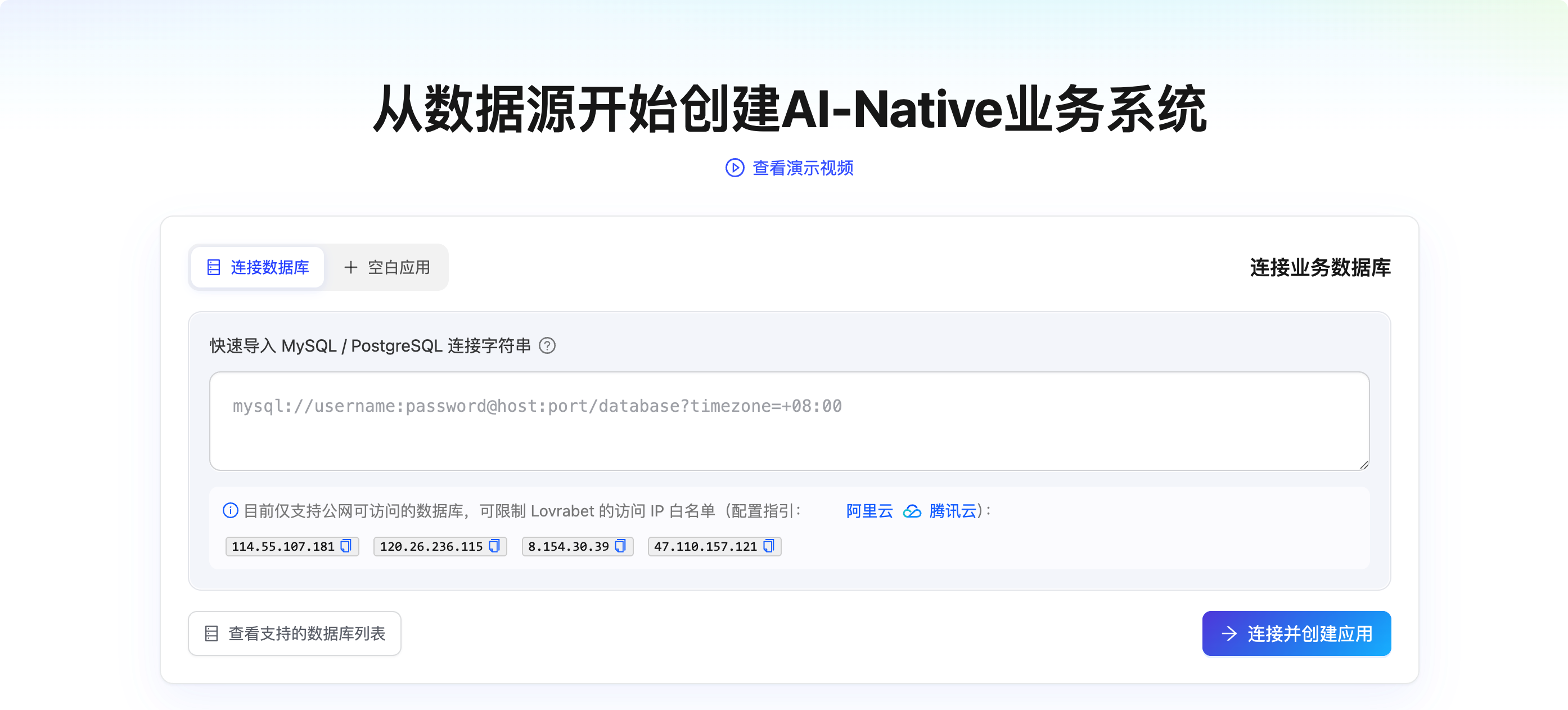
2. Choose a creation method
On the creation page, pick the method that fits your situation.
| Method | Best when | Result |
|---|---|---|
| Option 1: quickly create a new app from a DB | You already have MySQL / PostgreSQL connection details | Creates the app, binds the database, and starts structure analysis |
| Option 2: start from an empty app | No database yet, or you want an empty app first | Creates an empty app; connect the database later in Database Connector |
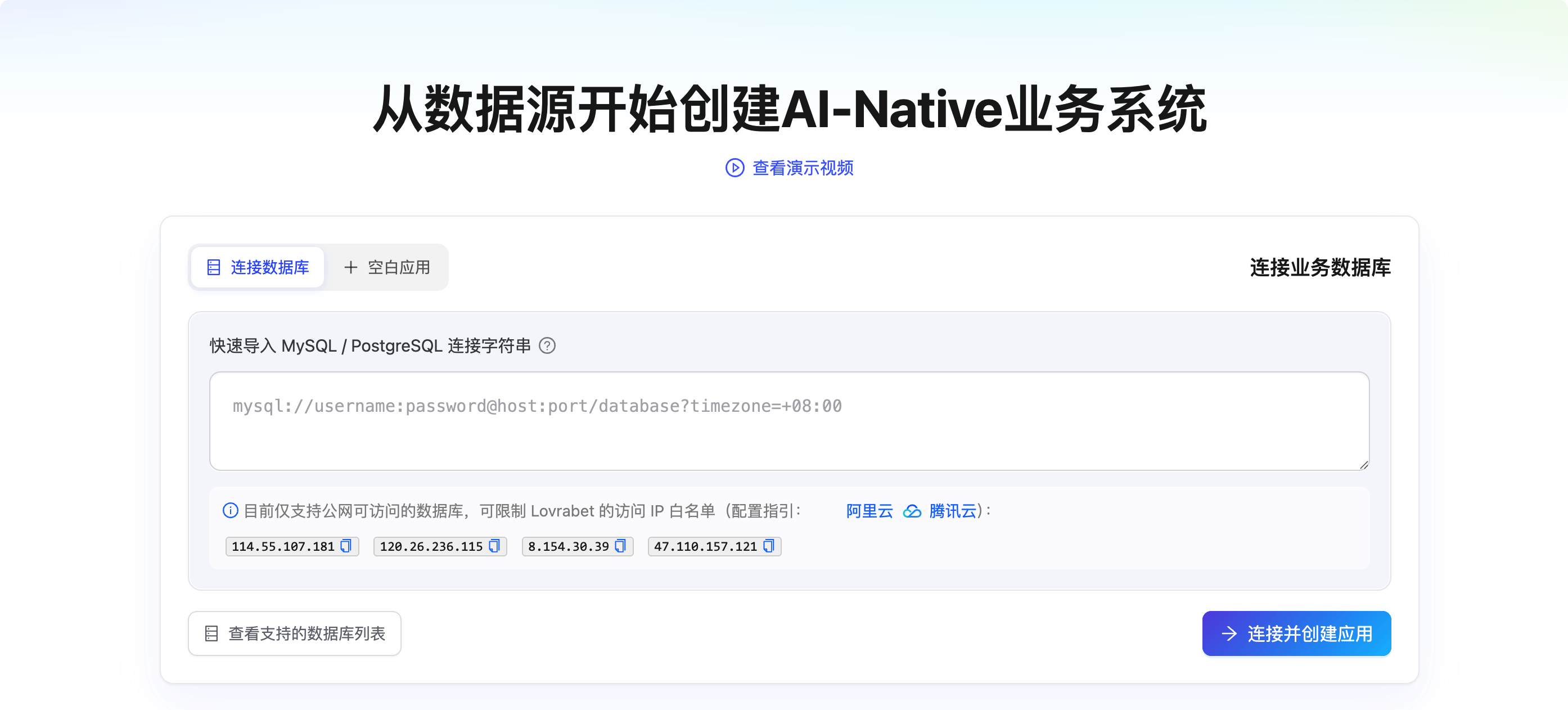
Option 1: quickly create a new app from a DB
- On the left of the creation page, enter the database connection string, or fill in the database connection details as the page asks.
- Click Parse and Create App.
- Wait for the system to create the app, bind the database, and run structure analysis.
- When it finishes, go to App Management.
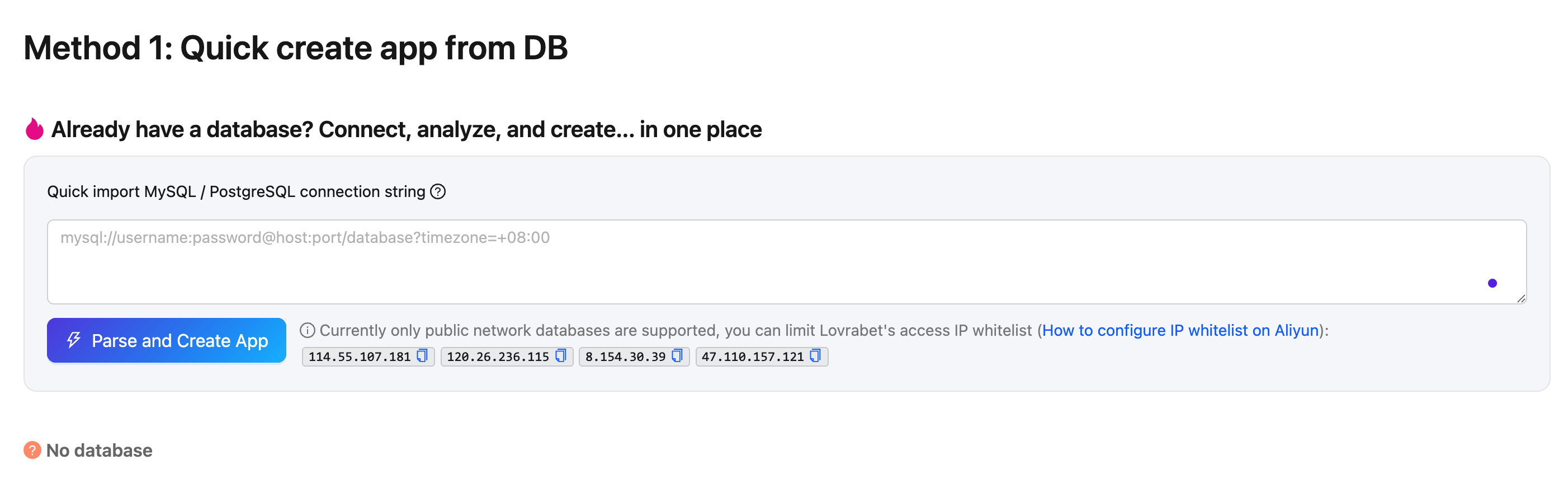
Option 2: start from an empty app
- On the right of the creation page, enter the app name.
- Enter a short description.
- Click Create App.
- When it finishes, go to App Management.
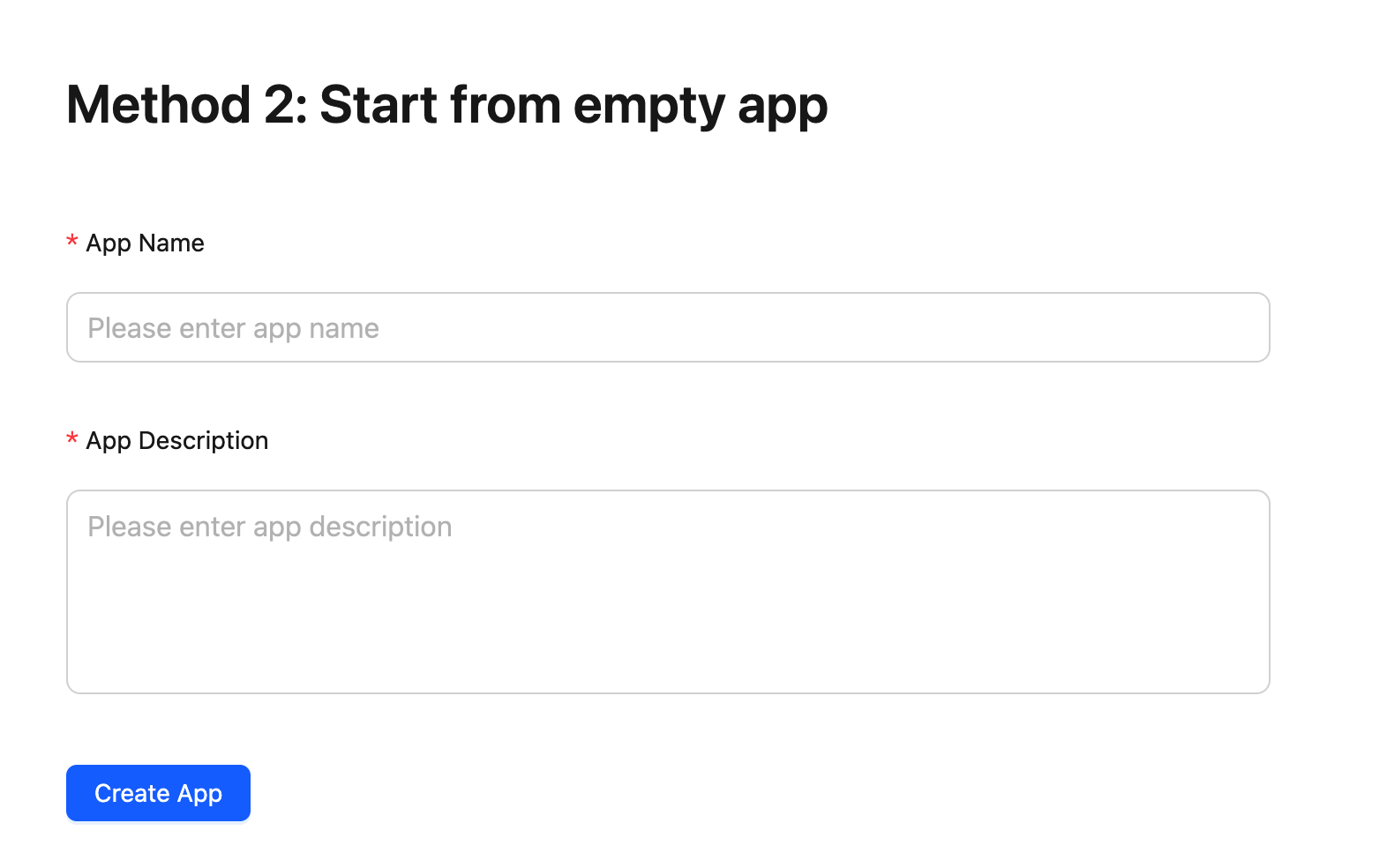
Enter an existing app
Open the Lovrabet workspace.
Open the CRM app you want to modernize.
Click App Management in the left sidebar.
Confirm the page has a Visit System button.
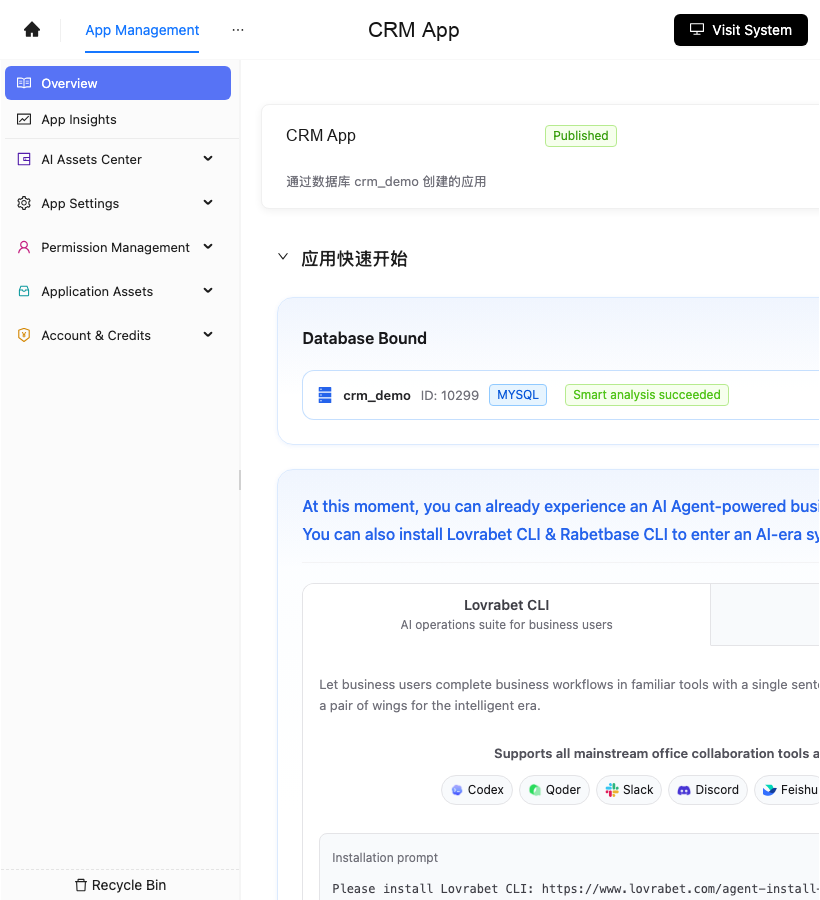
Compare with the screenshot below: you're on the app management page and the status is Published.
Click Visit System to enter the CRM runtime.
Return to the management page and confirm these entries in the left sidebar:
- App Insights
- AI Assets Center
- App Settings
- Permission Management
- Application Assets
Screenshot reference: the management entries of the finished CRM app are shown below. Confirm Visit System at the top and App Management selected on the left.
Next steps
Continue to "1. Connect your CRM starting from the database".