Connect a database and run your first full analysis
Lovrabet builds AI-Native systems on top of your existing enterprise data.
This guide shows how to bring an existing database into Lovrabet with the Database Connector.
Option 1: Work manually in the Lovrabet workbench
Step 1. Connect a new database
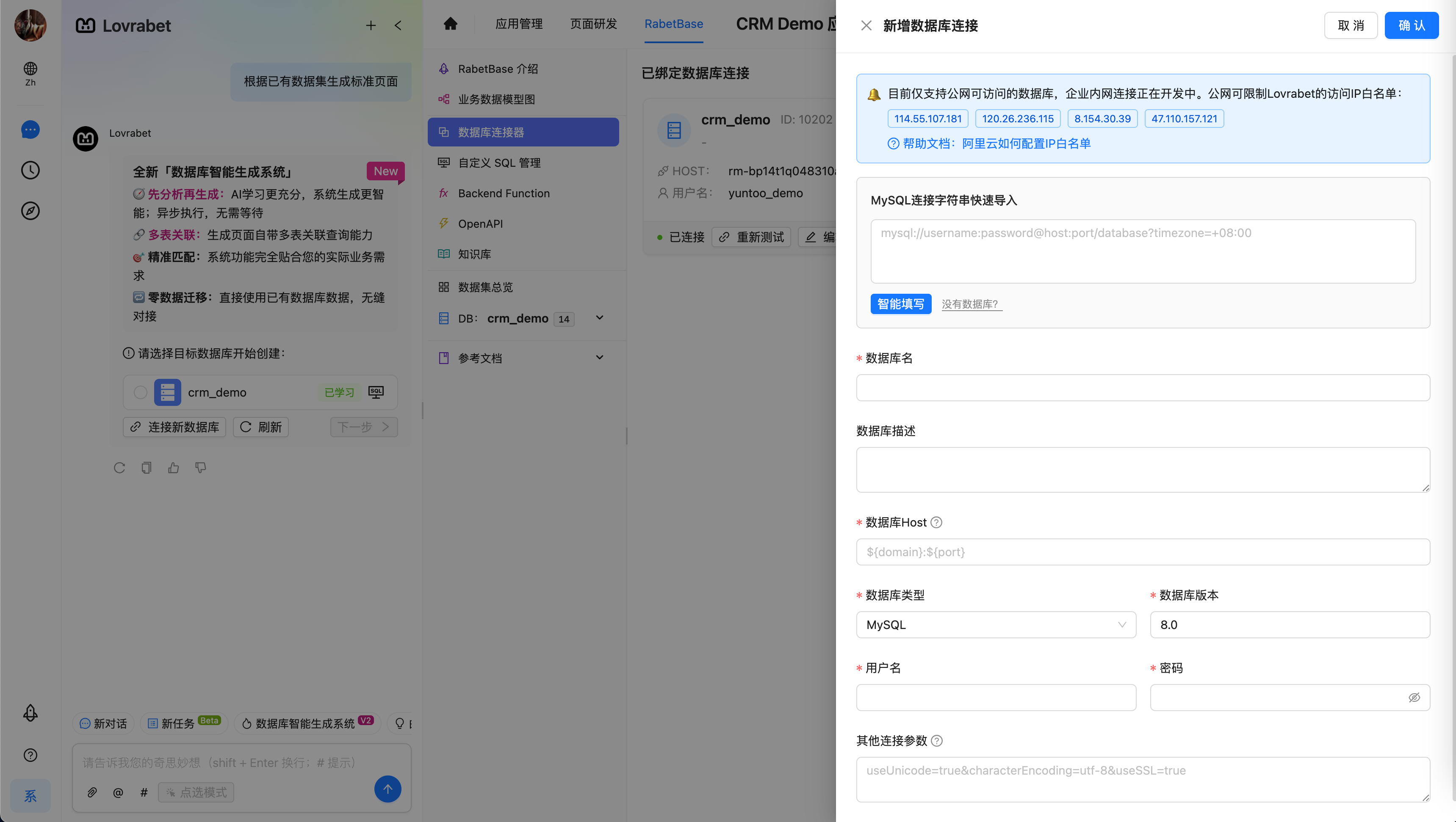
Click Connect new database, then fill in the database connection details in the drawer that opens.
On a saved connector card, click Edit to change the connection details, or Test connection to check whether the database is reachable from the Lovrabet server.
<grid> <column width-ratio="0.500432"> 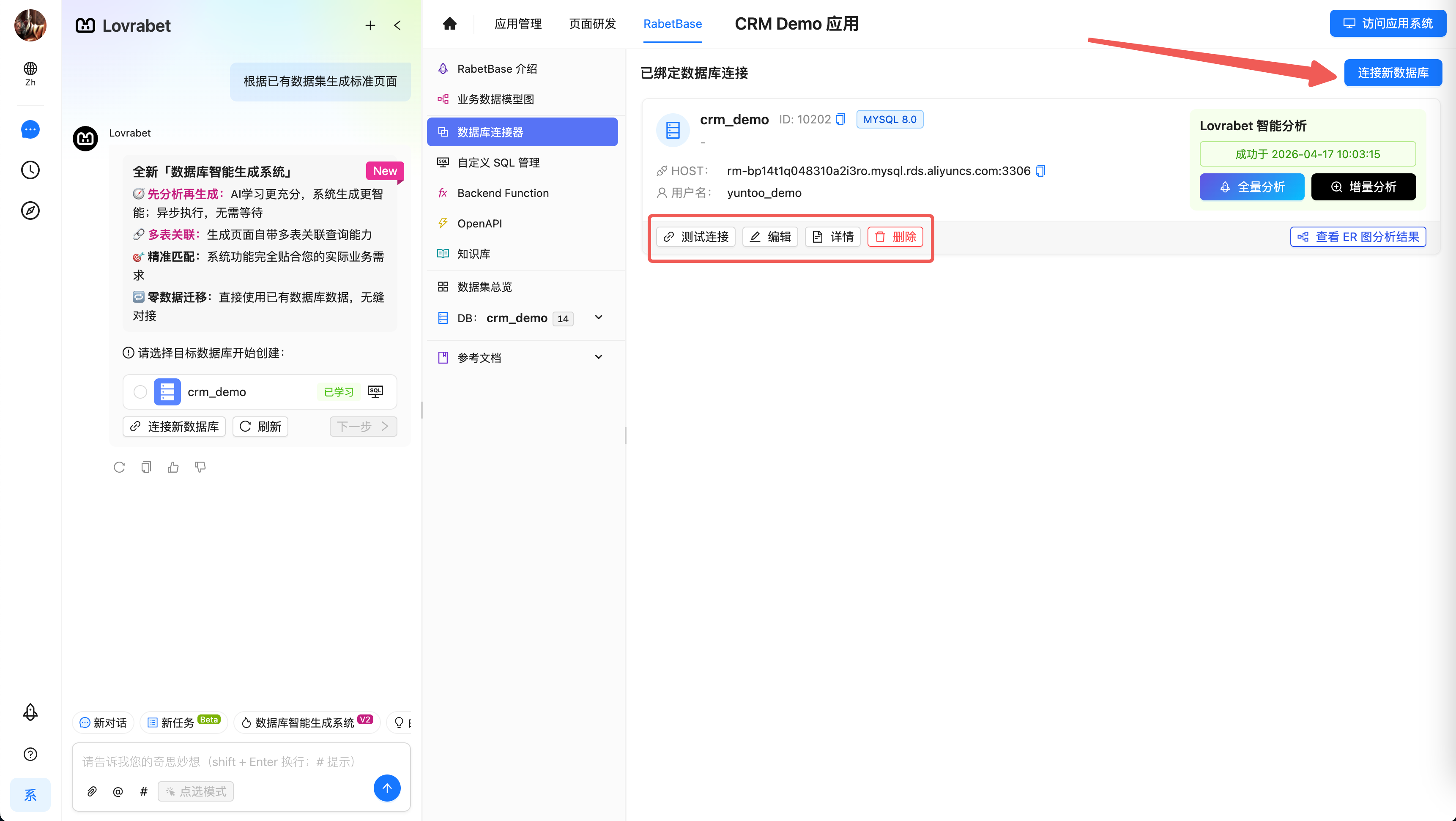 </column> <column width-ratio="0.499568">
  </column> </grid>
Step 2. Intelligent database analysis
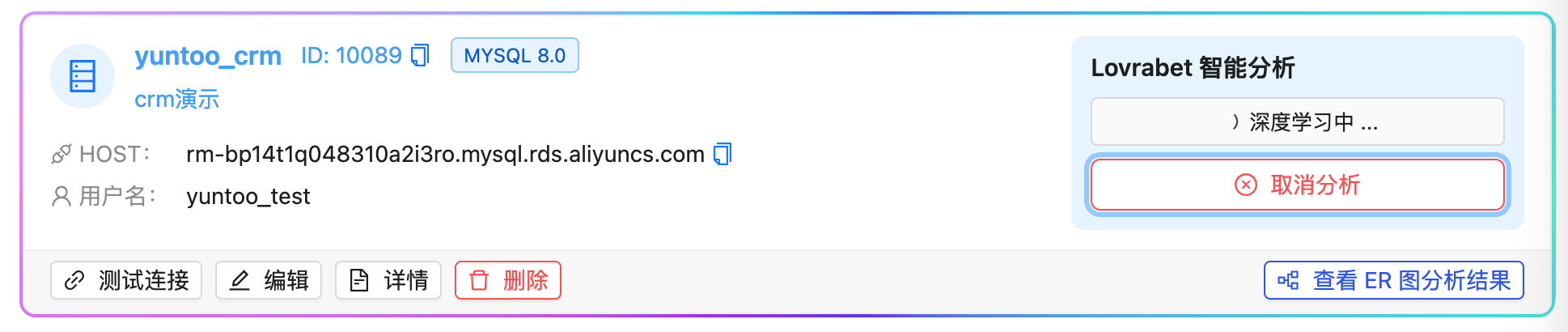
Once the database is connected, click Full analysis. Lovrabet then analyzes every table in the database in the background.
Analysis time depends on table size (30~60 seconds per table on average).
<grid> <column width-ratio="0.500000">  </column> <column width-ratio="0.500000">
  </column> </grid>
Step 3. Ready to go
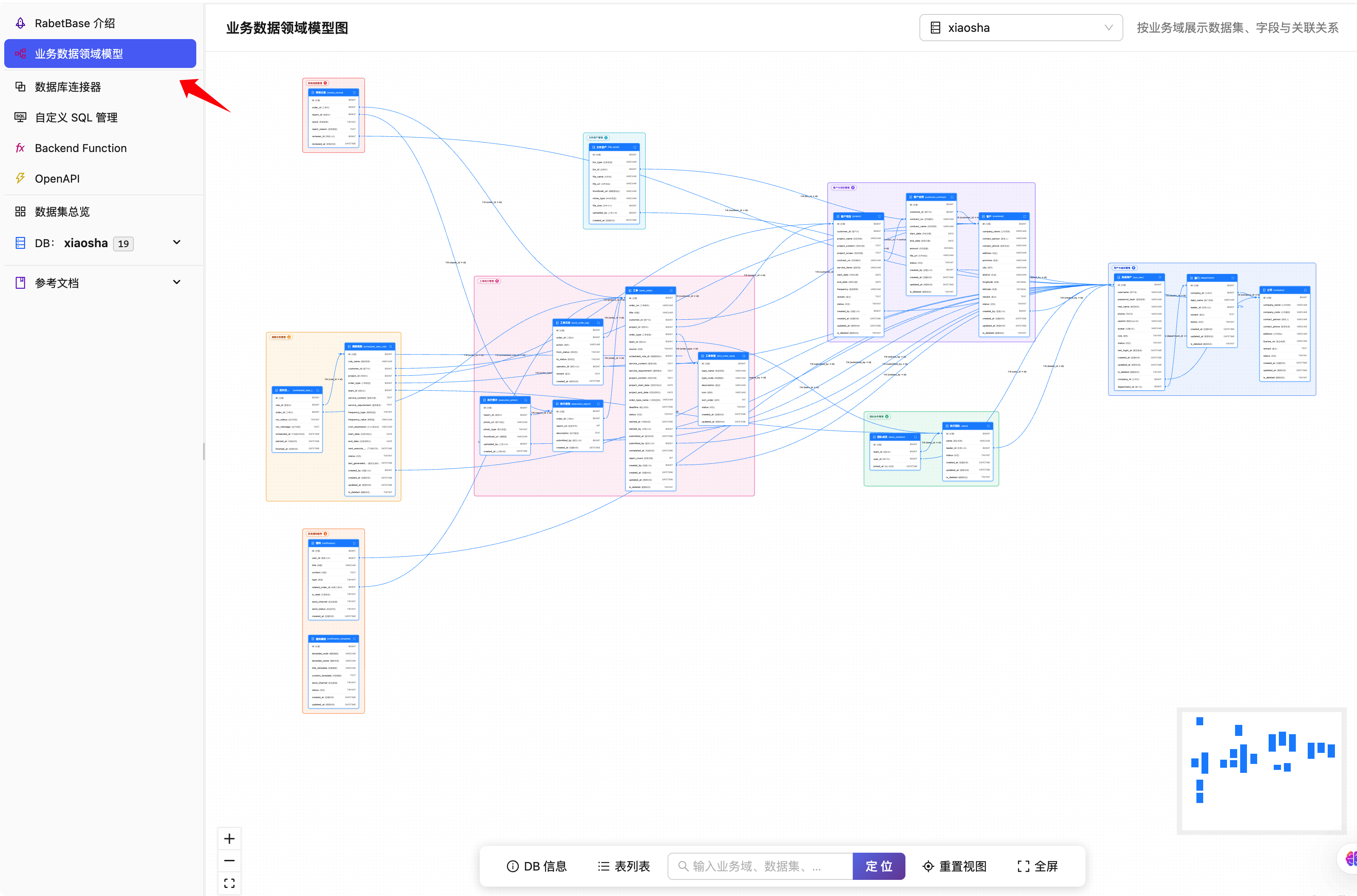
When the intelligent analysis finishes, click View analysis results, or start using any of Lovrabet's development capabilities.
Option 2: Let an Agent run it through the Rabetbase CLI
Everything you do in the console can also be done by an Agent through the Rabetbase CLI. Developers usually just copy a prompt instead of typing commands by hand.
| Console action | CLI the Agent can call |
|---|---|
| Test connection | db test |
| Full analysis | db analyze-start |
| Incremental analysis | db analyze-start --tables … |
| Check analysis status | db analyze-status |
Sample prompt
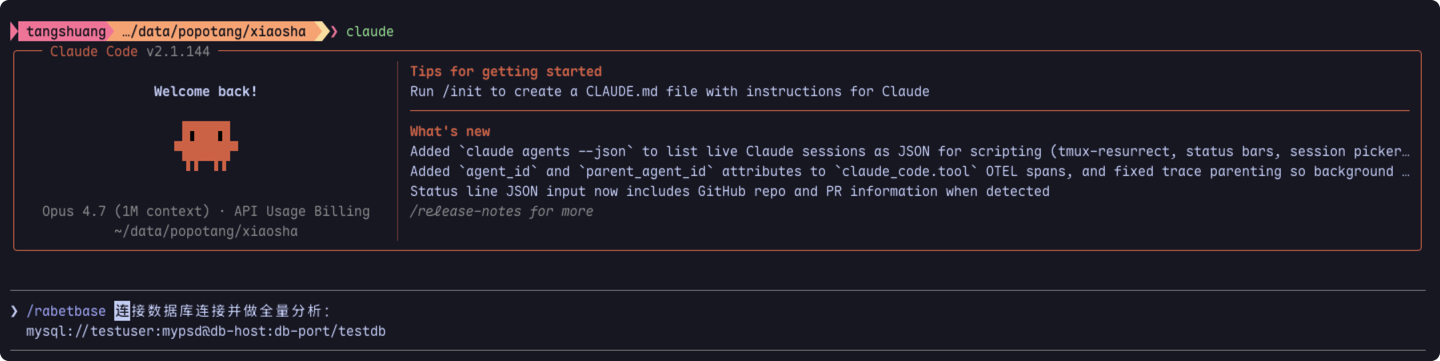
/rabetbase 连接数据库连接并做全量分析:
mysql://testuser:mypsd@db-host:db-port/testdb
For incremental analysis prompts, see Incremental analysis after schema changes; for the full command set, see Console actions ↔ Rabetbase CLI mapping.
FAQ
Can't reach my database?
Only publicly accessible databases are supported for now (connections to databases on private networks are in development).
You can restrict access with the Lovrabet IP allowlist: 114.55.107.18 1120.26.236.115 8.154.30.39 47.110.157.121
The database changed — how do I sync it to Lovrabet?
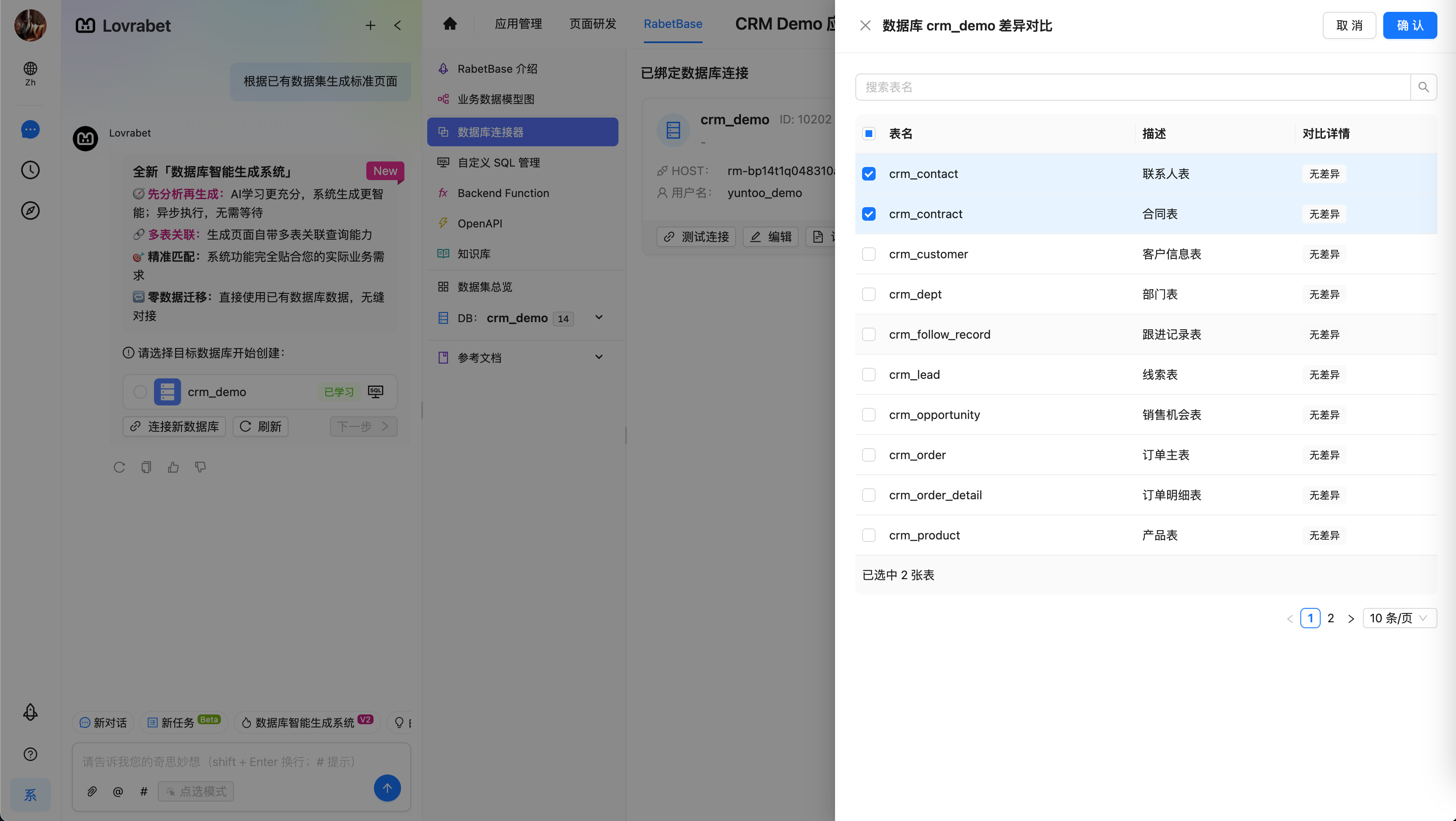
Make sure the database is connected, click Incremental analysis, and select the tables you want to analyze.
<grid> <column width-ratio="0.500000"> 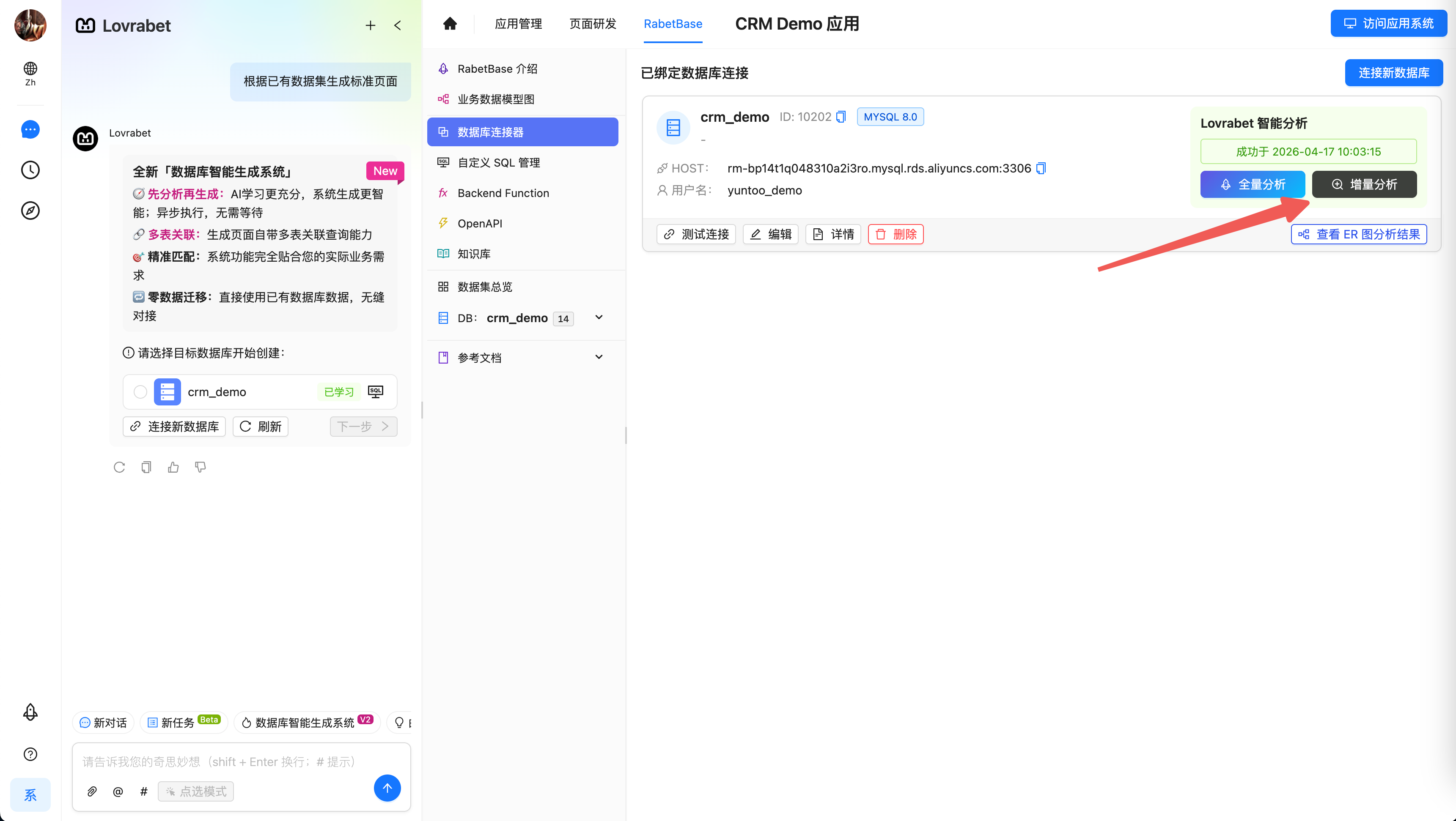 </column> <column width-ratio="0.500000">
  </column> </grid>