Add developers: invite colleagues to your enterprise tenant
First, confirm your role
This guide shows you how to add colleagues who need to build, configure, or manage apps to your enterprise tenant. Once added, they can enter the Lovrabet development platform and use the development features they're authorized for.
Not your scenario?
If you just want a regular user to access a published app without joining your enterprise tenant, see Invite users to an app: approve access to a published app.
- Tenant admin: copy the invitation link and send it to your colleague; once they submit a join request, approve it in the member list.
- Invited colleague: open the invitation link, sign up or sign in to Lovrabet, and submit a join request; once the admin approves, switch to the enterprise tenant.
Full walkthrough
Here's the overall path first. The detailed steps below walk you through each part.
<whiteboard token="MXsCw6YRohvaRubXUEWcmpJ0nCg"></whiteboard>
Before you start
- The admin has switched to the target enterprise tenant — not to a personal tenant.
- The admin account can open Tenant Management and Member List.
- The invited colleague can open the invitation link sent by the admin, and can complete sign-up or sign-in.
Admin: open the enterprise tenant member list
Invite new members entry point: https://app.lovrabet.com/tenant/members
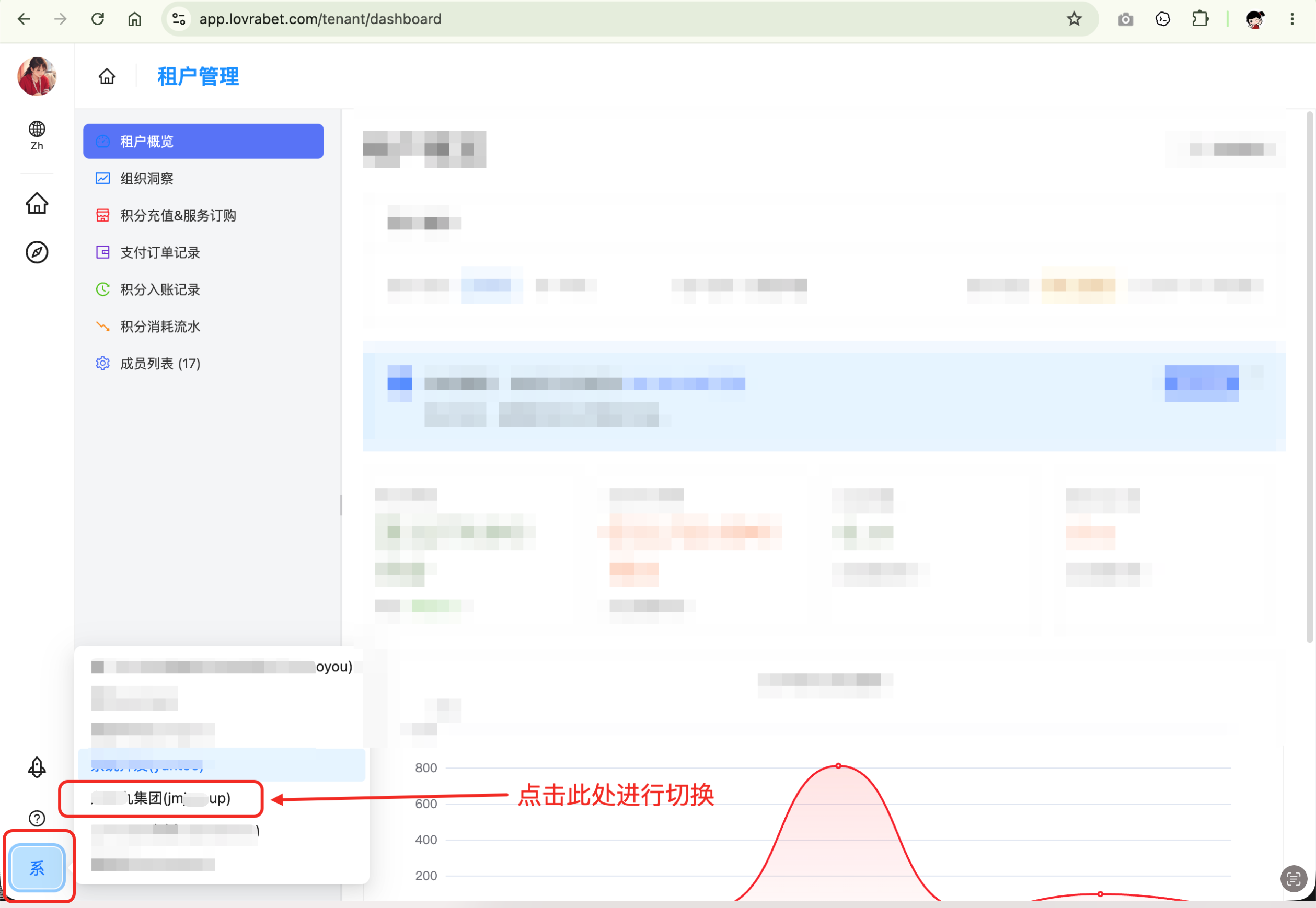
Click the Tenant switch logo in the lower-left corner of Lovrabet and make sure the target enterprise tenant is selected. Then go to Tenant Management → Member List (/tenant/members).
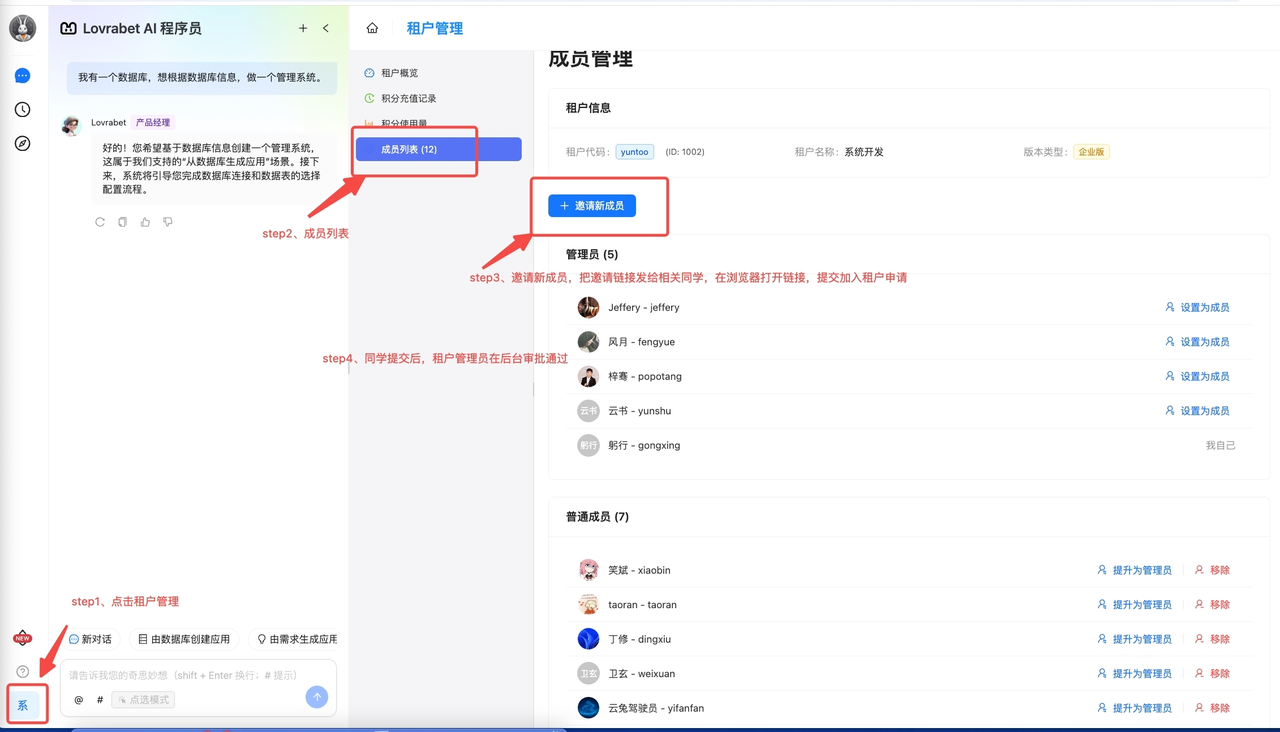
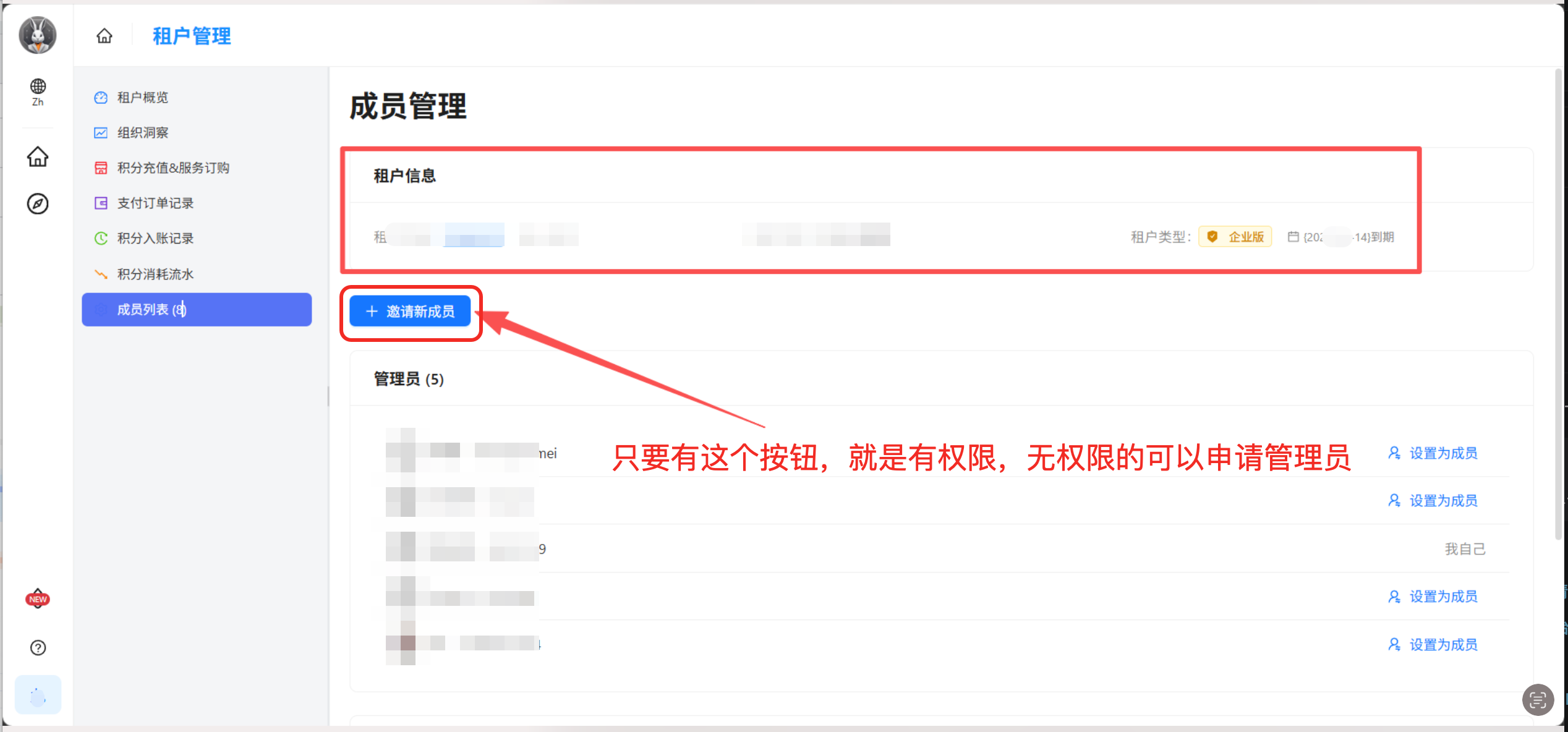
Find Invite new members in the upper-right corner of the member list. If the button isn't there, first check whether your account has admin rights for this tenant.
Admin: copy the invitation link and send it to the colleague
Click Invite new members, then copy the invitation link from the dialog and send it to the colleague who needs to join the enterprise tenant.
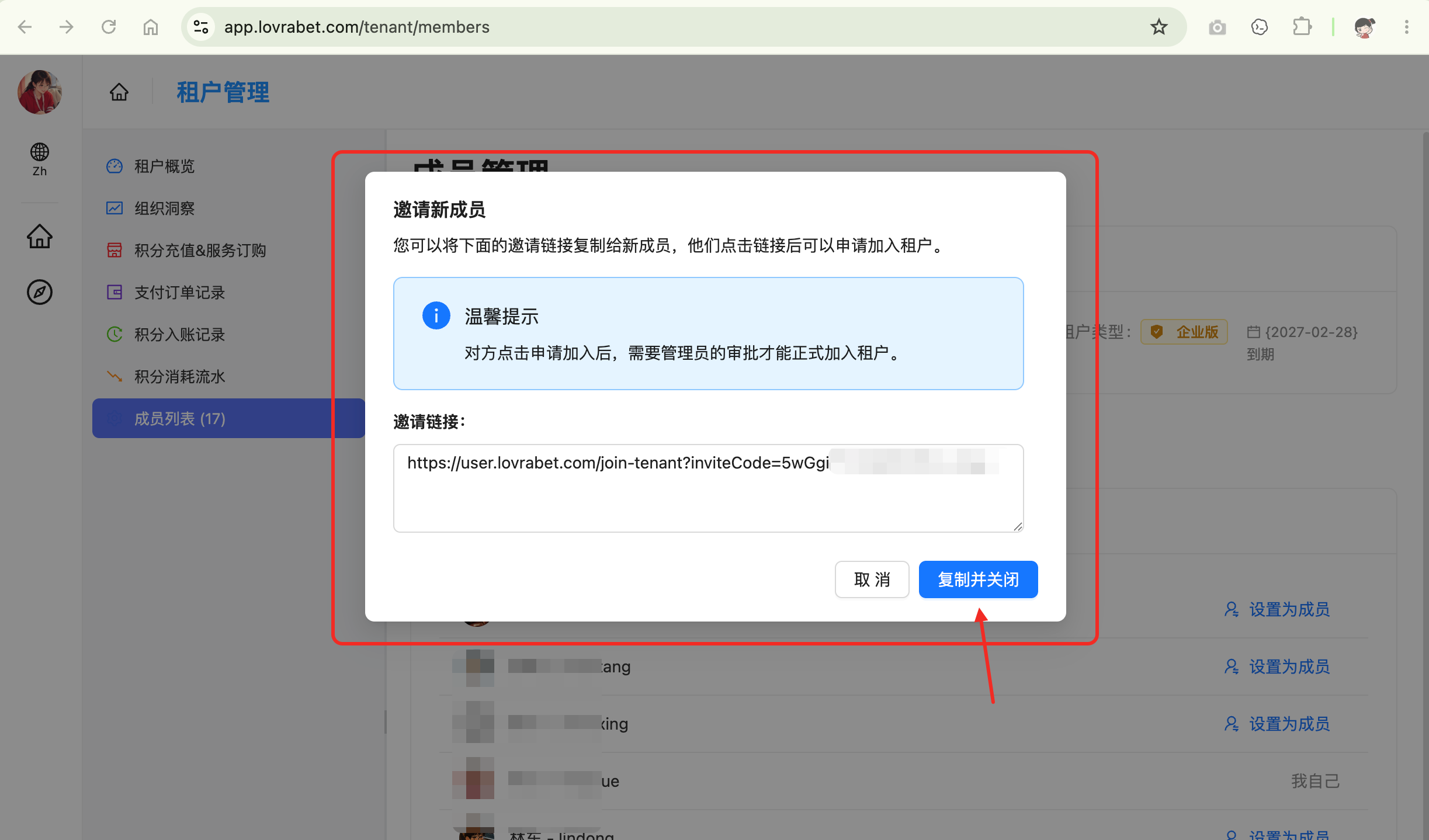
Note: Personal tenants are prompted to upgrade to Pro; enterprise tenants can copy the invitation link directly.
Invited colleague: open the invitation link and submit a join request
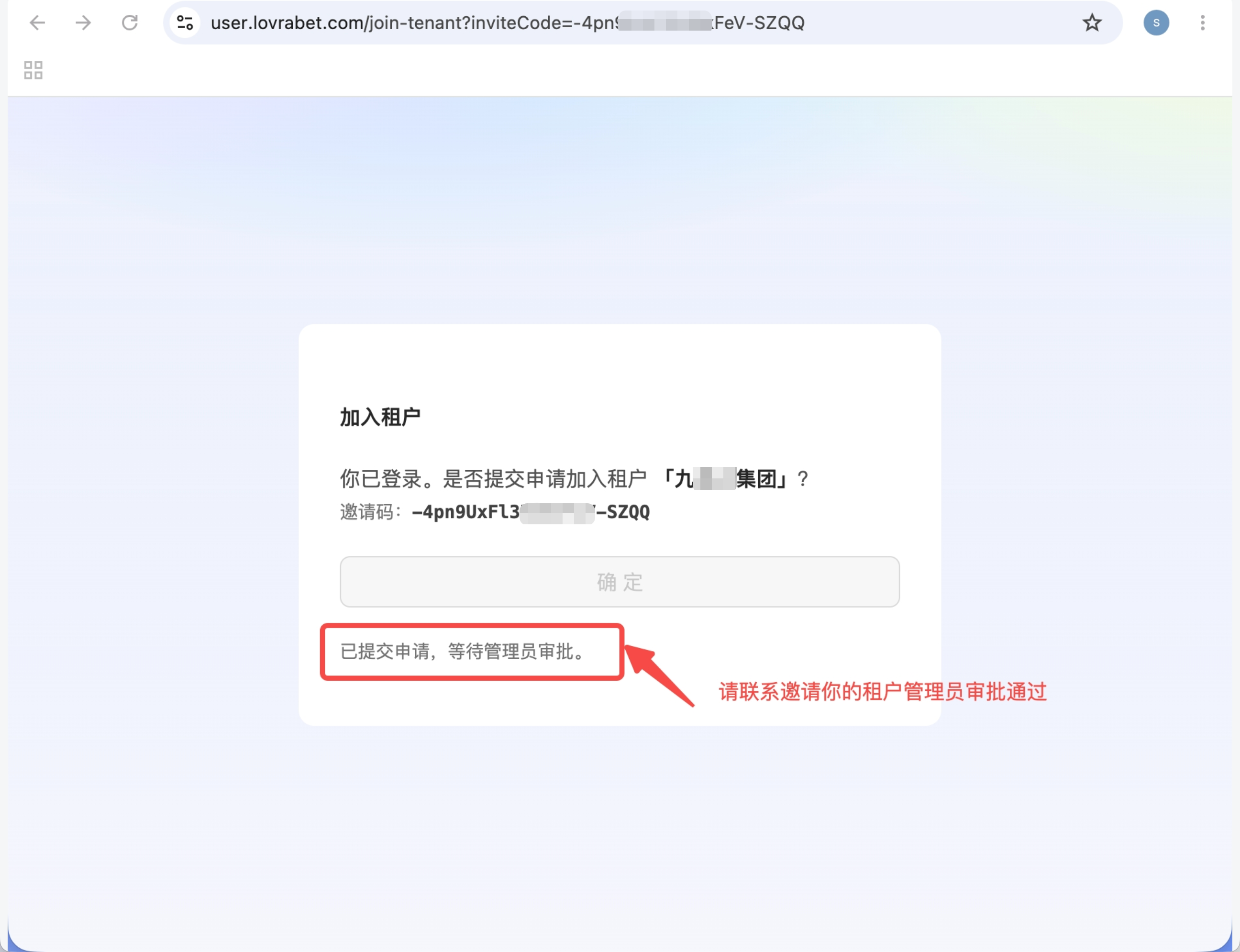
The invited colleague opens the invitation link from the admin. If not signed in, they sign up or sign in first; after signing in, they must click Submit on the invitation page.
Key point: Signing up alone does not add anyone to the enterprise tenant. After the colleague submits the request, an admin has to approve it. If the invitation link expires, the admin reopens Invite new members and copies a fresh link.
<grid> <column width-ratio="0.499503"> 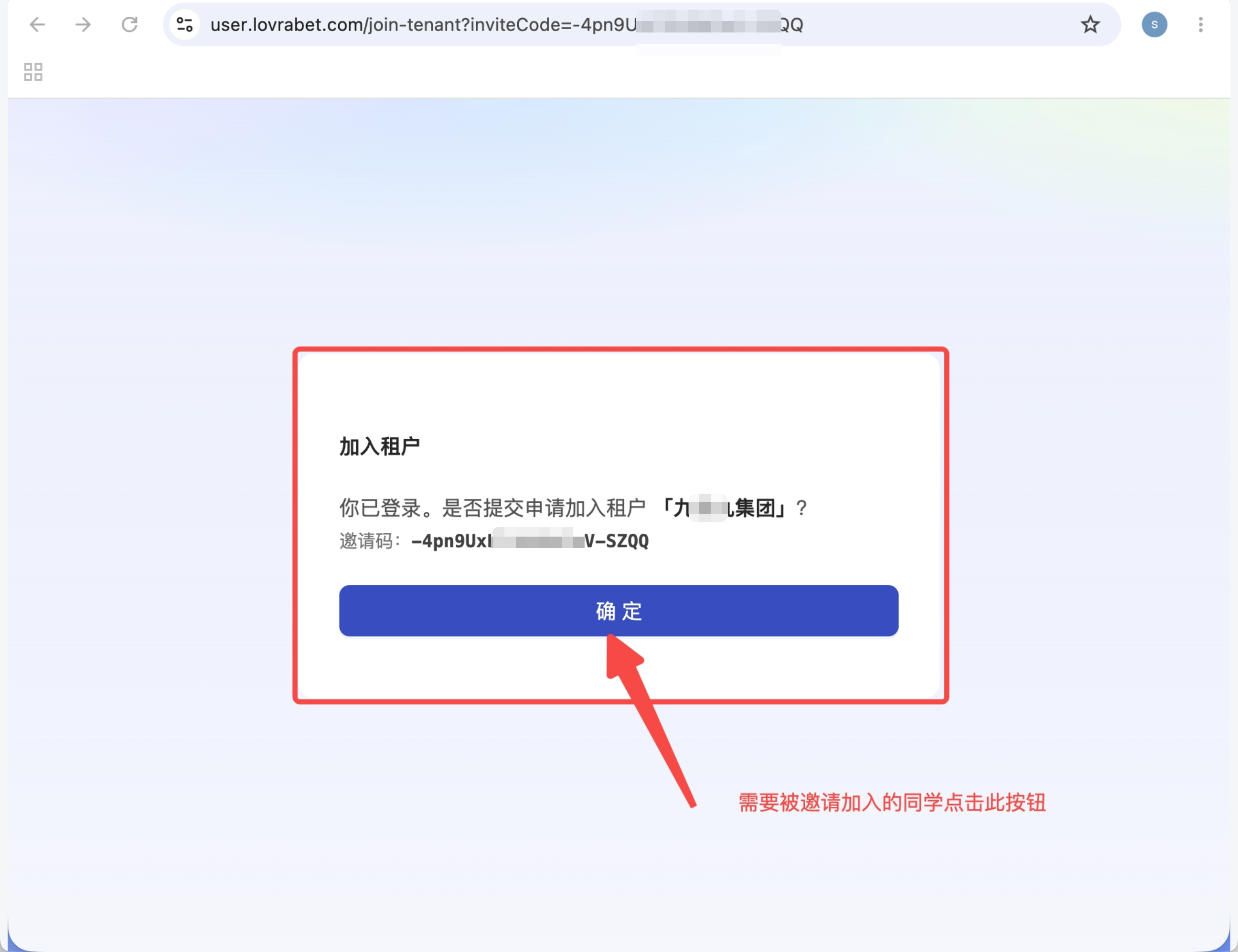 </column> <column width-ratio="0.500497">
  </column> </grid>
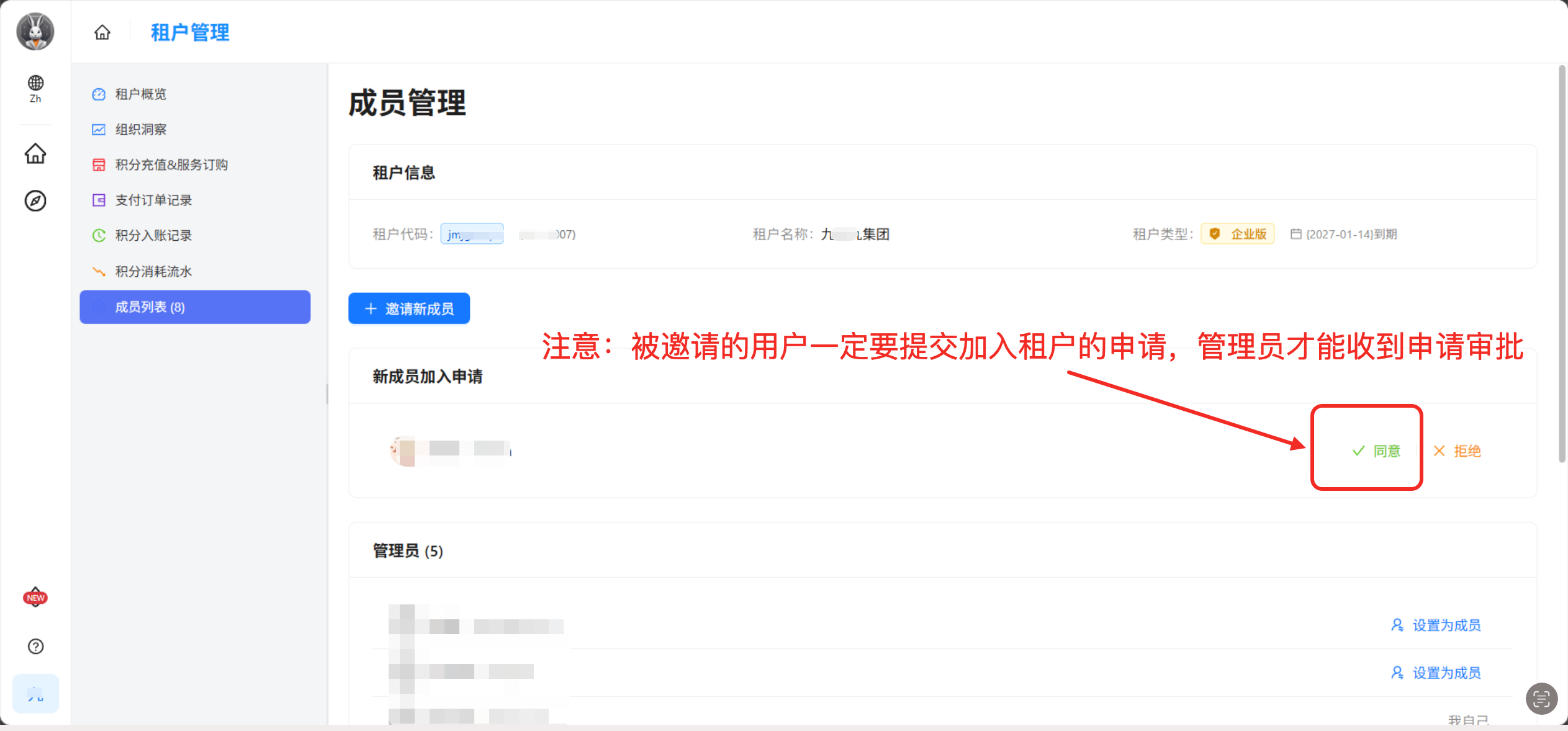
Admin: approve the colleague's join request
Approval entry point: https://app.lovrabet.com/tenant/members
Once the colleague submits the request, go back to Member List and click Approve to the right of the pending colleague.
Invited colleague: switch to the enterprise tenant
After the admin approves, the colleague reopens Lovrabet, clicks Tenant switch in the lower-left corner, and selects the enterprise tenant.
If the tenant switcher still shows only a personal tenant, most likely the colleague hasn't submitted the request via the invitation link, or the admin hasn't approved it yet.
How to verify it worked
- Admin's view: the new member appears in the member list with a "joined" status.
- Colleague's view: the enterprise tenant shows up in the lower-left tenant switcher and can be selected.
Troubleshooting
The colleague can't open the invitation link
Have the colleague confirm they're using the latest invitation link the admin copied. If it still won't open, retry in a different browser or an incognito window. Once a link expires, the admin reopens Invite new members and copies a new one.
The colleague submitted a request but isn't in the enterprise tenant yet
Submitting the request doesn't add them immediately. An admin has to see the pending colleague in Member List and click Approve.
The admin doesn't see the pending colleague
First, have the colleague confirm they entered through the invitation link and clicked Submit. A plain sign-up never appears in the pending list.
A personal tenant can't invite members
Personal tenants are prompted to upgrade to Pro. Switch to an enterprise tenant, or upgrade first and then invite members.
How to check whether you have the invite permission
If you can see Invite new members in the member list and copy the invitation link, your account has the invite entry. If not, ask a tenant admin to grant you the permission.
The colleague signed in but landed in the personal edition
This is the step people miss most often: after signing in, the colleague must return to the invitation page and submit the request. Only after the admin approves does the enterprise tenant appear in the colleague's tenant switcher.
The colleague only has a personal tenant, no enterprise tenant
Check in this order: did the colleague open the invitation link, did they click Submit, and did the admin click Approve in the member list?
Related docs
- How to invite others in your company to join the tenant
- Permission management