Incremental analysis after schema changes
TIP
This guide explains how to re-analyze only the tables that changed after a database schema change, and how to check that the datasets, models, and pages in Lovrabet are back in sync.
First, decide whether incremental analysis fits
| What happened | What to do |
|---|---|
| Connecting this database for the first time | Go back to "Connect a database and complete the first analysis" and run a full analysis |
| Switched databases, or rebuilt a large number of tables | Run a full analysis |
| A few tables added, or a few fields changed | Run an incremental analysis |
| Fields, names, or relations changed on only a few tables | Run an incremental analysis |
| Not sure which tables changed | Have an Agent check the diff first, then decide the analysis scope |
Before you start
- The database connection is still reachable. Lovrabet can only connect to publicly accessible databases.
- You know roughly which tables this change touched.
- The target app has already completed its first database analysis.
Option 1: Work in the platform
Step 1. Open Database Connection Management
Open the Lovrabet workbench and go to the target app.
- Click RabetBase.
- Open Database Connection Management.
- Find the database connection you want to sync.
Confirm the connection is healthy. If it fails, fix the database network, credentials, or allowlist before running any analysis.
Step 2. Start an incremental analysis
Click Incremental analysis on the database connection card.
<grid> <column width-ratio="0.500000"> 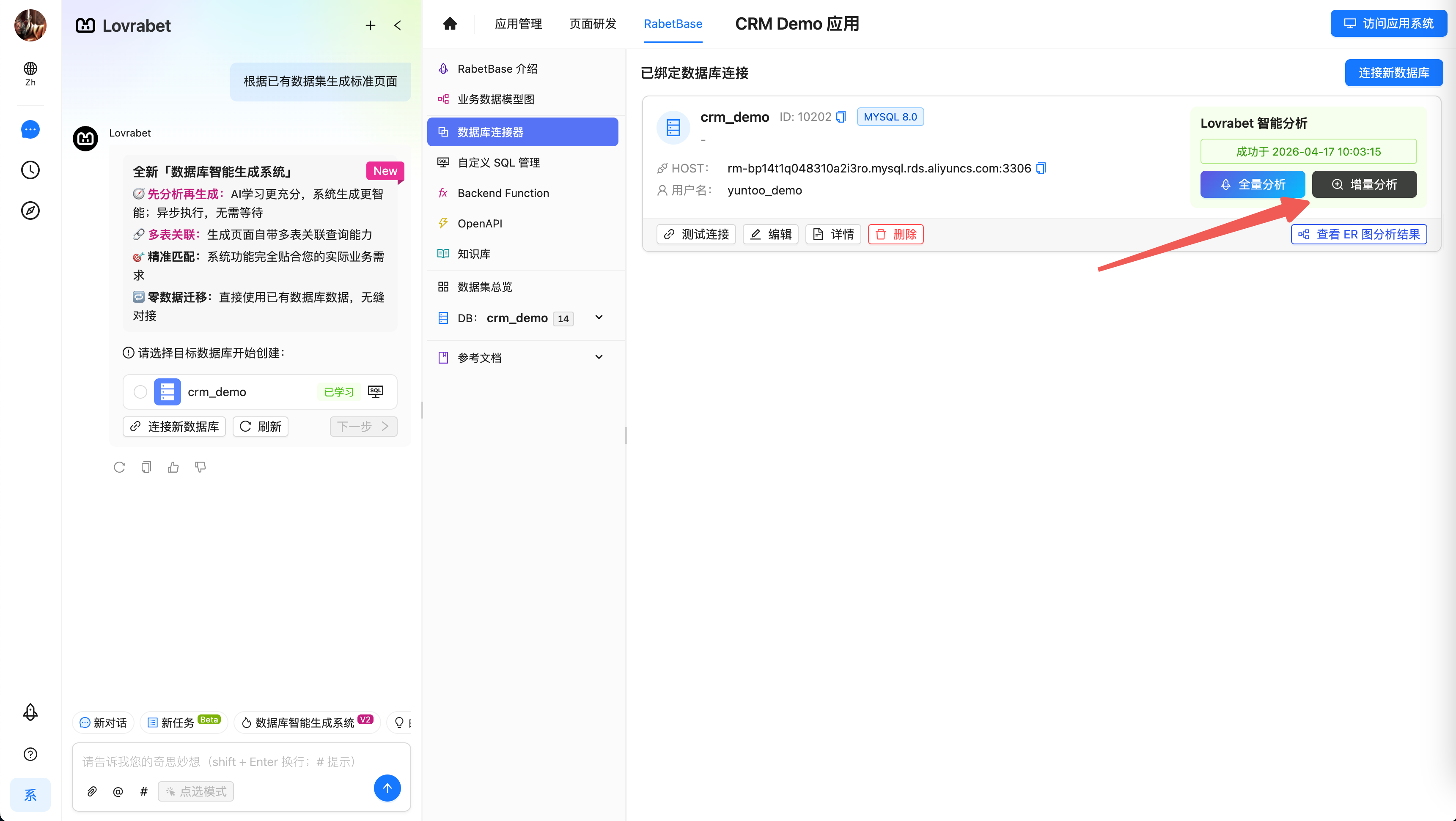 </column> <column width-ratio="0.500000">
  </column> </grid>
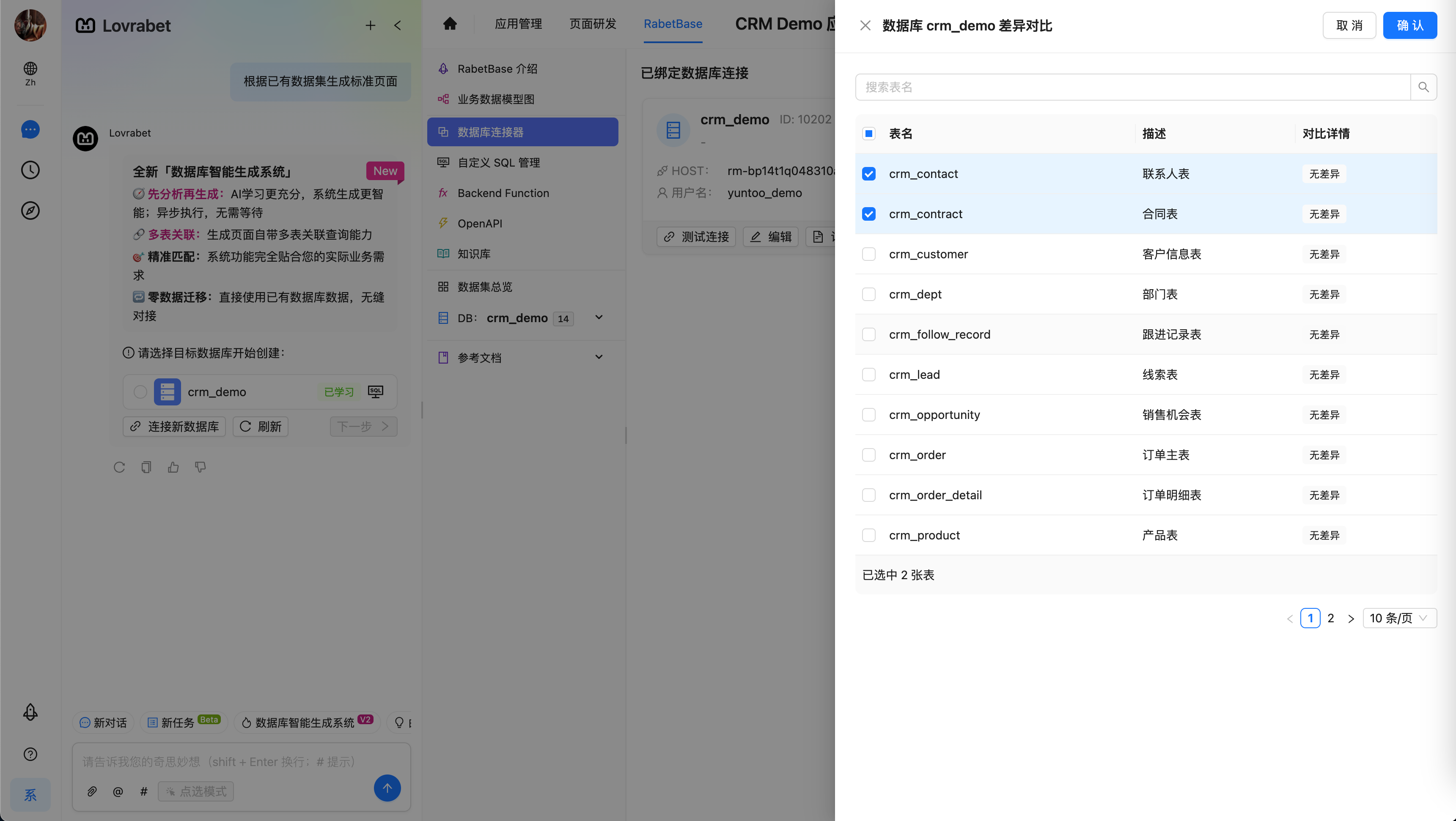
In the dialog, select the tables that changed this time. You can select multiple tables at once.
After you confirm, the platform starts analyzing those tables.
Step 3. Wait for the analysis to finish
You can stay on the page while it runs, or leave and come back later.
When you return to Database Connection Management, check the task status:
| Status | Meaning | Next step |
|---|---|---|
| Success | The selected tables are synced | Go check the datasets and pages |
| Partial success | Some tables succeeded, some failed | Open the analysis results and handle the failed tables |
| Failed | The analysis did not complete | Check the failure reason, then start again |
| Analyzing | The task is still running | Wait for it to finish, or cancel it if needed |
Step 4. Check the sync results
After the analysis completes, check in this order:
- Open View analysis results and confirm the tables analyzed this round appear in the results.
- Open Business Data Model and confirm the tables and their relations are intact.
- Open Dataset Overview and confirm the fields are up to date.
- Open the pages that depend on these datasets, and spot-check that fields display and filters behave correctly.
Option 2: Let an Agent do it in Claude Code
If you have the rabetbase CLI and the matching Skill installed, you can hand the task to Claude Code. The Agent breaks it down into steps and calls the CLI itself.
Copy the prompt below and replace the placeholders:
请用 rabetbase 帮我检查并增量同步数据库结构变更。

应用 App Code:<APP_CODE>
数据库连接:<连接名称或 dbLinkId>
变更范围:<不确定 / 表1、表2>
变更说明:<新增字段 / 修改字段 / 新增表 / 修改关联>

请先确认连接和分析状态。
如果不确定变更范围,先检查库表差异,并告诉我建议分析哪些表。
只对变更表做增量分析,不要直接全量分析。
最后告诉我分析状态、planId、需要检查的数据集和页面。
Check the results
[ ] The incremental analysis task status is Success or Partial success.
[ ] The changed tables appear in Dataset Overview.
[ ] New or modified fields are present in the datasets.
[ ] Relations in the Business Data Model look correct.
[ ] Pages that depend on these datasets display correctly.
Common issues
| Symptom | What to do |
|---|---|
| Can't find the incremental analysis entry | Confirm the database has already completed its first analysis and the connection is healthy. |
| Not sure which tables to select | Have an Agent check the table diff first, then start the incremental analysis based on the diff. |
| The analysis task failed | Open the analysis results and check table permissions, field types, network connectivity, and oversized tables. |
| New fields were analyzed, but the page didn't change | Open the page configuration, confirm the dataset fields used by the page are updated, and republish. |
| Relations look wrong | Check the relation fields in the Business Data Model, and re-analyze the related upstream and downstream tables if necessary. |
Related docs
- Connect a database and complete the first analysis
- Understand reverse-engineering results and the business model
- Build pages, configure menus, and publish
Learn more about the Rabetbase CLI: <cite doc-id="EaApwb1Wpi2j0ykAkhNcya0ZnEh" file-type="wiki" title="Rabetbase CLI - Vibe Coding研发套件" type="doc"></cite>