Data list page user field configuration
What problem this guide solves
User fields showing raw IDs
In a data list page, user fields such as Owner or Approver should display names or person information. If the page shows raw values like ["80"], ["81"], or ["77","80"], the field usually wasn't recognized as a user type.
When AI auto-fix doesn't take effect, follow this guide to check the field's meaning and update the DO configuration manually.
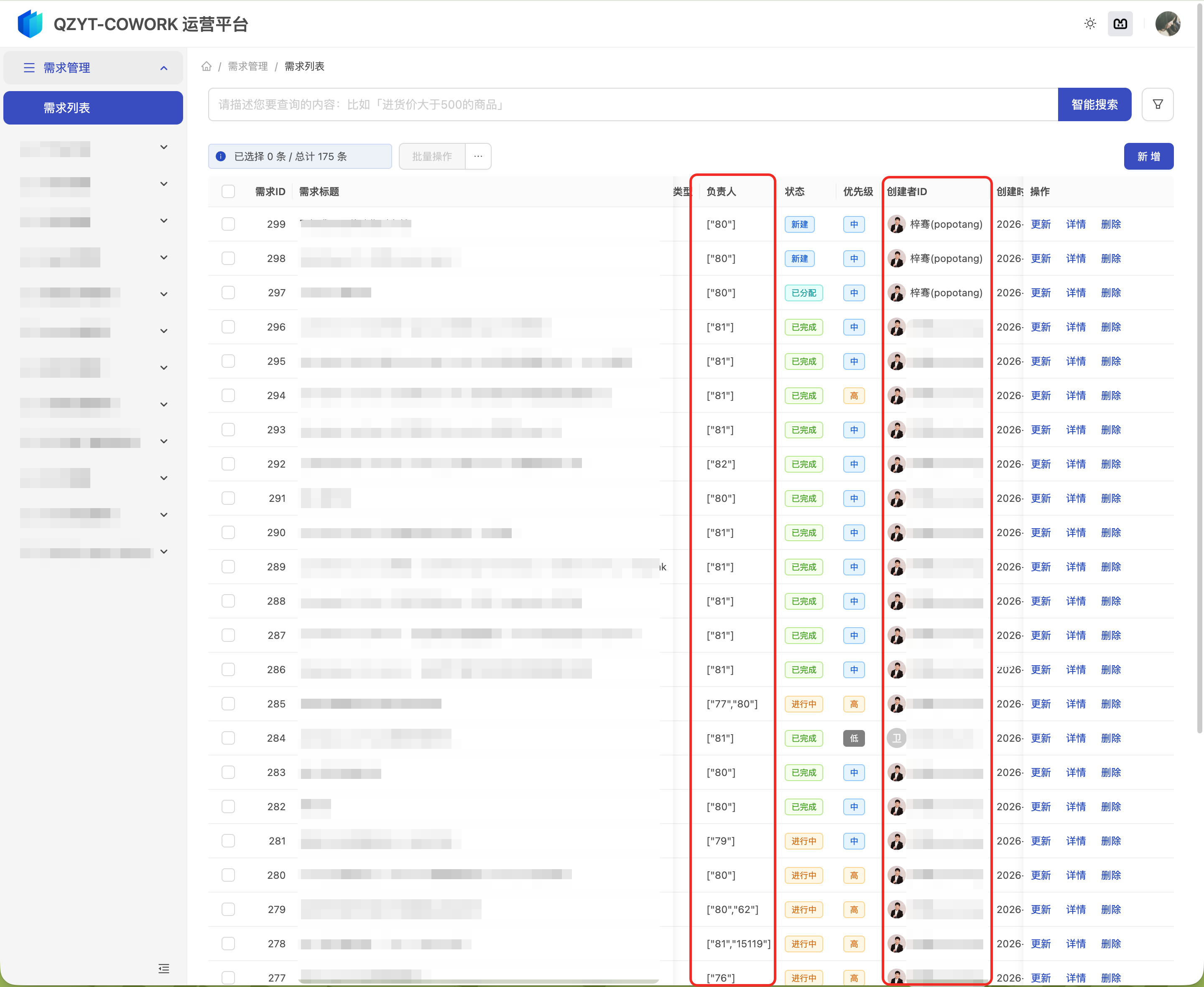
Why this happens
During database analysis, the field may have been detected as plain text or an ID rather than a platform user, so it was generated as doType="TEXT". Confirm the field's business meaning, then change it to doType="USER".
Steps
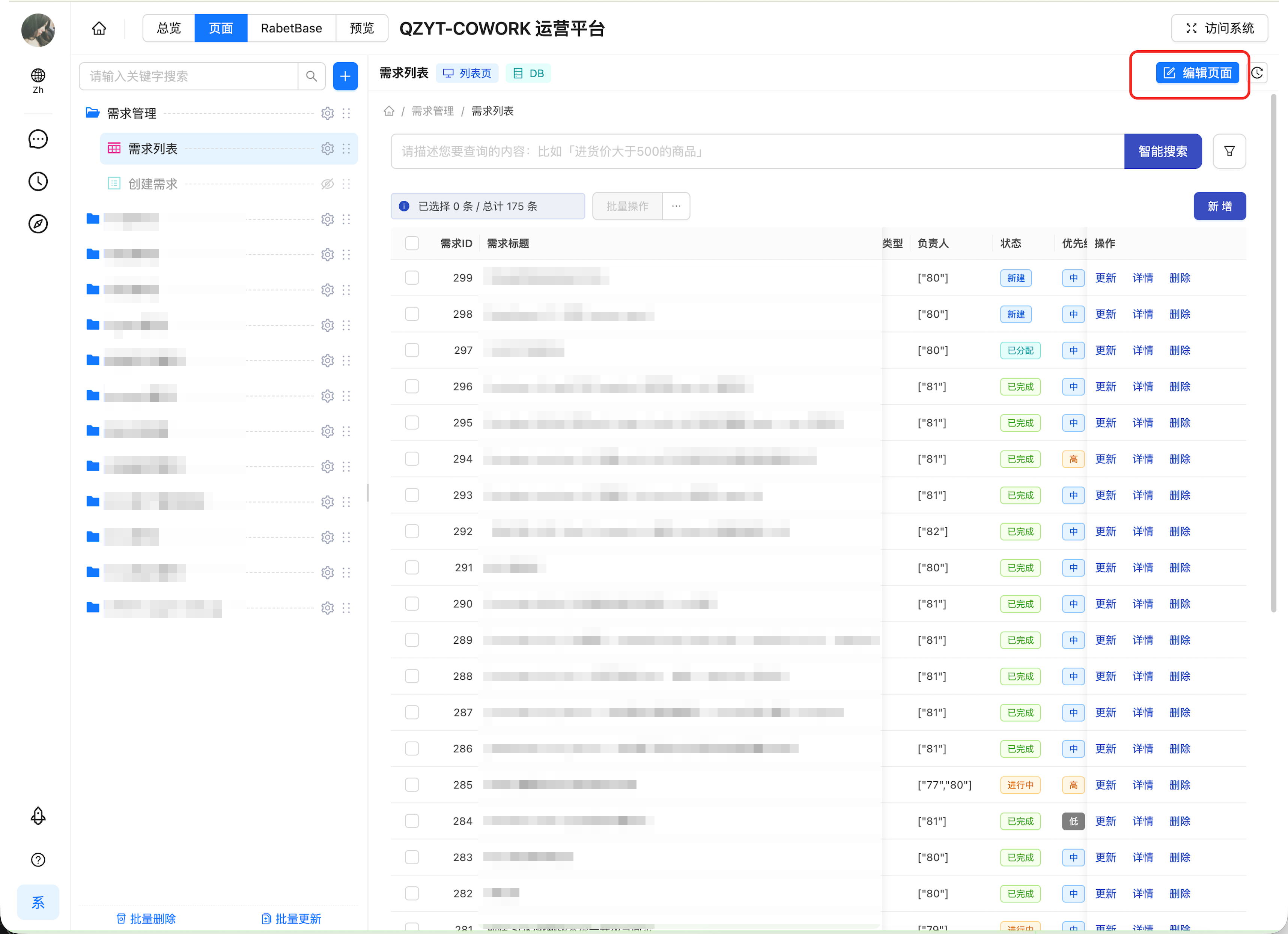
Step 1: Open page configuration from the business page
First confirm on the business page that the field really is wrong — for example, "Owner" showing a raw value array. Then click Edit page in the top-right corner.
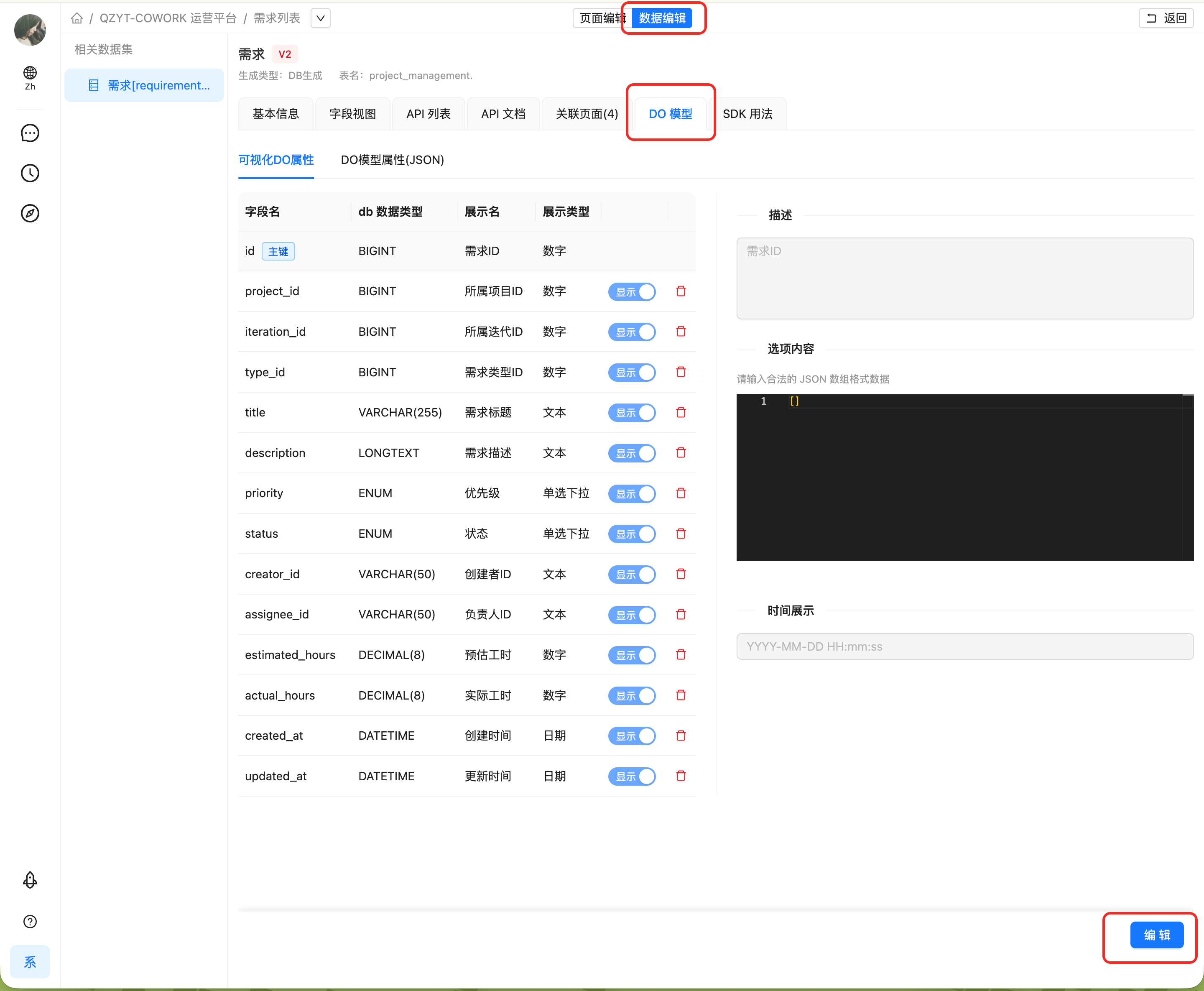
Step 2: Open Data editing and enable editing
In page configuration, switch to DO model under Data editing.
If the dataset isn't editable yet, click Edit in the bottom-right corner to enable field editing.
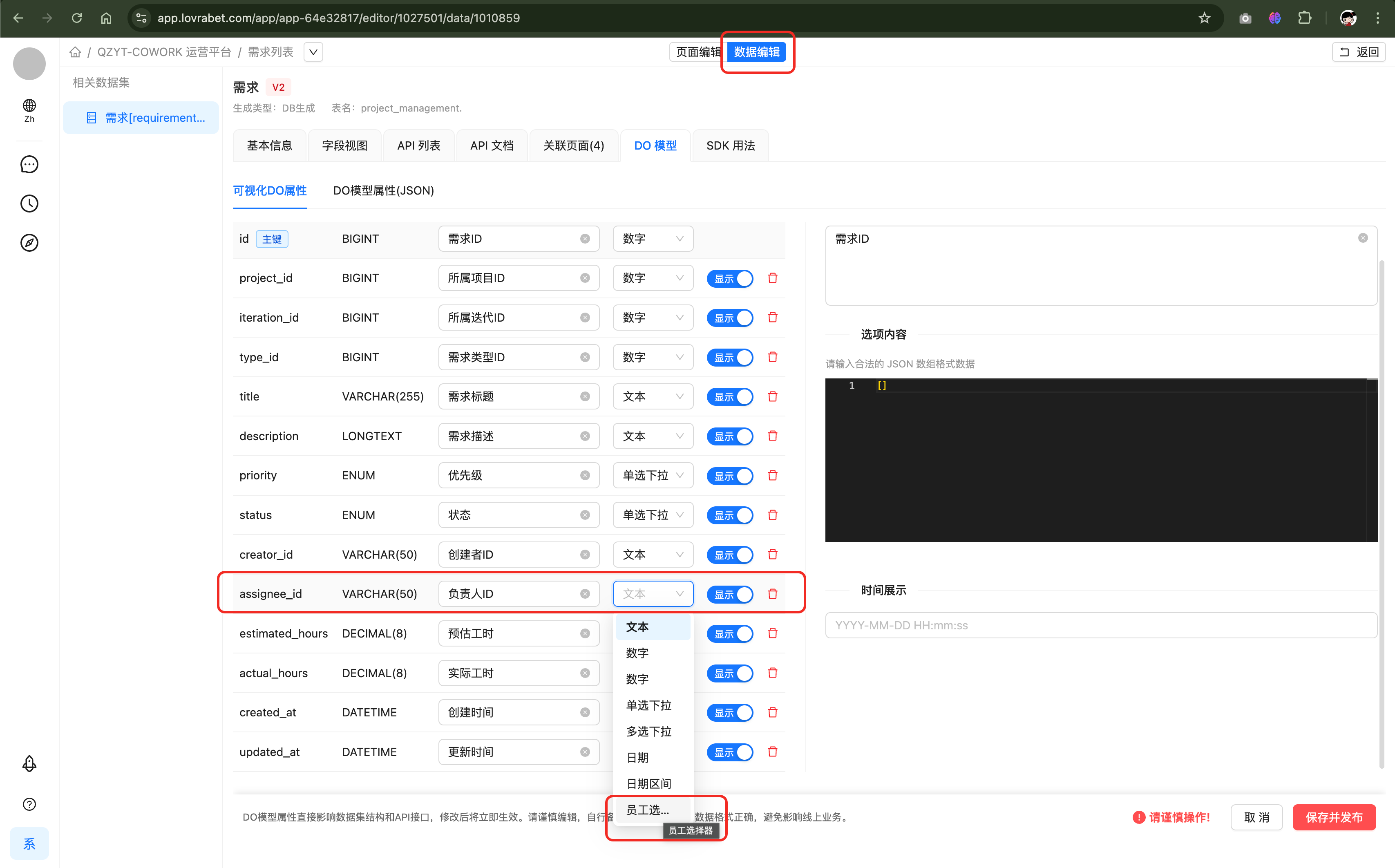
Step 3: Find the field behind "Owner"
In DO model or the visual DO properties area, find the field that "Owner" actually maps to.
From the screenshot:
- Field code:
assignee_id - Field name: Owner ID
Make sure you edit the field "Owner" truly maps to — not just any similarly named field because the page displays the word "Owner".
Step 4: Change "Owner ID" to an employee picker
Once you've confirmed this field is used to pick a person in your business, change the Owner ID field's type from Text to employee picker.
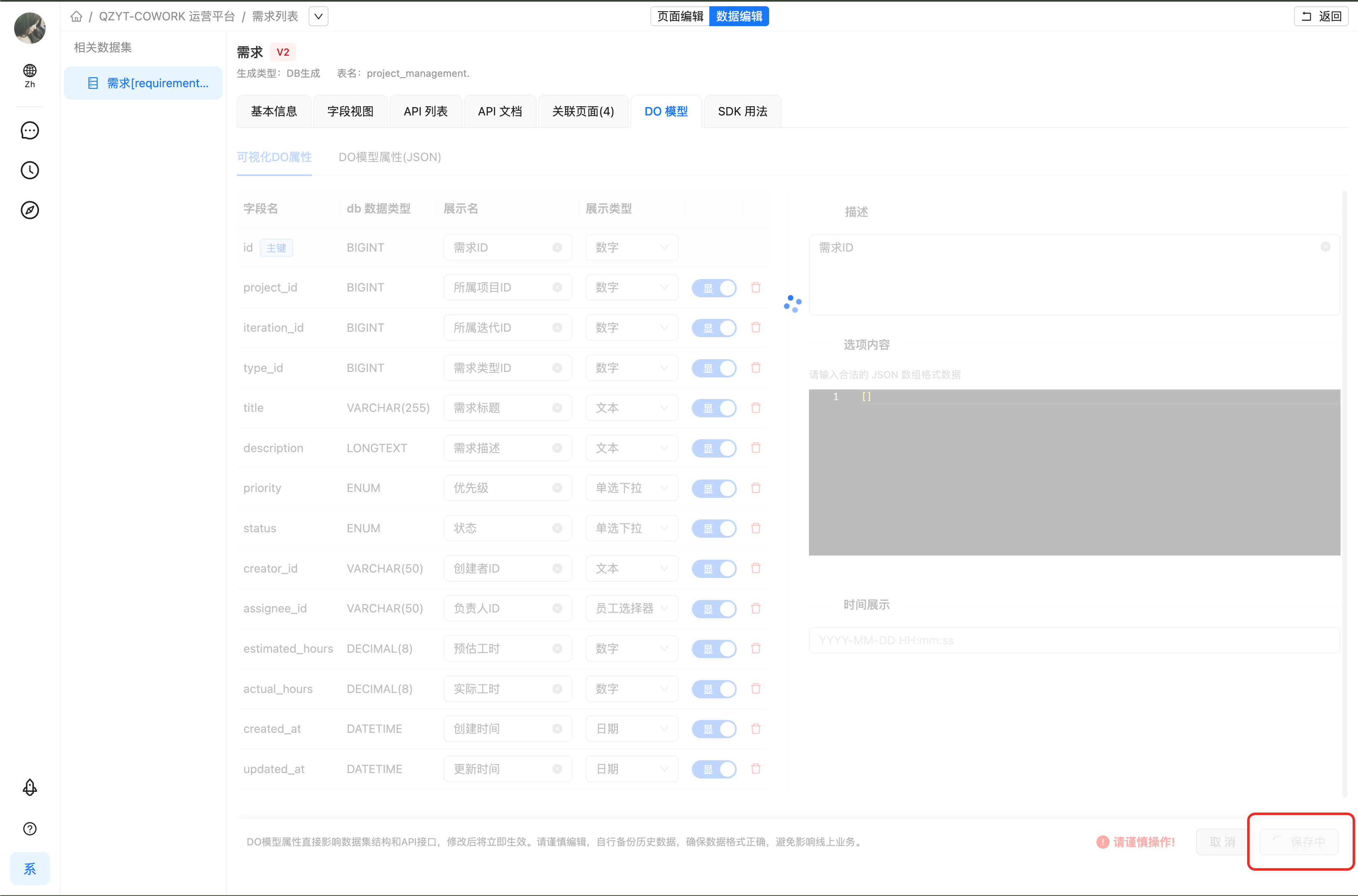
As the screenshot shows, Owner ID is still Text — the direct reason "Owner" displays raw values on the page.
If you need to double-check the field code, this field is assignee_id.
Changing the type to Employee picker essentially tells the platform to treat this field as a user.
The change is:
- From:
Text - To:
Employee picker
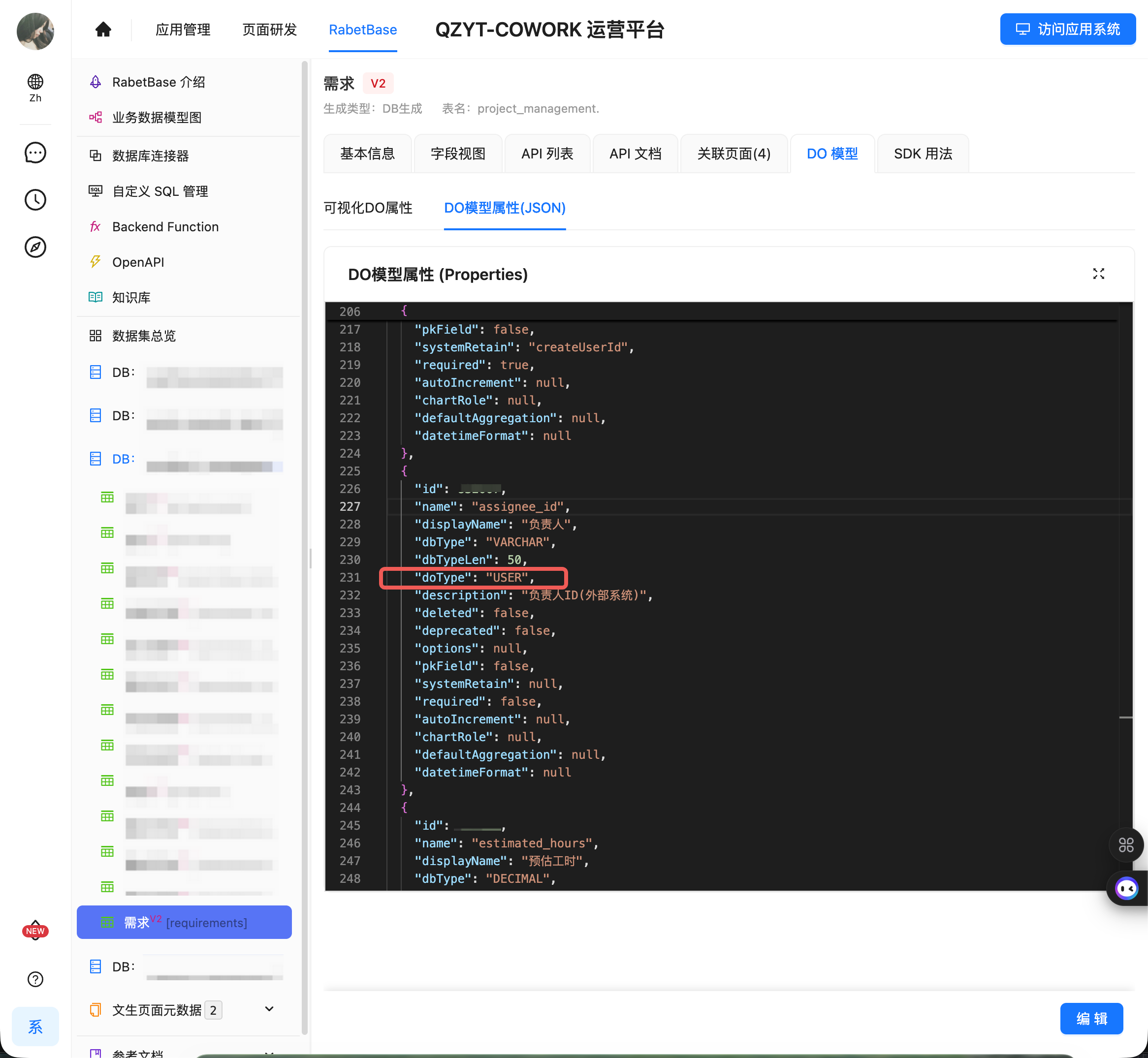
You can verify that doType is now configured as USER:
  {
    "name": "assignee_id",
    "displayName": "负责人",
    "dbType": "VARCHAR",
    "dbTypeLen": 50,
    "doType": "USER"
  },
Step 5: Save and publish
When done, click Save and publish at the bottom of the page or in the editing area.
Changing the field without publishing does nothing to the live page.
For data list pages built on the Requirement dataset, this publish applies the new field type to every related page at once — not just the one you're looking at.
After publishing, click Visit system in the top-right corner to return to the business page and verify the result.
What you can confirm in page configuration first
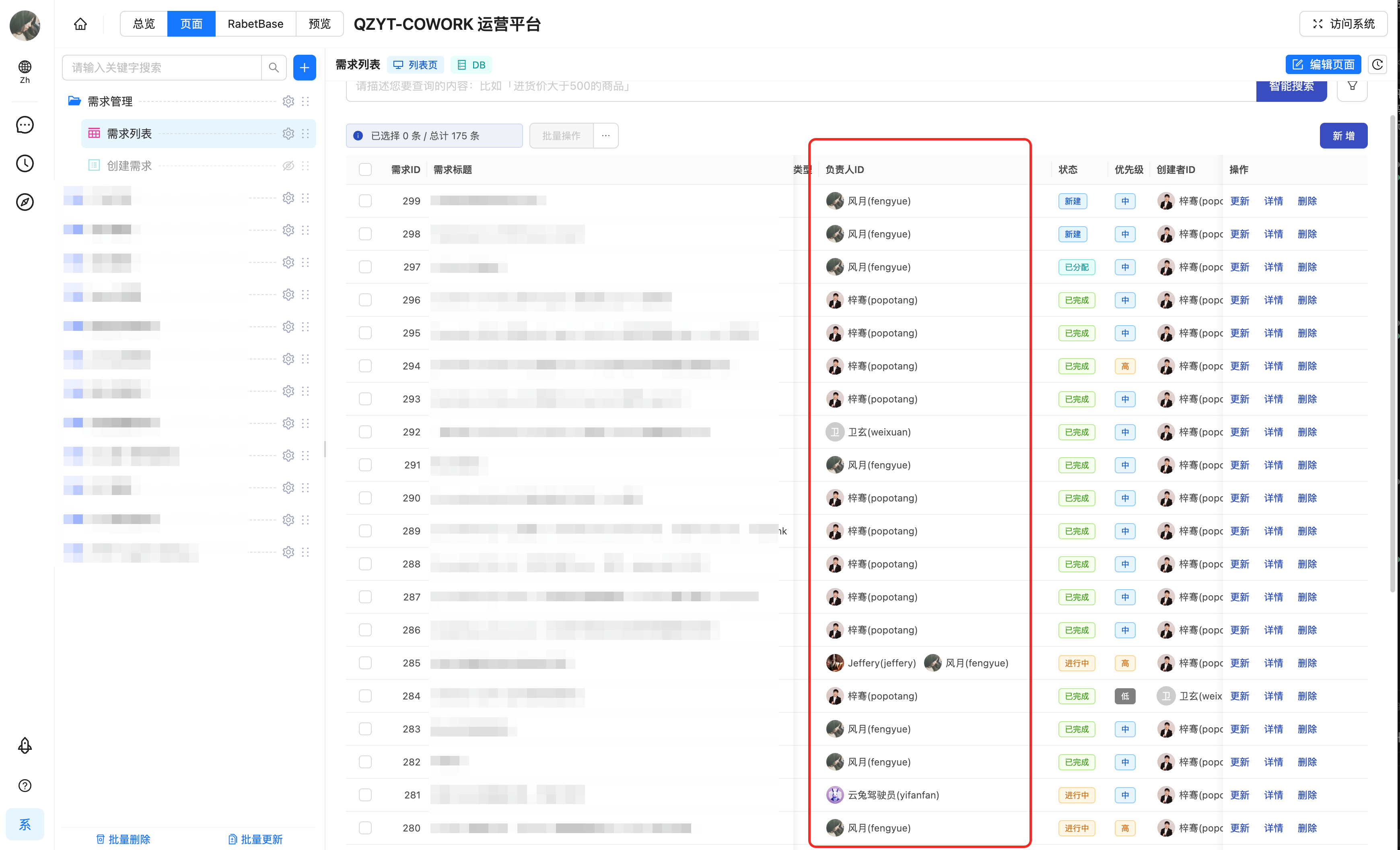
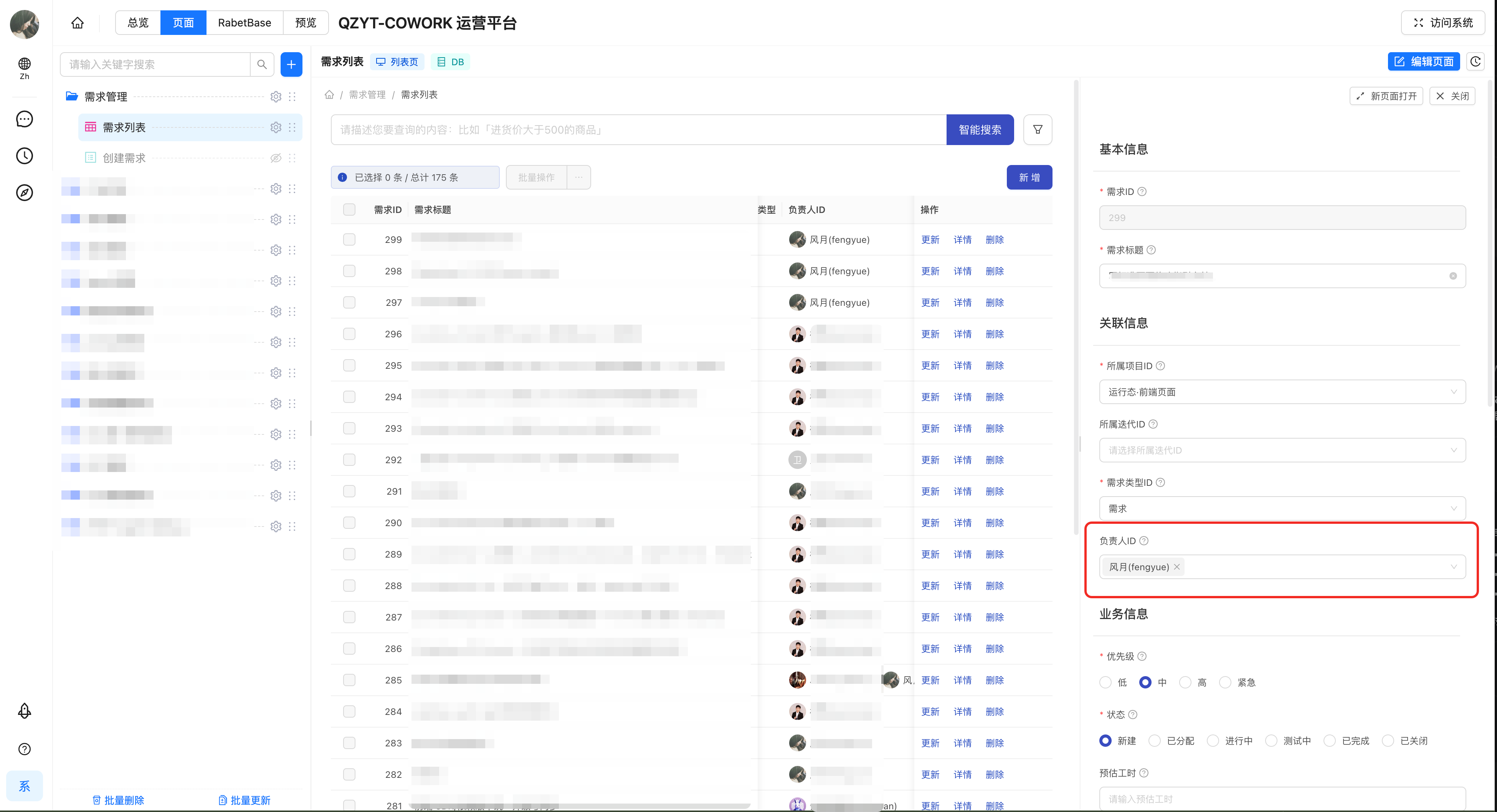
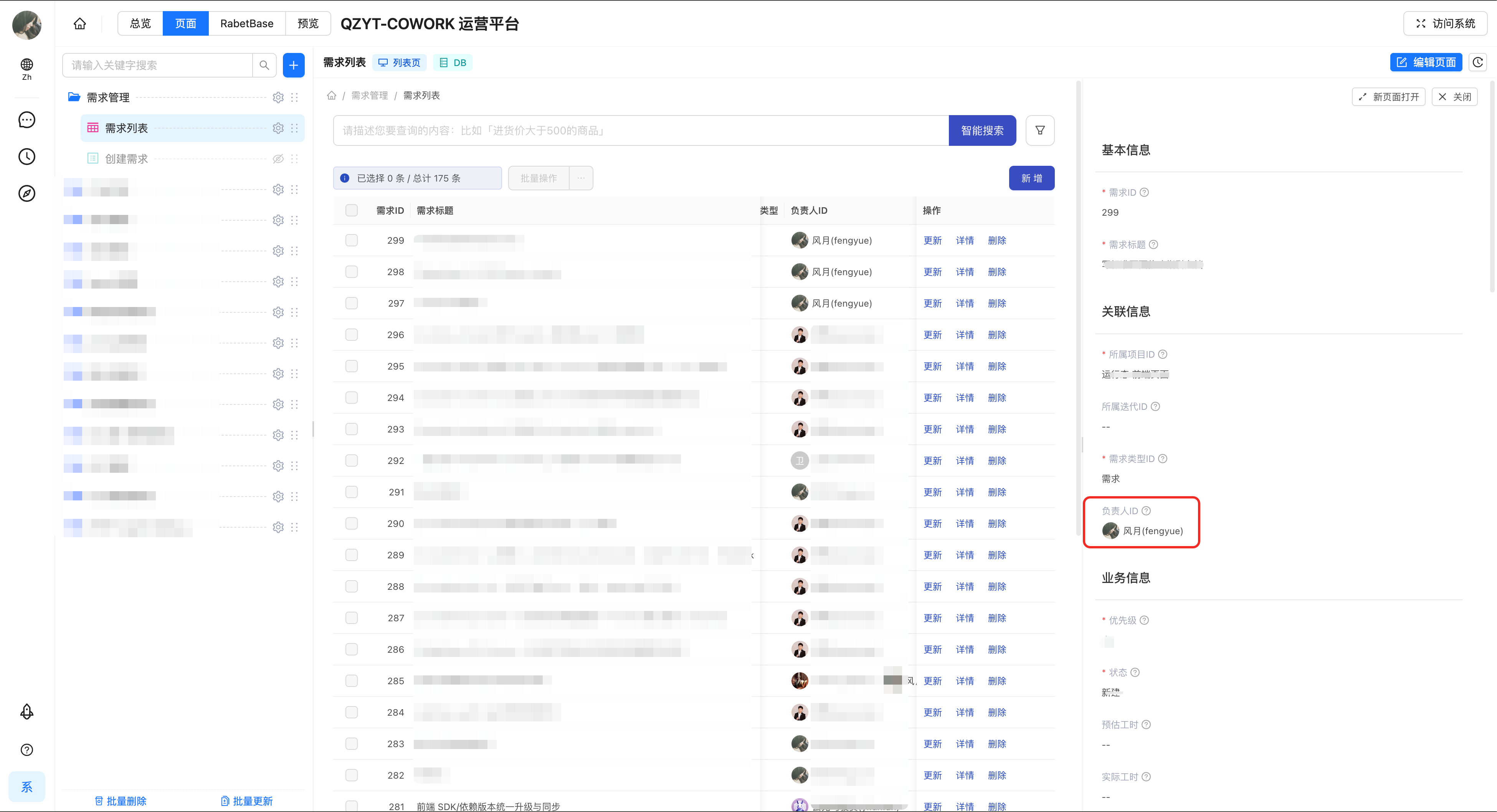
After saving and publishing, if you're still in page configuration, you can confirm the change in the right-hand area first.
These screenshots help you confirm the user-type configuration has taken effect, but they aren't the final live verification.
- In the page configuration table, the "Owner ID" column now renders as a user — an immediate check right after saving and publishing
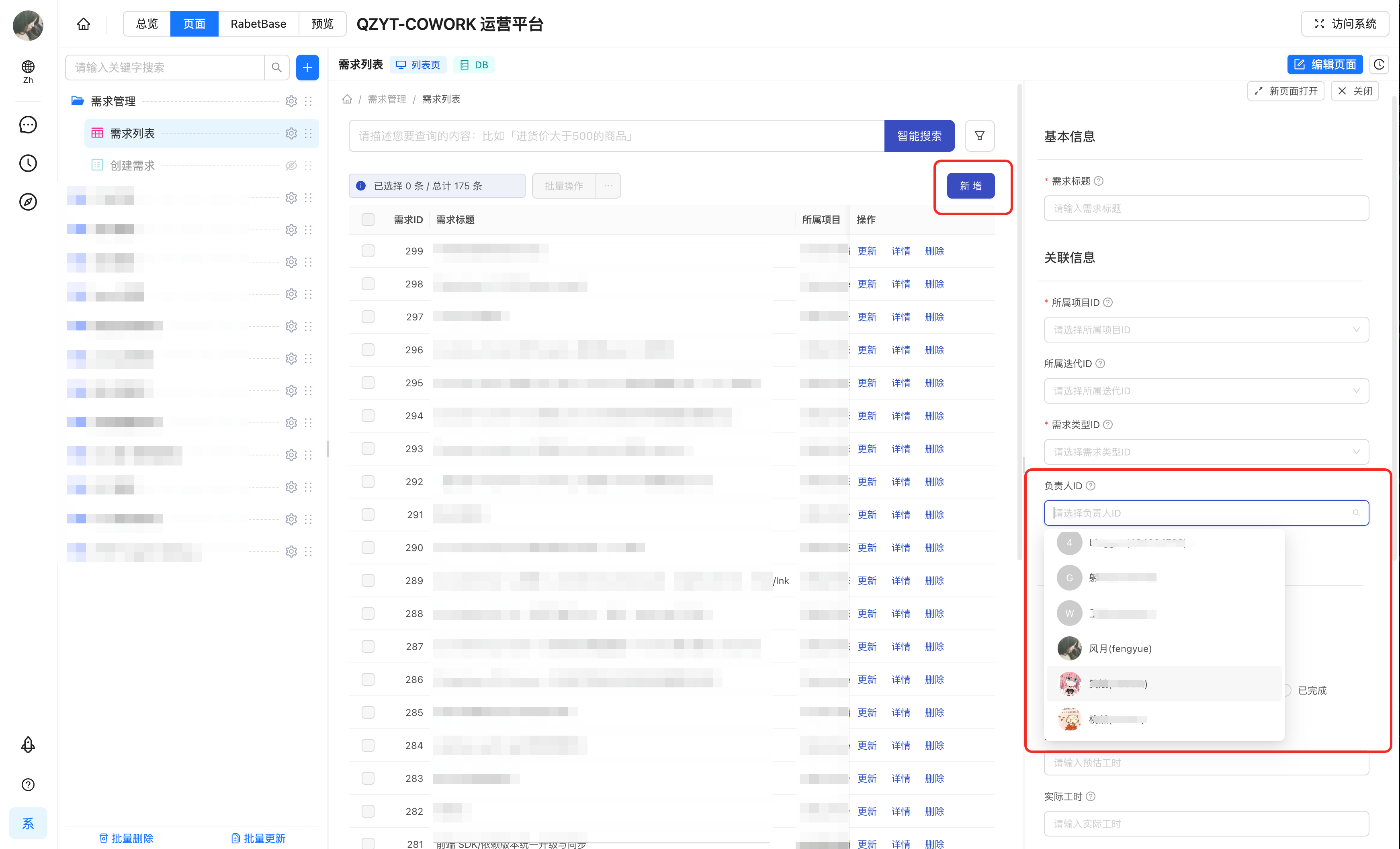
- In page configuration, click
Add— the "Owner ID" field in the create area displays and selects as a user
- Click
Update— the "Owner ID" field in the edit area behaves the same way
- Click
Detail— the "Owner ID" field in the detail area displays as a user
Final live verification
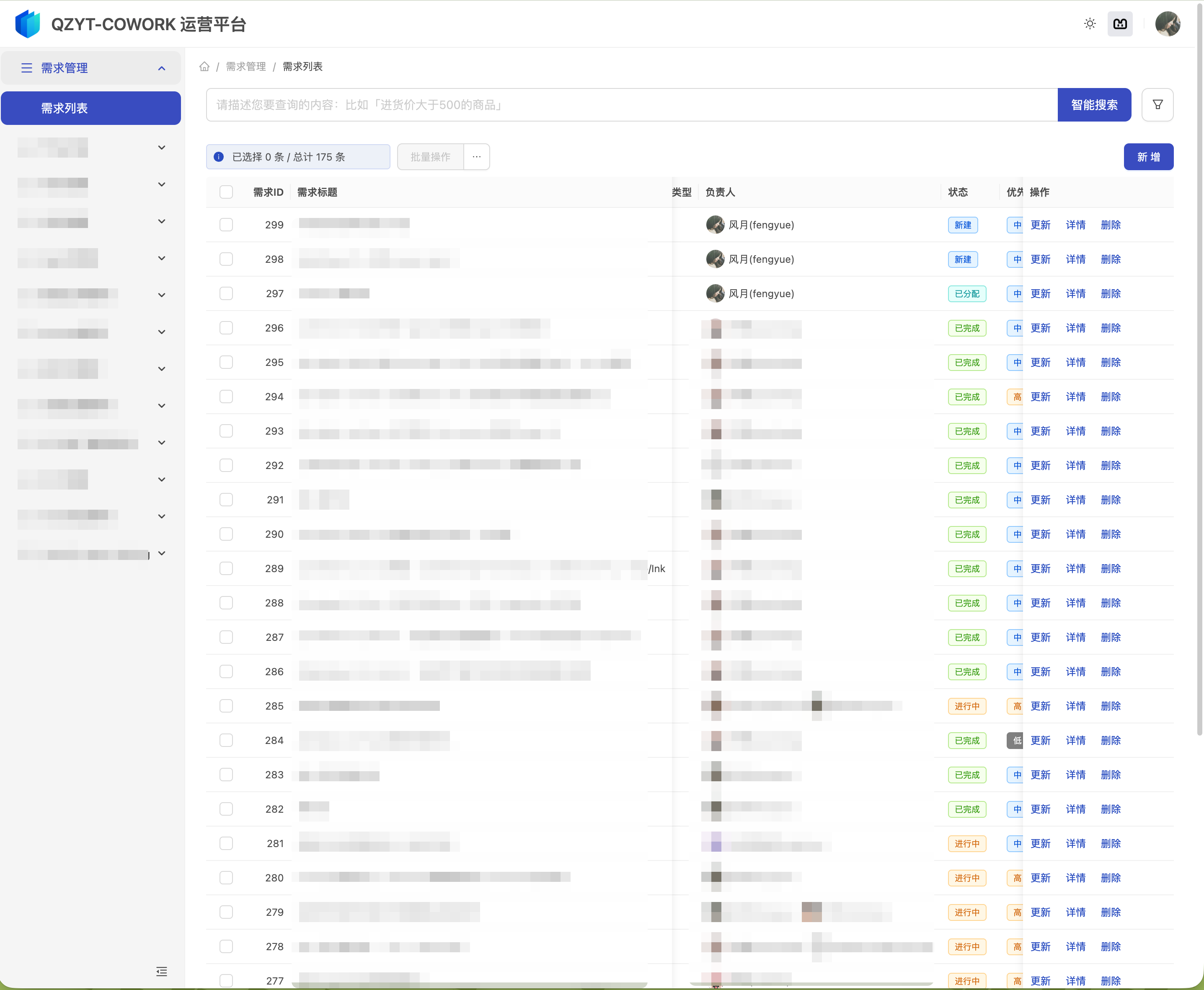
After a successful change and publish, every data list page built on the Requirement dataset renders the field as a user.
For final verification, click Visit system in the top-right corner of page configuration and check the live business page.
- On the live business page, "Owner" no longer shows raw values like
["80"]— it shows the person's information
If it still shows raw values after the change, check these first:
- Did you edit
assignee_id, the field "Owner" actually maps to? - Is this field really a business reference to a person?
- Have you clicked
Save and publish?
Common mistakes
Mistake 1: changing a field on the account table itself to an employee picker
If the field belongs to an account table itself — a member or employee table — rather than referencing a person from a business page, this guide doesn't apply. Only business reference fields like owner, approver, or department head fit this procedure.
Mistake 2: treating Created by / Updated by as this scenario
Created by and Updated by are system fields. Schema-driven pages usually generate them with the right system logic already — they don't need the manual fix described here.
Mistake 3: trusting the field name over its actual meaning
A name containing "owner", "employee", or "employee number" doesn't guarantee the field should become an employee picker. First confirm it references a person in the business rather than being a field of the account table itself.
Mistake 4: not publishing after the change
The most common miss. Without Save and publish, the page won't update.
The decision sequence to remember
- Does this field reference a person in the business?
- If it belongs to an account table itself, or is a system field like Created by / Updated by, you usually don't need this manual fix
- If the field is still
Text, change it to an employee picker - After the change, always go back to the page to verify, and confirm you've clicked
Save and publish