Set up a scheduled task in Lovrabet to auto-summarize and send recent work items
This guide helps you create a recurring task: periodically summarize recent requirements, tasks, and bugs, then send the summary automatically to a designated Feishu or DingTalk group.
TIP
End state: The task runs automatically at the scheduled time. You can also click "Run now" once first to confirm the summary content and message delivery work.
Prerequisites
Before you start, confirm these four things:
[ ] Your account can access the target Lovrabet app.
[ ] The Agent can read the requirements, tasks, bugs, or other work items you want summarized.
[ ] Feishu or DingTalk sending is authorized, and the Agent can post a test message to the target group.
[ ] You've confirmed the target group name, plus the time range and work-item scope to summarize.
Choose how to set it up
<grid> <column width-ratio="0.500000">
TIP
Option 1: Use the Lovrabet CLI
Best if you're comfortable on the command line. Tell the Agent in one sentence when to run, what to summarize, and where to send it.
</column> <column width-ratio="0.500000">
TIP
Option 2: Create it in the UI
Best for first-time setup. Fill in the task name, execution content, and schedule directly, and review run history on the detail page.
</column> </grid>
Option 1: Create a scheduled task with the Lovrabet CLI
Describe the task in one sentence
You don't need to write a complex schedule expression yourself. Put the run time, summary content, and target group into one complete sentence, and let the Agent show you a preview first. For example:
请在应用「<应用名称>」中创建一个定时任务:每个工作日早上 9:30,汇总最近 1 个工作日内与我相关的需求、任务和缺陷,按已完成、进行中、阻塞、待跟进分类,并发送到飞书群「<飞书群名称>」。先把任务名称、执行时间和发送内容列给我确认,等我确认后再创建。Review the preview and confirm creation
Check the app, run time, summary content, and target group. Reply "confirm creation" once everything looks right. It's done only when you see "Scheduled task created".
Run it once immediately
After creation, open the scheduled tasks page and click "Run now". Wait until the detail page shows "Completed", then check the message in the target group.
Option 2: Create a scheduled task in the UI
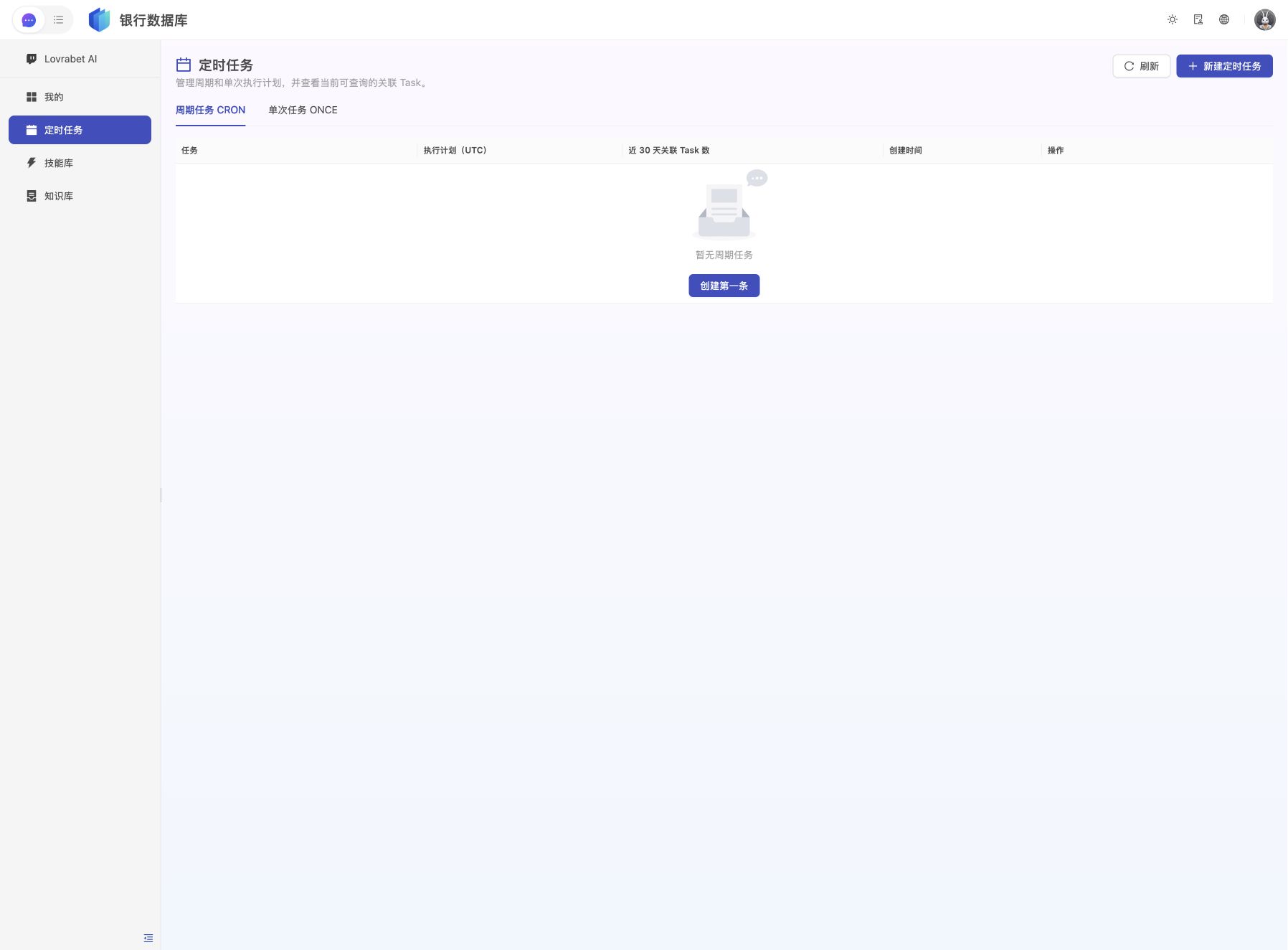
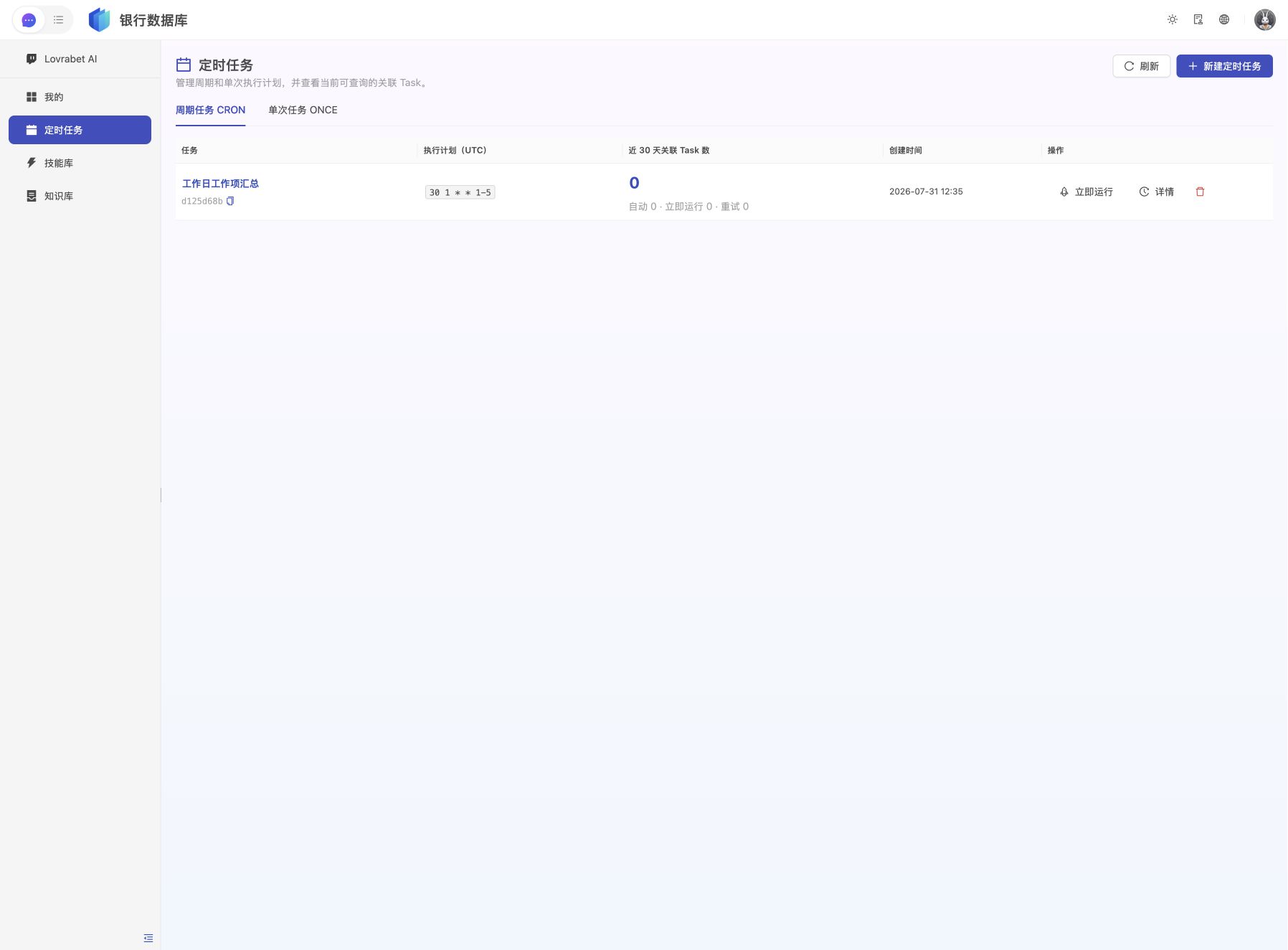
Open the app's scheduled tasks page
Open your Lovrabet app and go to Agent → Scheduled Tasks. You can also append the following path to the app's domain:
https://<当前 Lovrabet 应用域名>/chat/scheduleThe page offers two modes: choose "Recurring task" when it needs to run daily or weekly, or "One-time task" when it only needs to run once.
Fill in the task name and execution content
Click New Scheduled Task in the upper-right corner and fill it in following the example below:
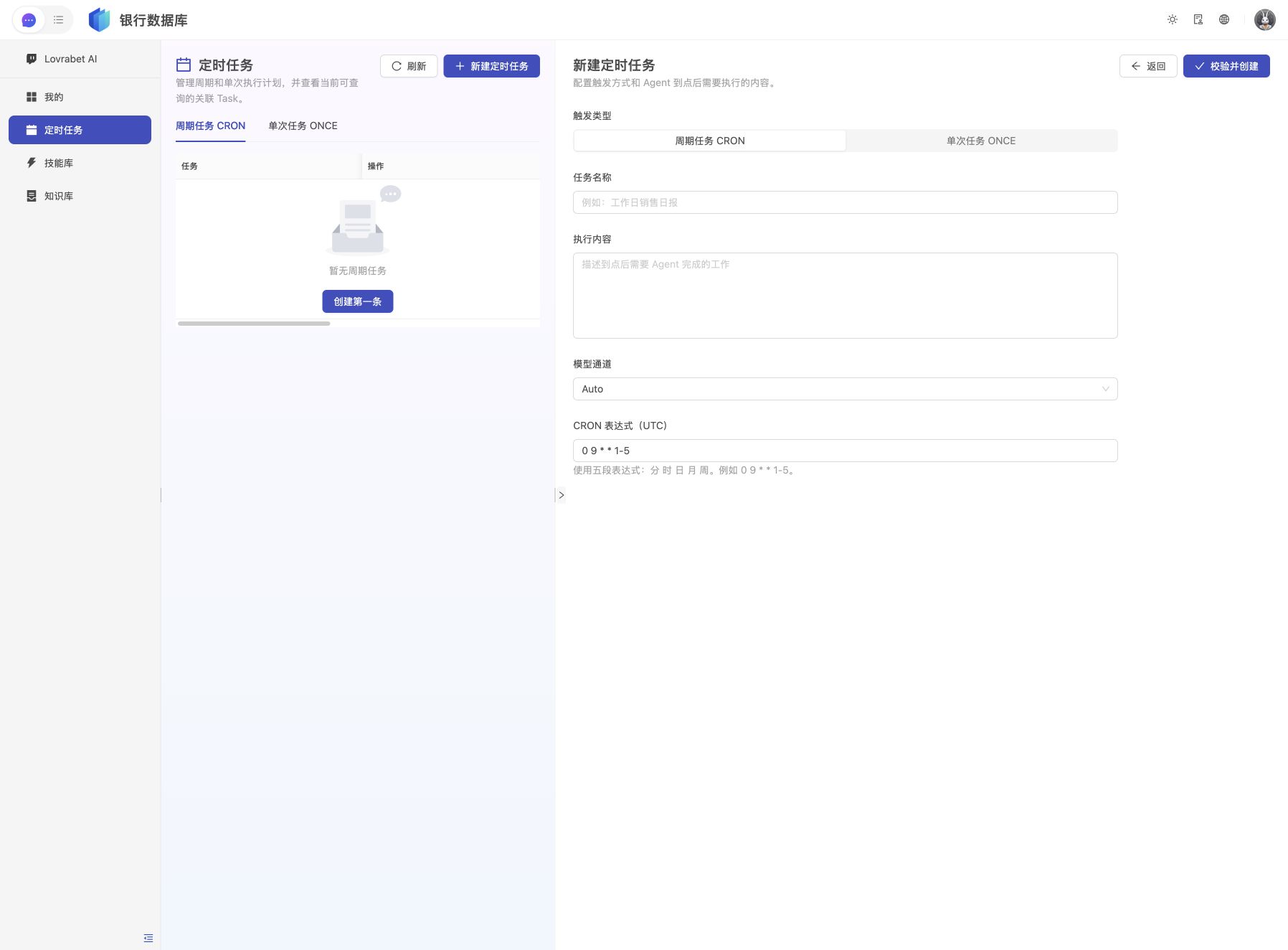
| Field | Example | How to fill it in |
|---|---|---|
| Trigger type | Recurring task | Choose this when it needs to run daily or weekly. |
| Task name | Workday work-item summary | Make it clear what this task does. |
| Model channel | Auto | Keep the default. |
If the schedule settings on the page don't make sense to you, go back to Option 1 and let the Agent create it — no need to work out the expression yourself.
The execution content defines what the Agent does when the time comes. It must be self-contained — don't rely on the chat context from when you created the task. Copy the example below, then replace the work-item scope and target group:
汇总最近 1 个工作日内与我相关的工作项。

读取当前应用中我负责、我参与或 @ 我的需求、任务和缺陷,按【已完成】【进行中】【阻塞】【待跟进】分类。

每条工作项包含:标题、负责人、当前状态、更新时间和可访问链接。合并重复记录,不重复发送同一工作项。如果没有新增或变更,明确写“本周期无新增或变更”。

完成汇总后,将结果发送到飞书群「<飞书群名称>」。发送成功后,在本次任务结果中返回消息链接或发送回执;发送失败时,说明失败原因,不要伪造成功结果。
To send to DingTalk instead, just replace the last paragraph with:
完成汇总后,将结果发送到钉钉群「<钉钉群名称>」。发送成功后,在本次任务结果中返回消息链接或发送回执;发送失败时,说明失败原因,不要伪造成功结果。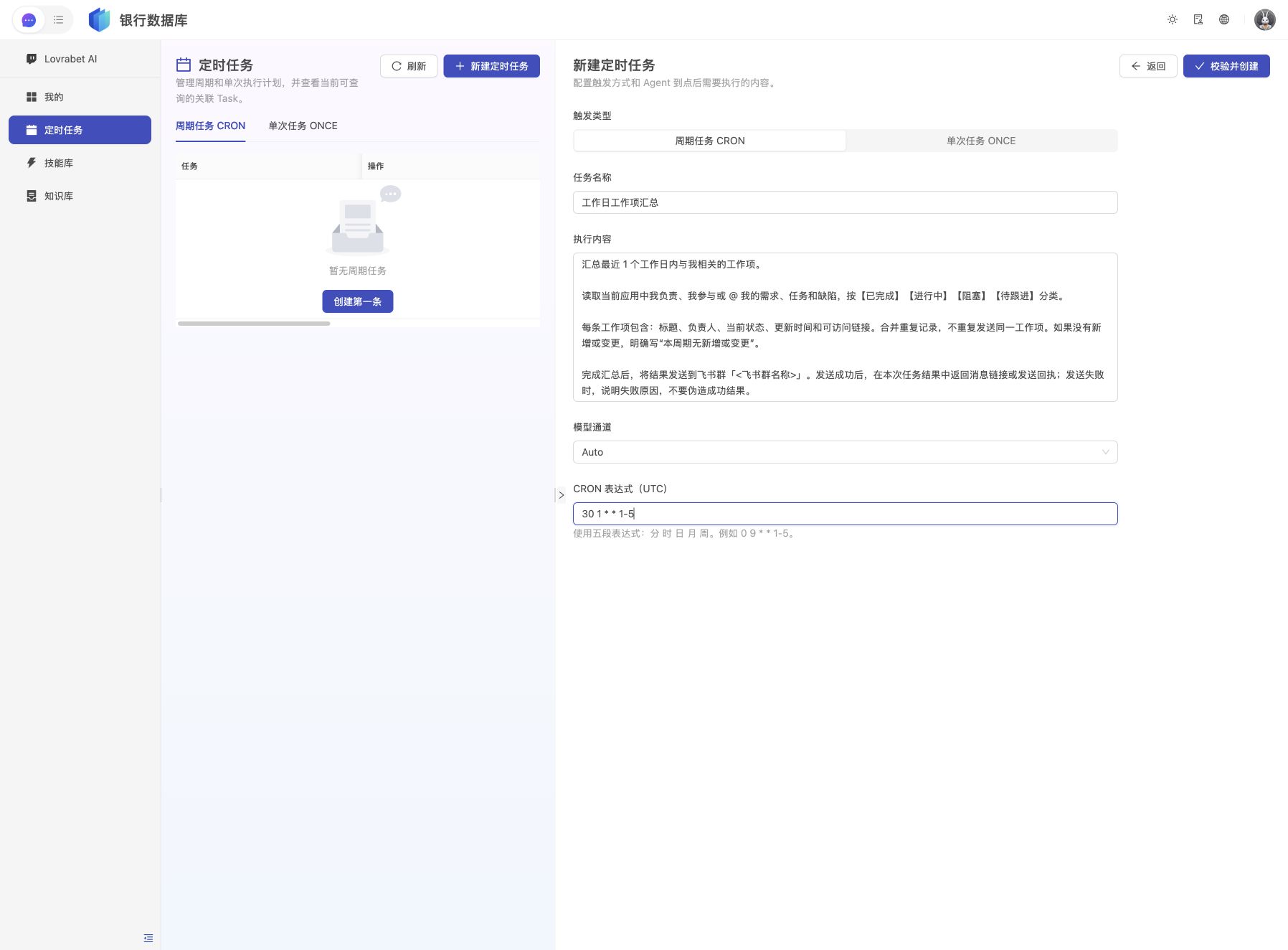
Validate and create the task
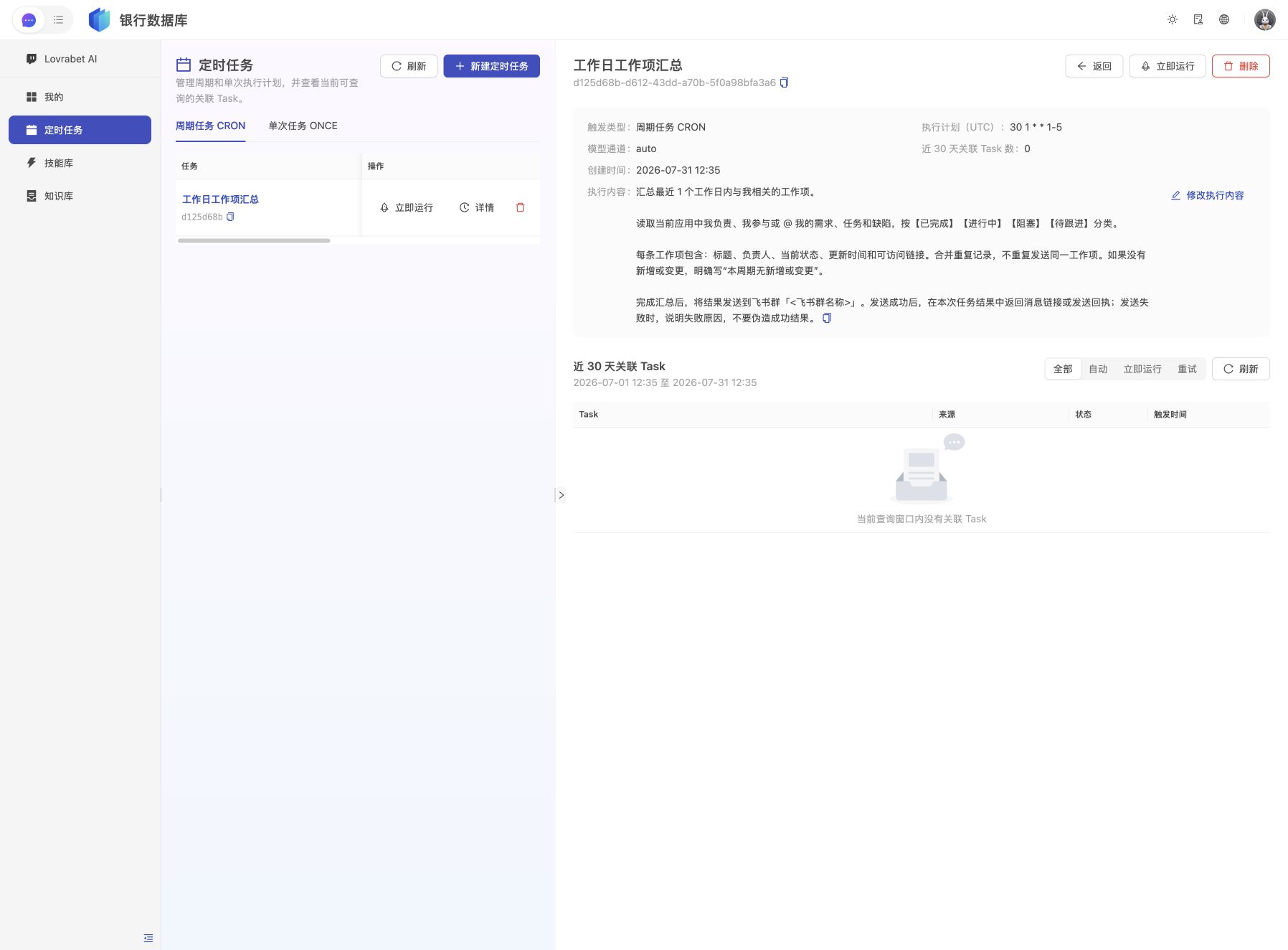
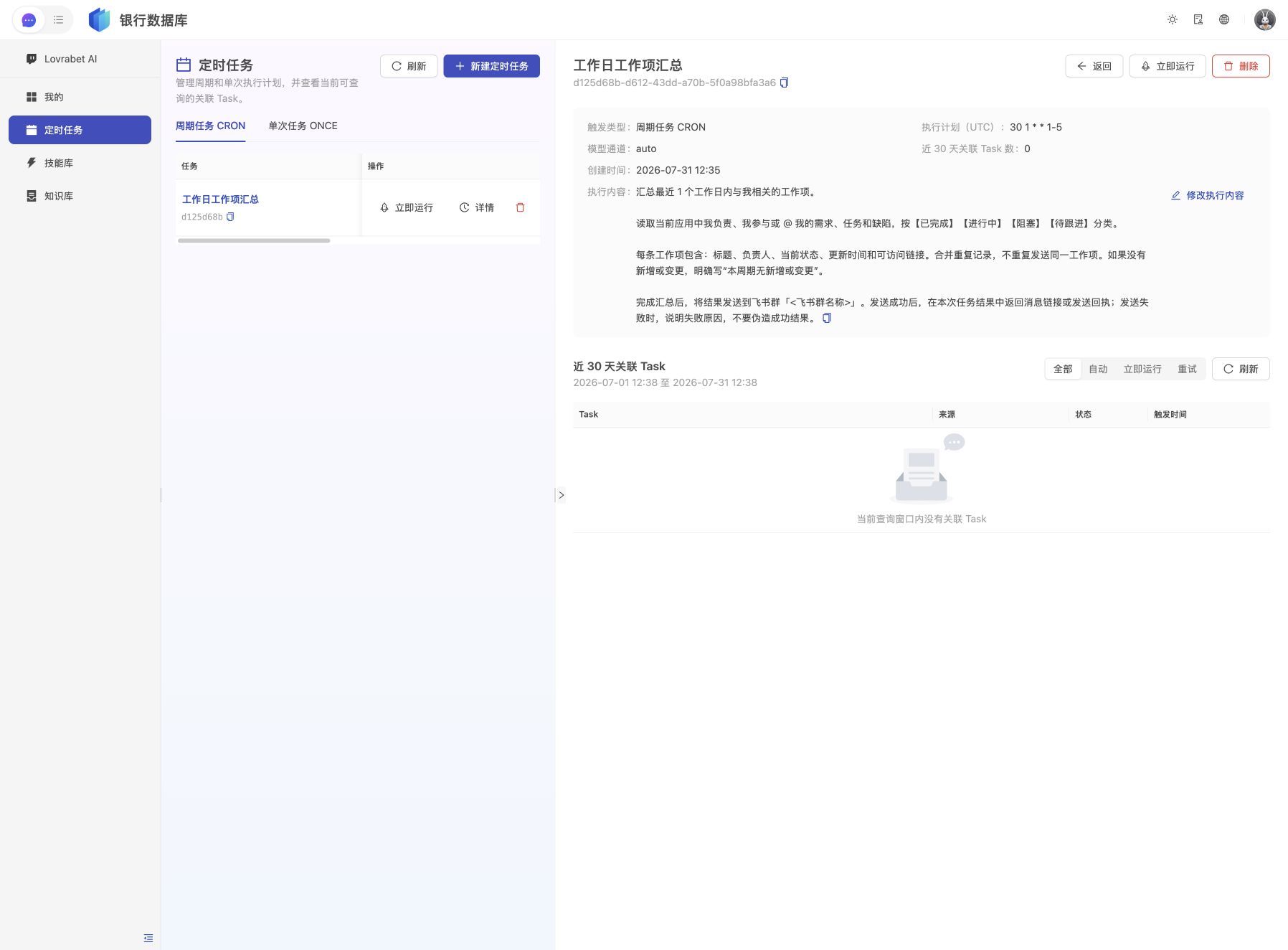
Click Validate and Create. When the page shows "Scheduled task created", it takes you to the detail page automatically. Check that the task name, schedule, model channel, and execution content are correct.
Run now and check the delivery
Click Run Now from the task list or the detail page. When the page shows "Task accepted", it only means the task has entered the queue — the summary and message aren't done yet.
Stay on the detail page and refresh the "Linked Task" until its status becomes "Completed" or "Failed". Once it's done, confirm in the target Feishu or DingTalk group that the message arrived, and check the work-item scope, categories, and links.
INFO
We recommend running the task once right after creating it. Confirm the query scope and the group message are both correct, then wait for the next automatic run.
Verify the end state
[ ] The page shows "Scheduled task created".
[ ] The new task appears in the task list or the detail page.
[ ] After clicking "Run Now", the detail page eventually shows "Completed".
[ ] The target Feishu or DingTalk group receives the message, with the right scope and categories.
[ ] The message contains no Access Keys, passwords, or other sensitive information.
FAQ
The task runs at the wrong time. Open the detail page and check the schedule. If it's wrong, create a new task. If the schedule settings confuse you, just use Option 1 and let the Agent create it for you.
The task completed, but nothing arrived in the group. First have the Agent send a standalone test message to the group. Confirm that Feishu or DingTalk sending is authorized, the group name is exact, and the bot or app is still in the group.
The page says "Task accepted" but there's no result. The task is still running. Open the detail page and refresh until the status shows "Completed" or "Failed".
You need to change the schedule or recurrence. Create and verify a new task first, then delete the old one.
A one-time task is gone after it ran. Check the run record in the task detail or the task center.