Data list page editor
What is the data list page editor
The data list page editor adjusts data list pages and their forms without touching code. You can configure filters, table columns, form fields, default values, display order, and more, so a generated page fits your actual business.
It's built for page-level adjustments. To add complex interactions, rewrite the layout, or wire in custom logic, extend the code project with Vibe Coding instead.
How the data list page editor differs from the DO editor
The data list page editor controls how a page displays and behaves; the DO editor controls the data object itself — field types, relations, and business semantics. When the same property appears in both, the DO model wins. Confirm field types and relations at the DO layer first, then adjust layout and copy at the page layer.
Rule of thumb: if the data structure is wrong, fix the DO first; if the display or interaction is wrong, fix the data list page.
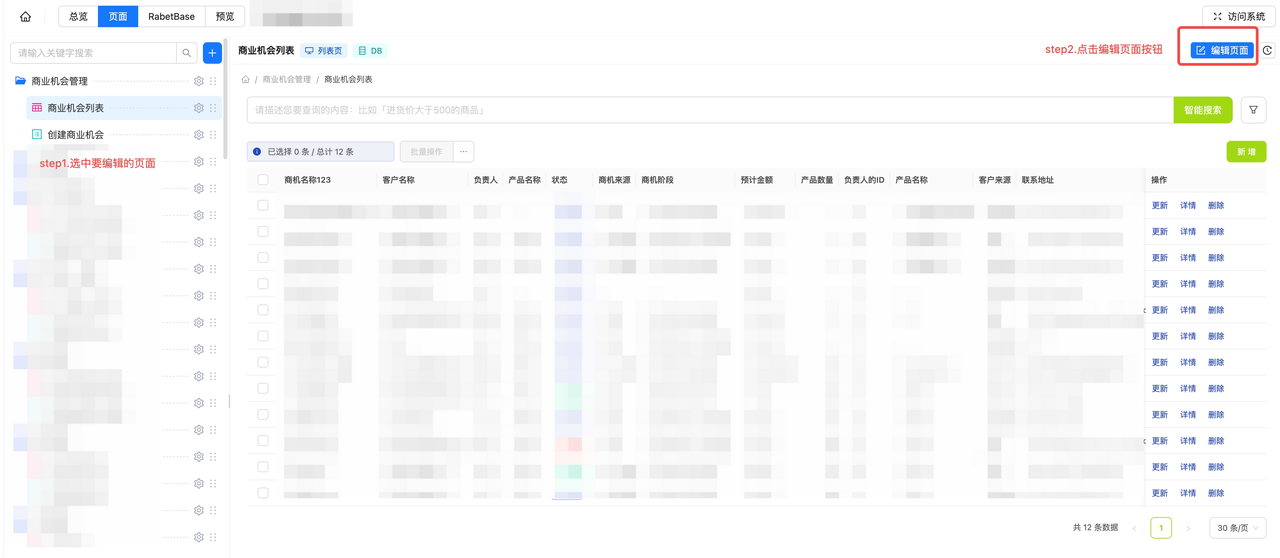
Where to find the data list page editor
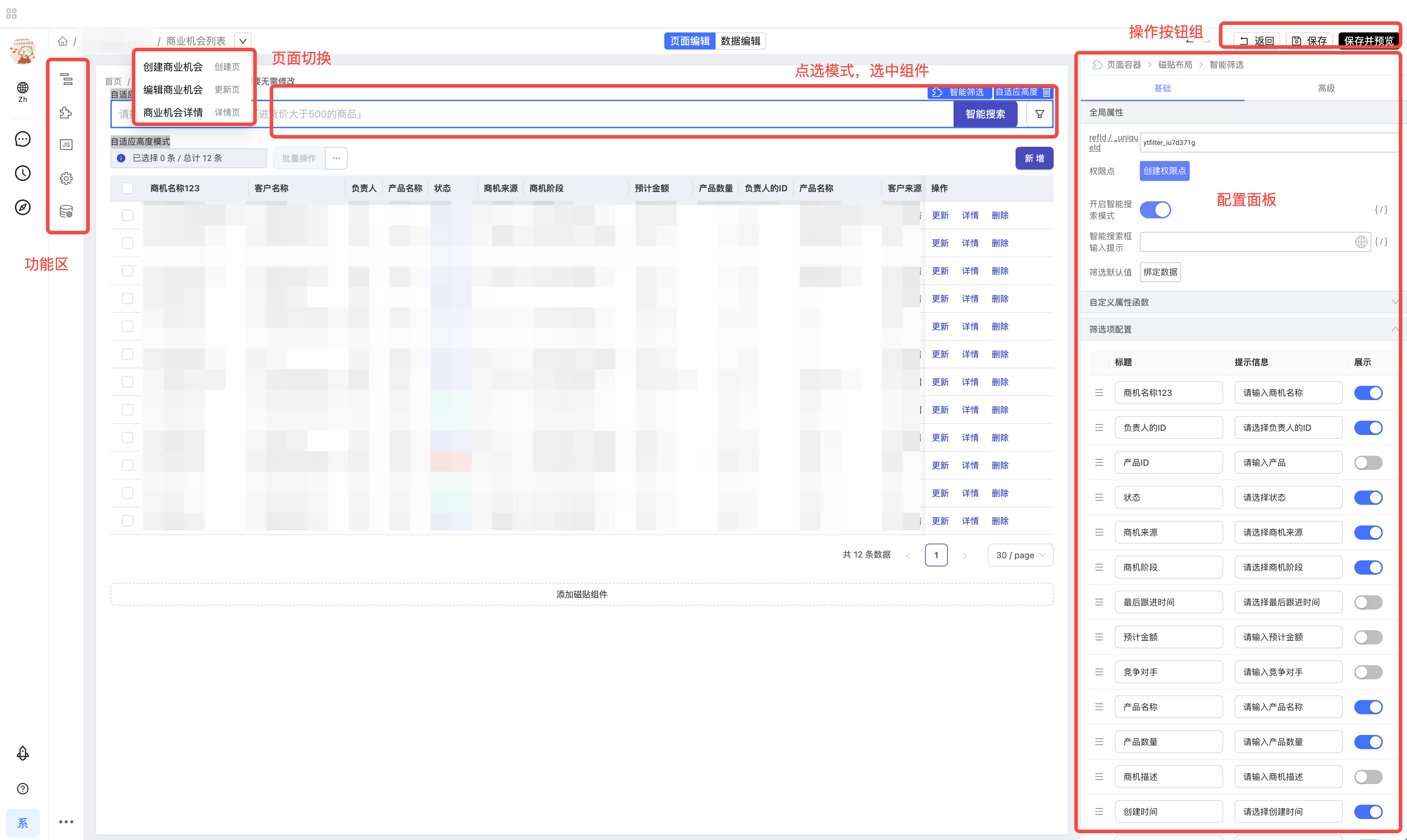
How to configure filters
Smart search toggle
Smart search is natural-language search powered by a large language model. It's on by default; turn it off manually if you don't need it. With it off, you get the classic filter box.


Default values
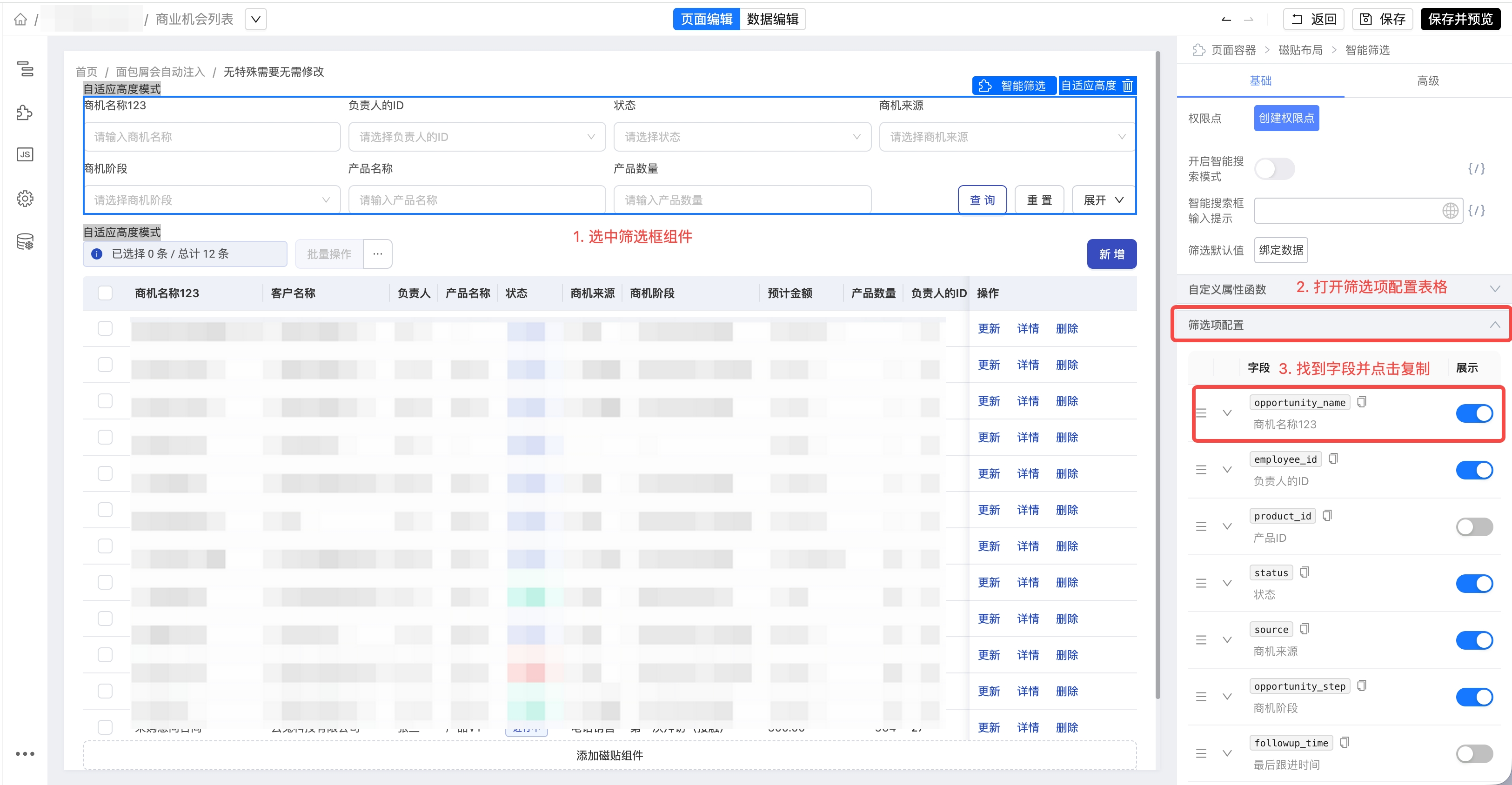
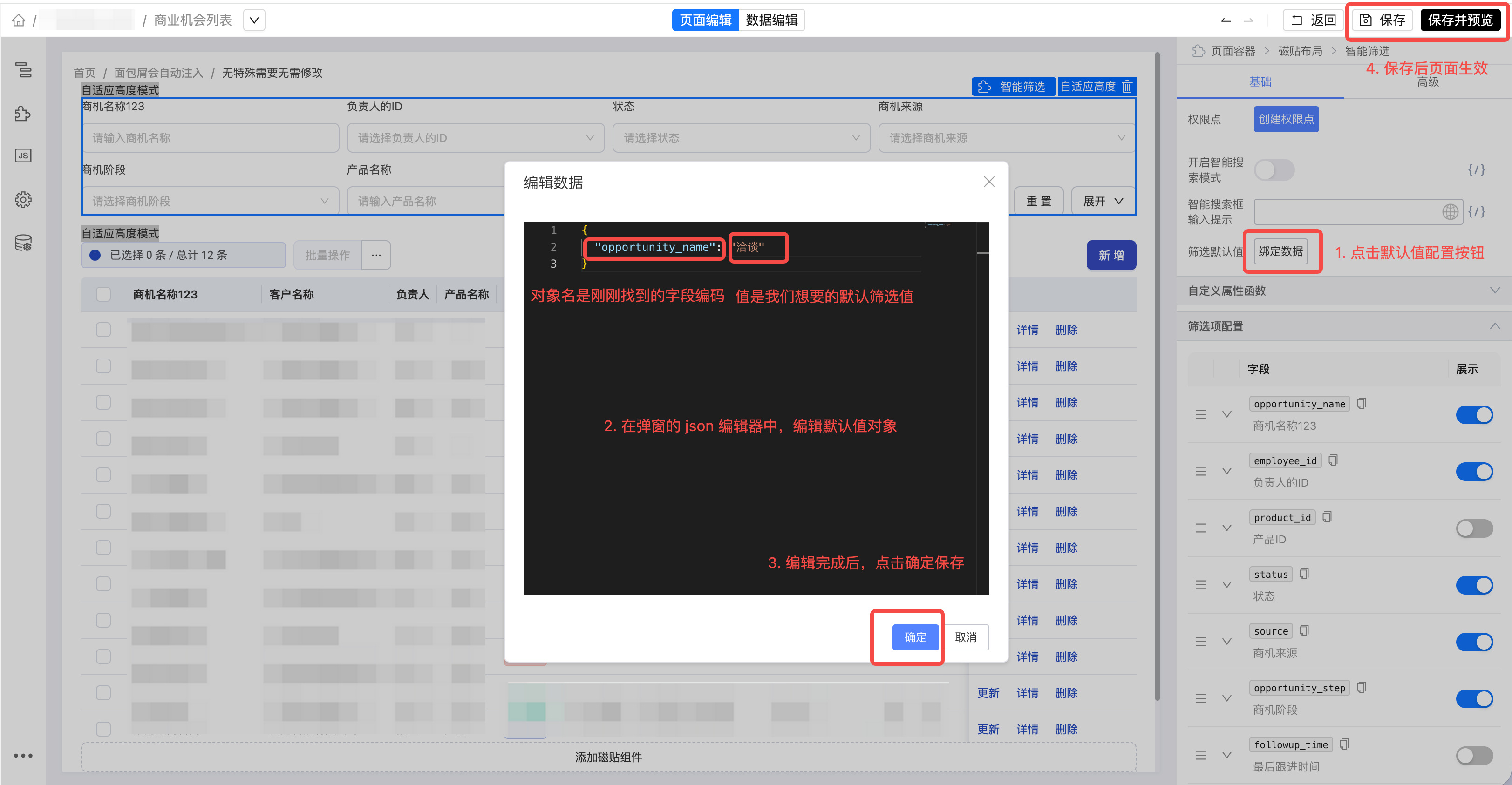
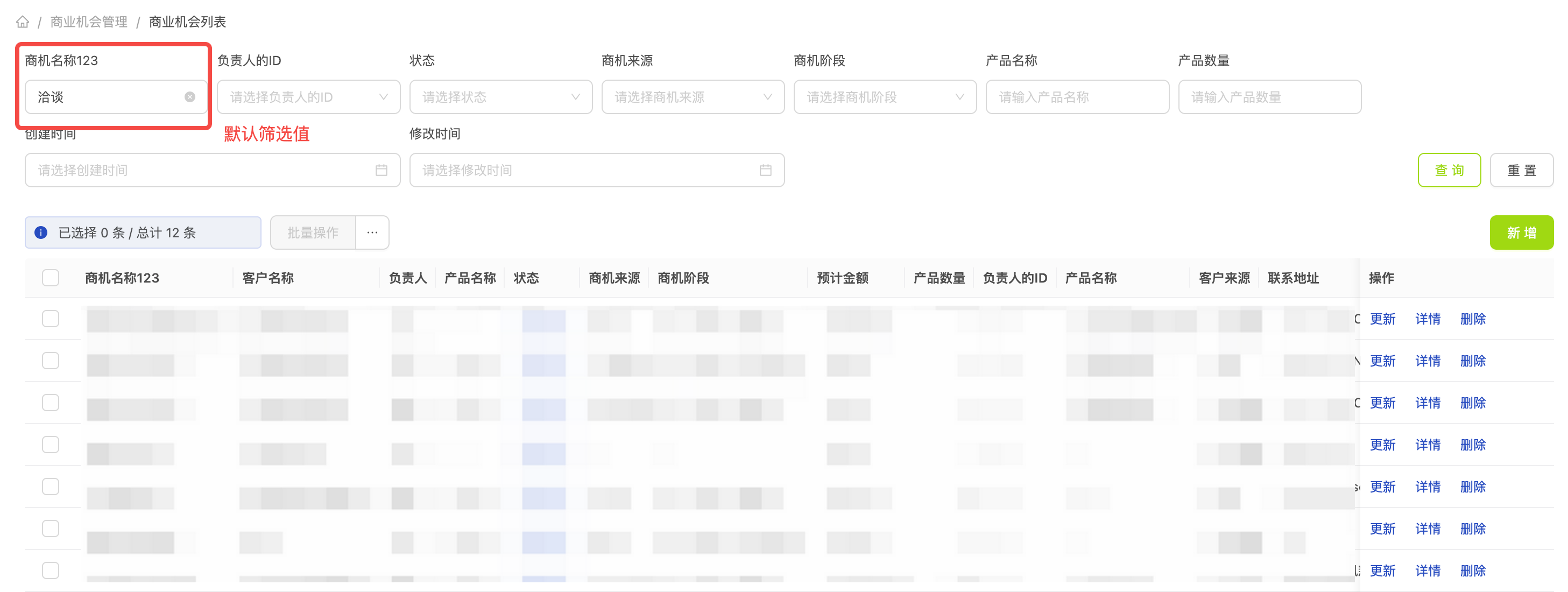
Default filter values are supported: the page opens showing the results filtered by the defaults. Here's how to configure it, using the example of filtering Opportunity name for records containing "洽谈" by default.
- Find the field code behind the
Opportunity namefield
- Turn on the filter default-value toggle and configure the default value object
- Result after saving
Filter item order and visibility
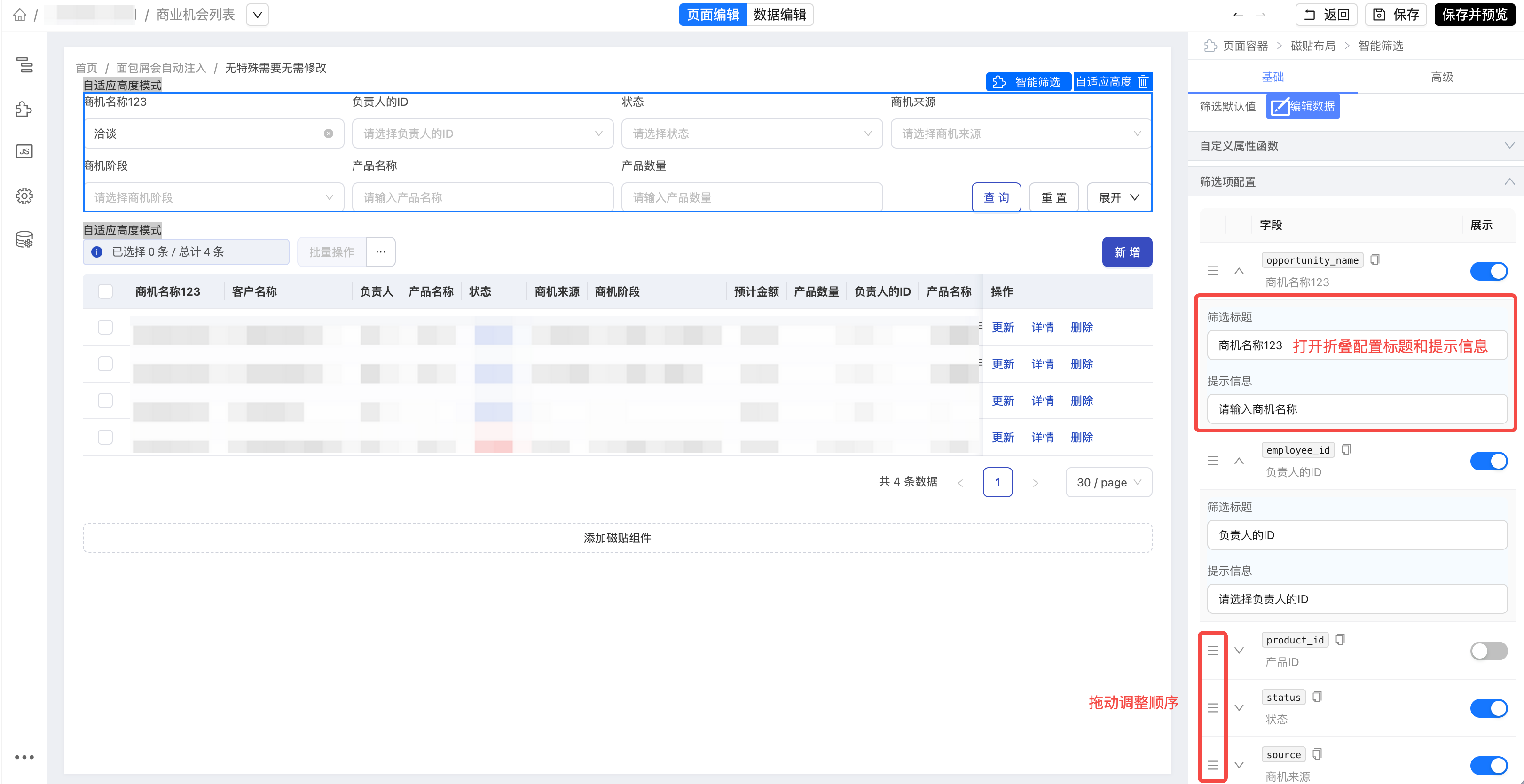
- Set the display order of filter items
- Show or hide each filter item
- Set the display label and hint text for individual filter items
How to configure forms
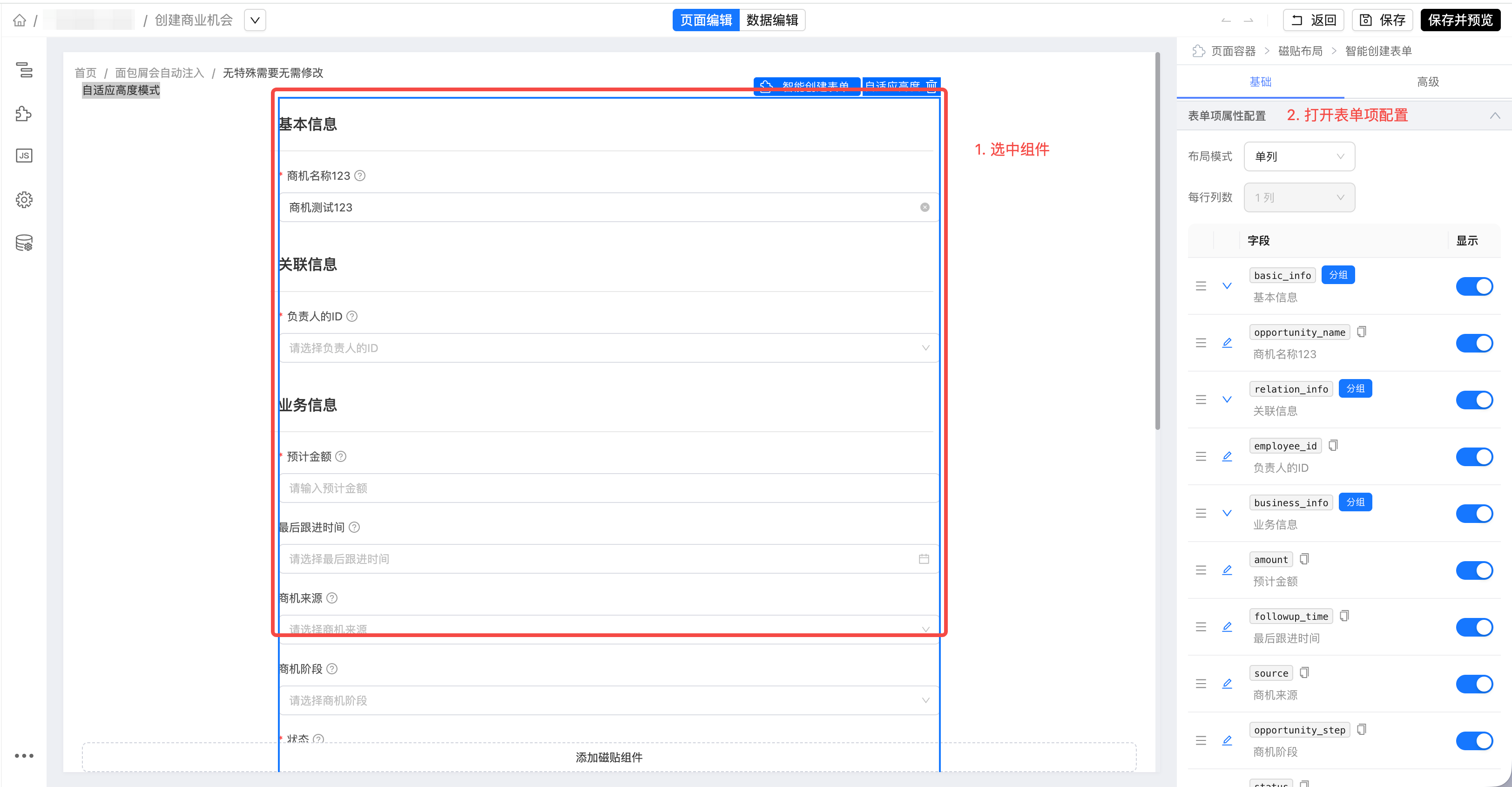
Default values
Same approach as the default filter values.
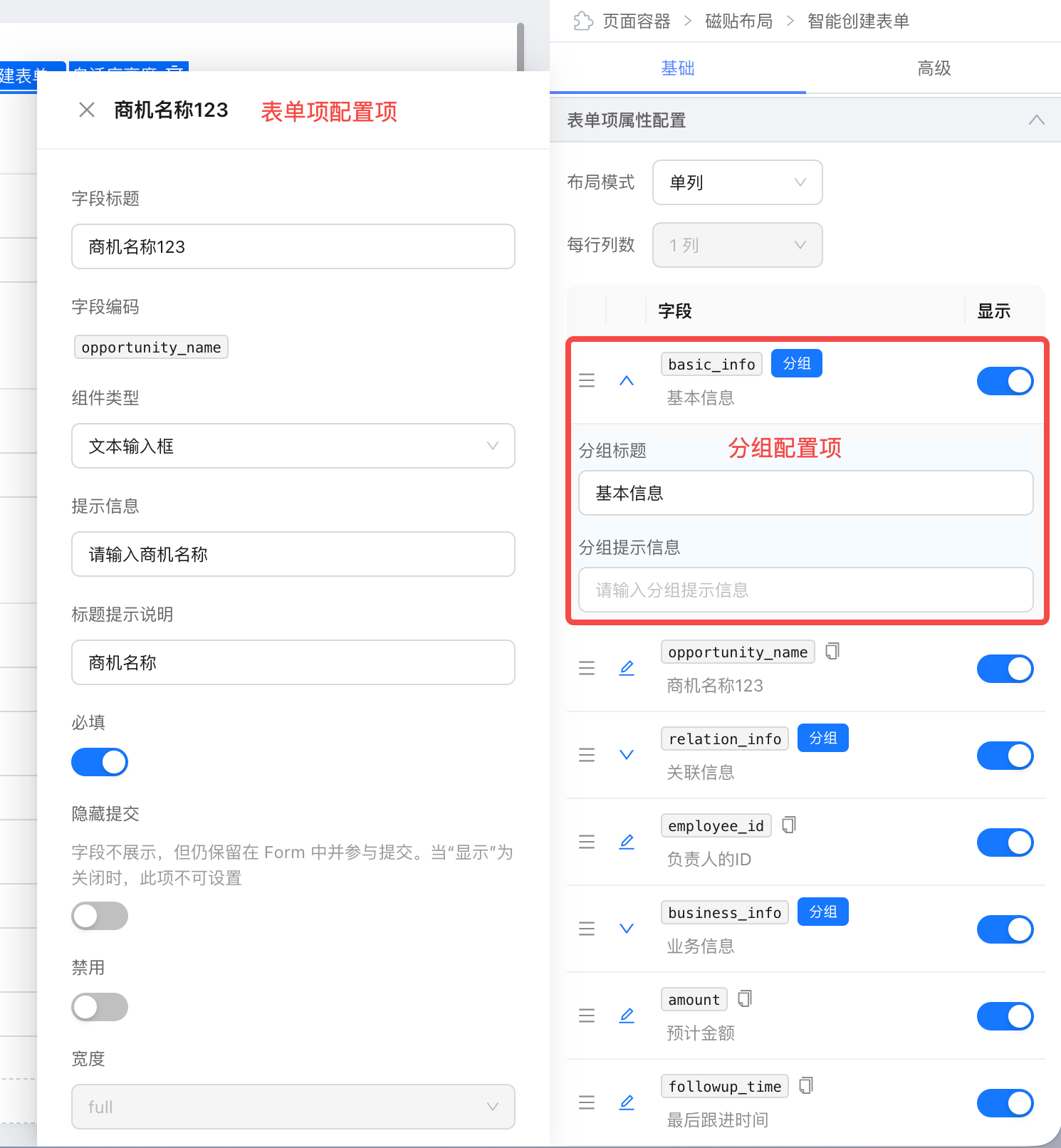
Form item settings
Form items come in two kinds — groups and regular items — and each type has its own settings panel.
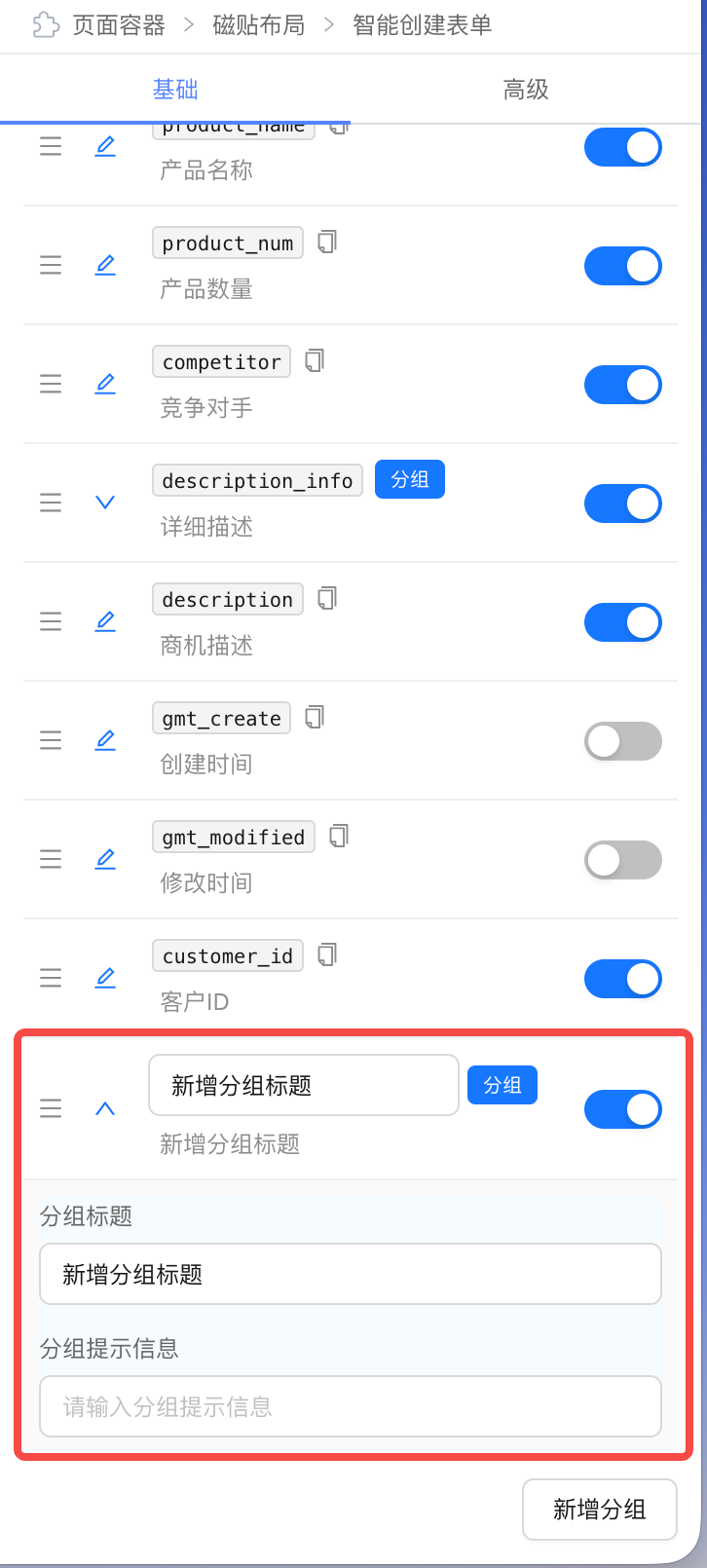
Add a group
How to configure the table
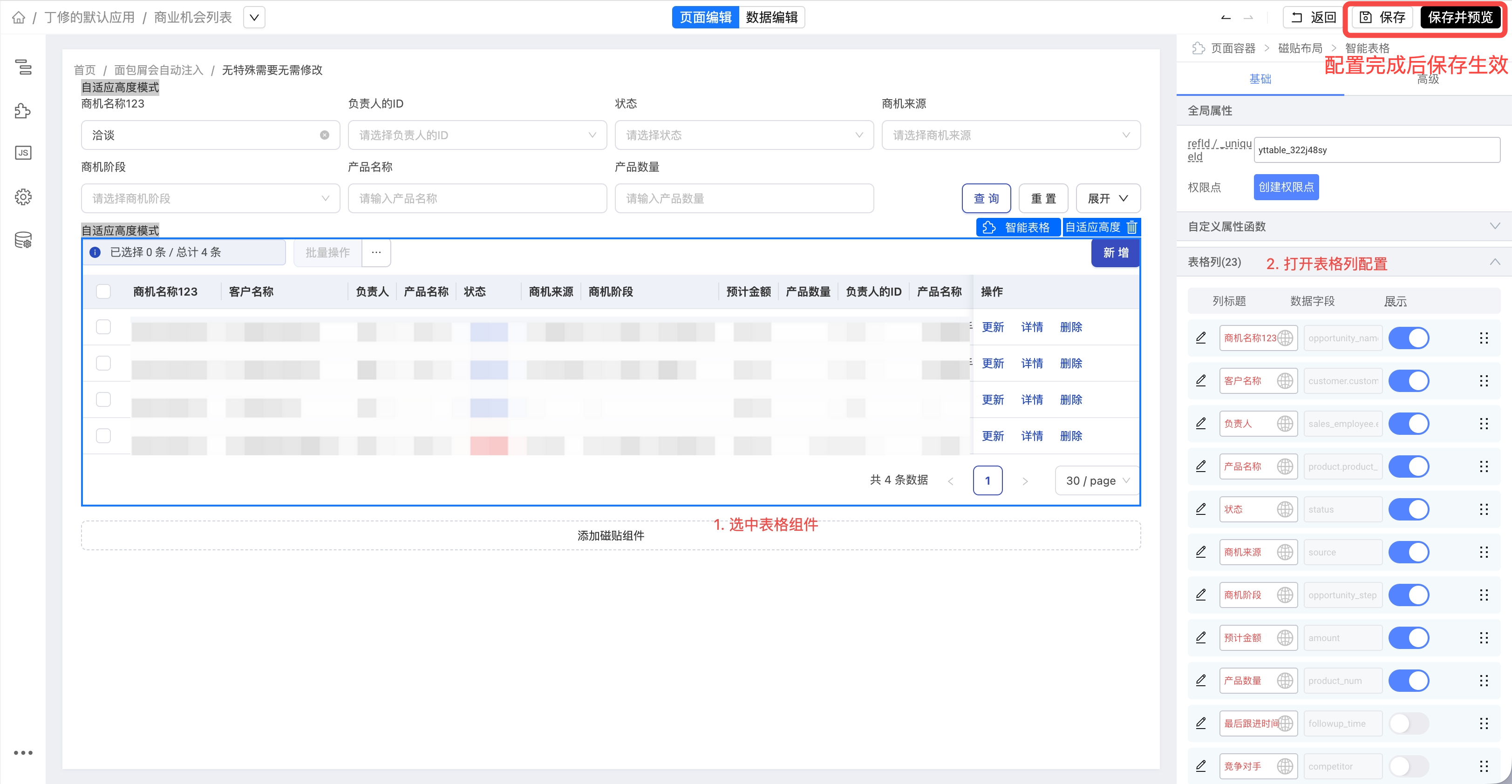
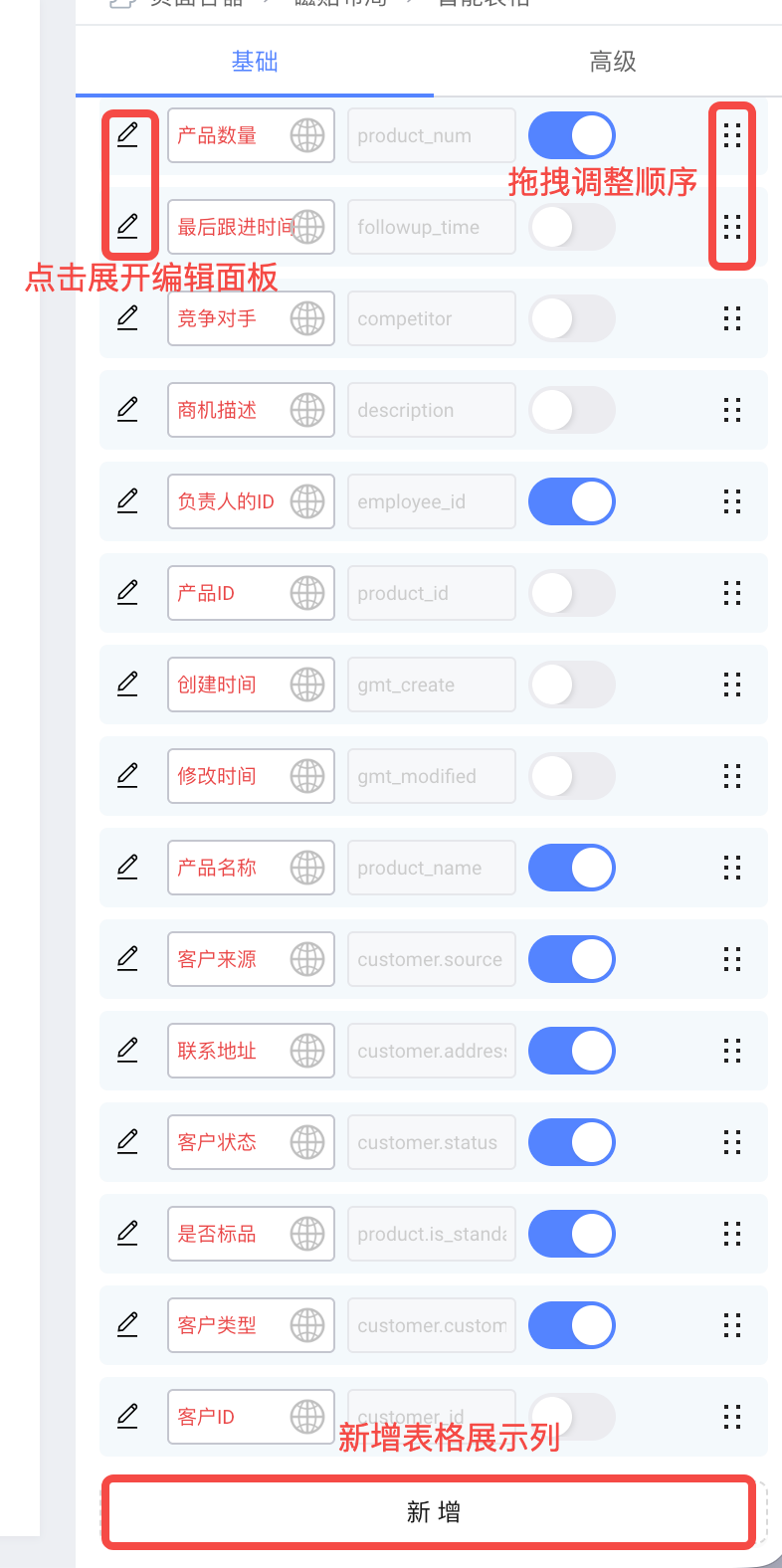
Column properties
Select a column and open the edit panel to view and edit its detailed properties.
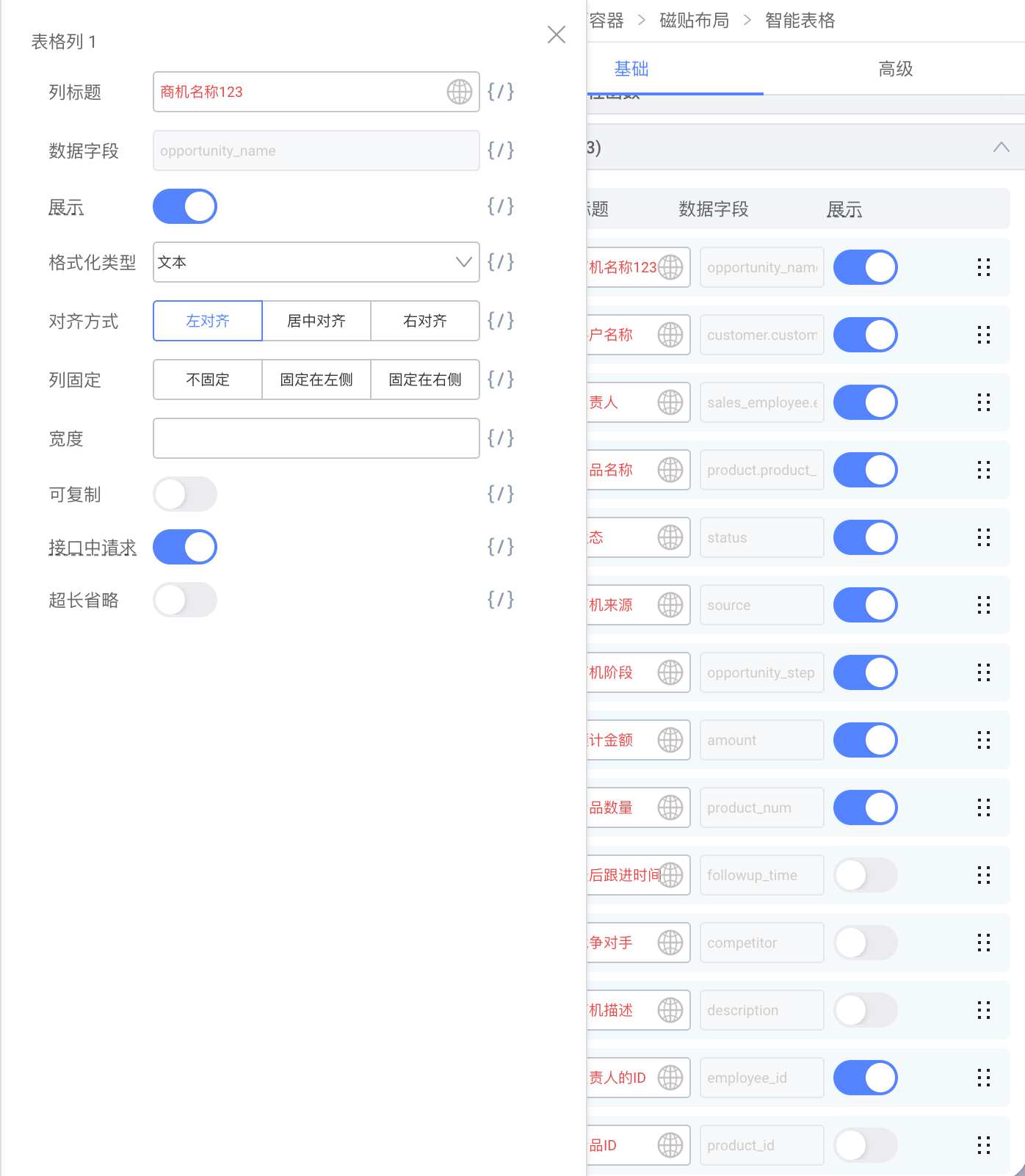
Most are standard property settings. A few deserve special attention:
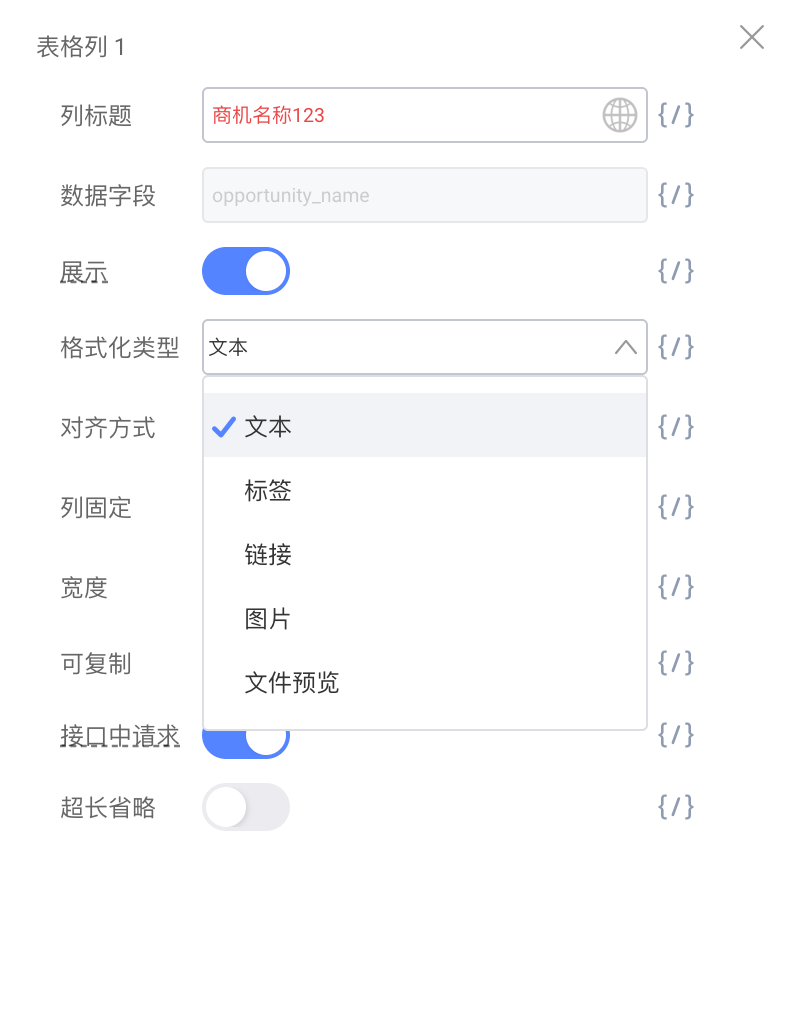
- Format type — how a value renders in the table. A plain-text value can render as a tag, a hyperlink, and so on. The available renderings depend on the value's type.
- Request in API — whether the field is fetched from the API. Turn this off and the field is no longer pulled from the API, and the column disappears with it.
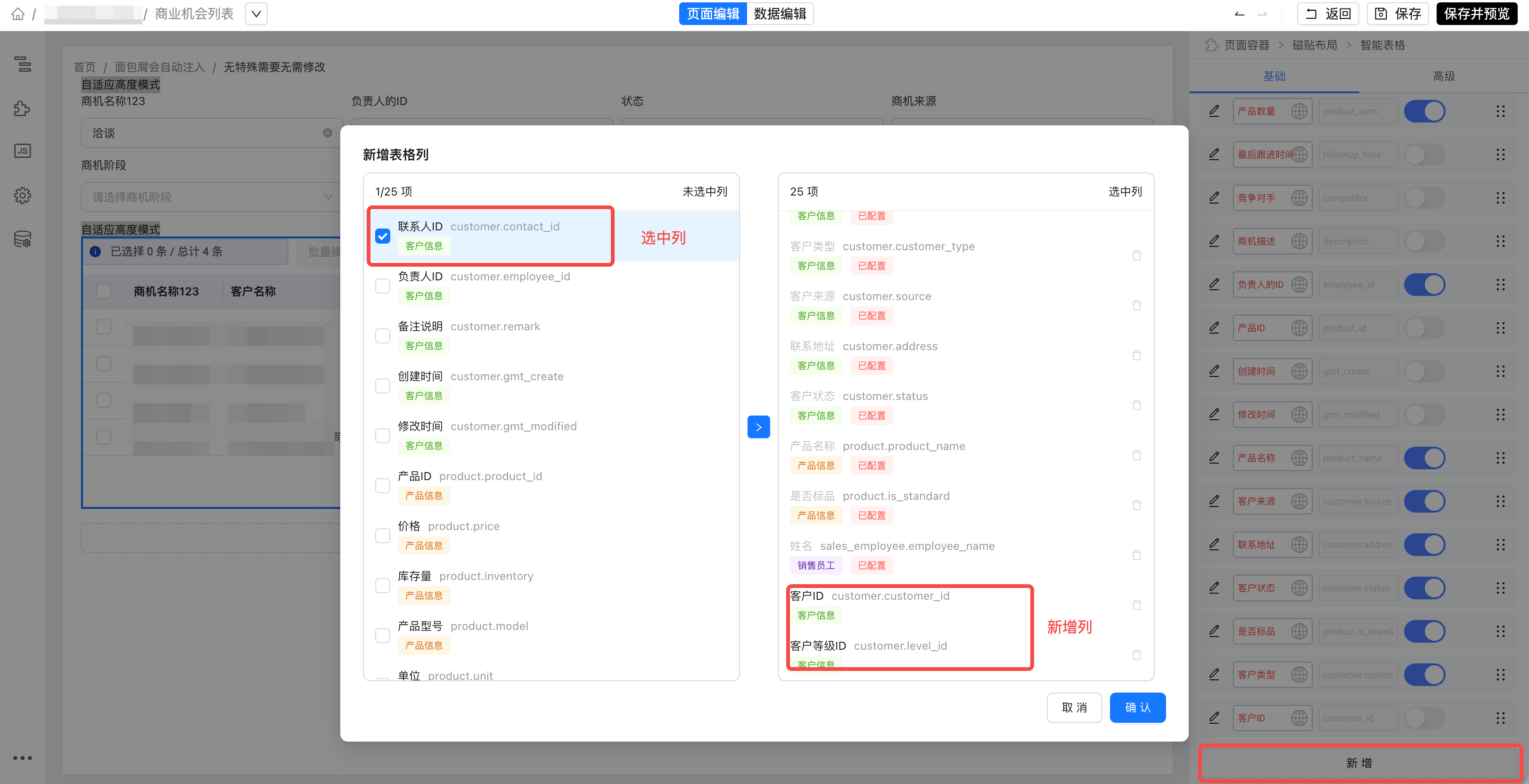
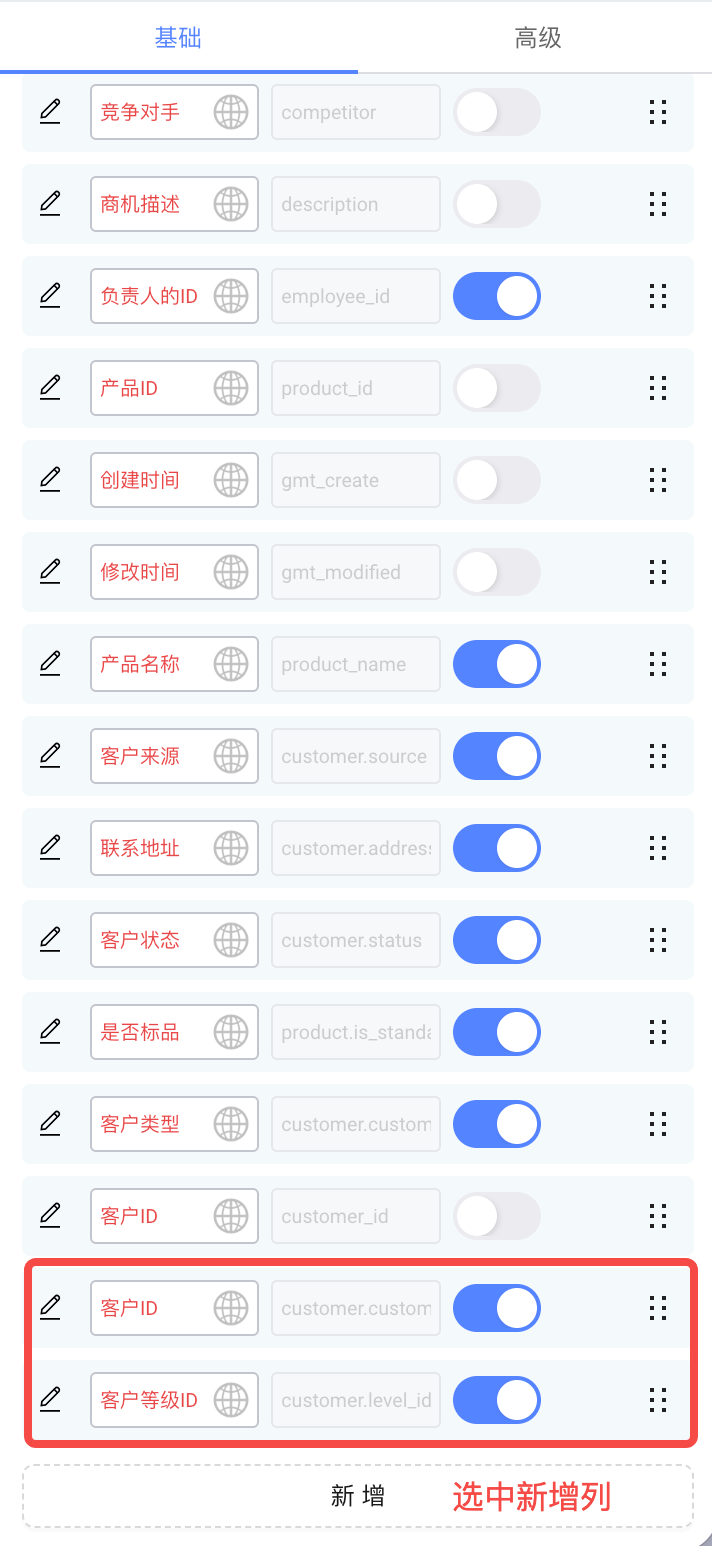
Add a column